

Open Shell, originally known as Classic Shell, is open source software that allows you to replace the standard Start Menu in Windows 10 and Windows 8. Open Shell was originally released as Classic Shell in 2009.

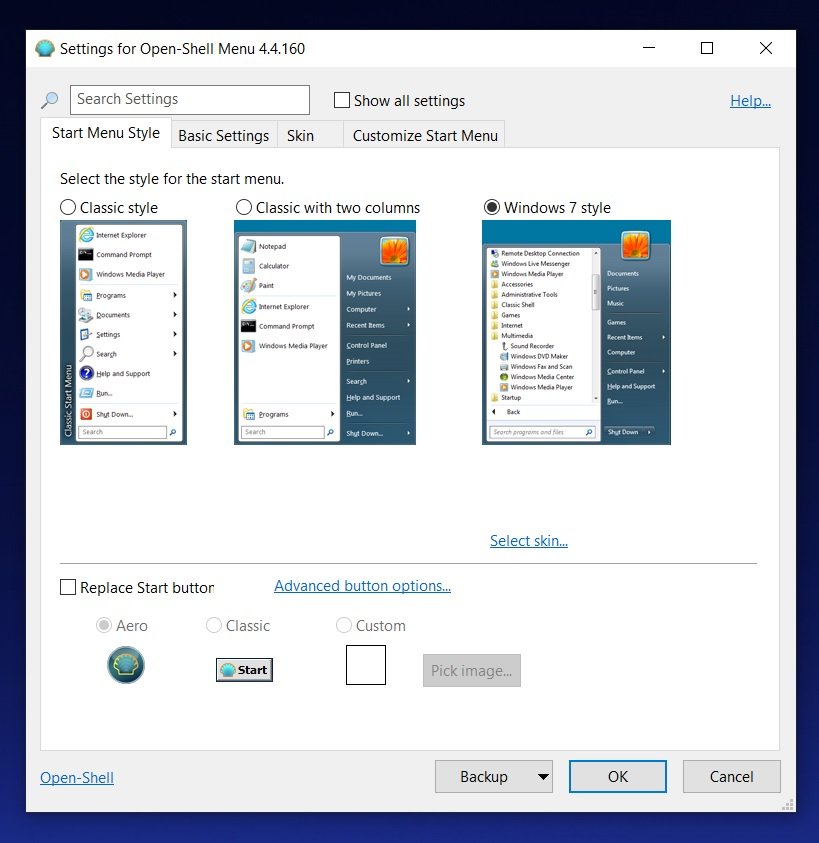
With Open Shell, you can change the appearance of the Start Menu and replace it with Windows 7.
In Windows 8, Open Shell is configured to bypass the full-screen Start Menu and launch directly to the desktop.
In Windows 10, Microsoft already allows users to access the Start Menu directly from the desktop , but you can use this open-source tool to bring back the classic Windows 7 experience
Key features of Open Shell:
- Works on Windows 7, 8, 8.1, 10
- Allows you to enable the toolbar for Windows Explorer
- Enable classic copy UI (Windows 7 only).
- Show file sizes in Explorer's status bar.
- Title bar and status bar for Internet Explorer.
How to enable Windows 7-like Start Menu in Windows 10
A really nice feature is that for those who don't want to use the tile-based Start Menu of Windows 10, Open Shell allows you to recreate the Start Menu that looks like Windows 7.
To replace the Windows 10 Start Menu with the Windows 7 Start Menu, follow these steps:
1.Go to Github and download the Open Shell program.
2.Start the installer.
3.Click the Next button.

4. Click the Install button on the following screen.

5.If you only want the Start menu, make sure to remove Classic Explorer and Classic IE so they don't get installed. When you've done that for both options, click next .
6.The installer will now begin the installation.

7.Click "Next".
8. Windows will display a User Account Control prompt asking for administrator permission . Click “Yes” if you want the program to be installed on your computer .

9.Click the Finish button
Once you're done, click the Start button to access the configuration page where you need to choose the style of the Start Menu.
Information source: bleepingcomputer.com
