

Some people are particularly sensitive to the vibrations their iPhone makes, whether for personal or medical reasons. Thanks to an Accessibility feature, you can completely disable all vibrations on your iPhone, including those caused by emergency alerts. Here's how.

First, a disclaimer
Normally, you can turn off most vibrations on your iPhone in the “Settings” app under “Sound & Haptics.” There, you can decide whether you want your iPhone to “Vibrate On Ring” or “Vibrate On Silent.” But even if you turn them off, your iPhone may still vibrate if you receive an emergency alert about severe weather , natural disasters , or a missing person
Emergency alerts can be turned off individually, as for some people, these vibrations can be annoying . In this case, you can completely turn off all vibrations on your iPhone. Just know that once you turn them off, you will no longer receive vibrating emergency alerts .
How to completely disable all vibrations on iPhone
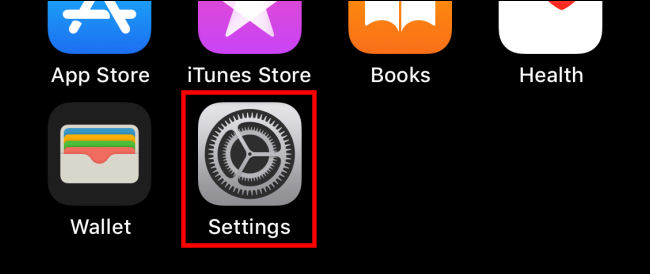
First, open “Settings”.
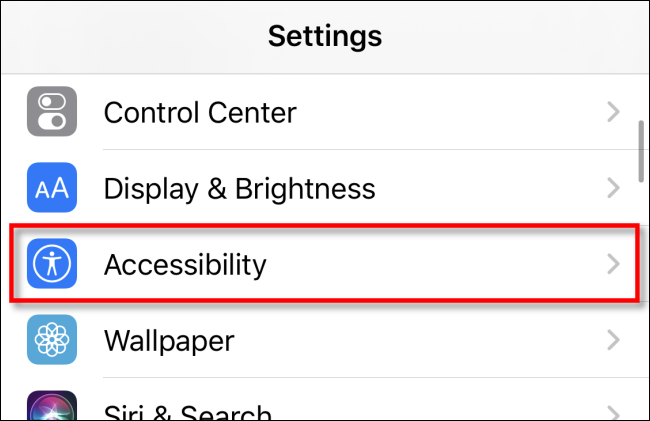
In Settings, go to the “Accessibility” section.
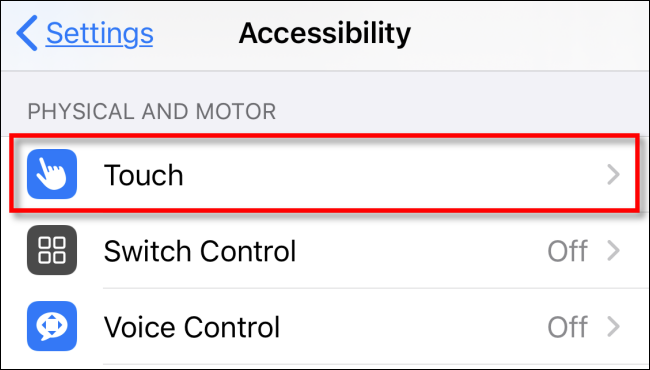
In Accessibility, tap “Touch”.
In Touch settings, scroll down and tap the switch labeled “Vibration” to turn it off.
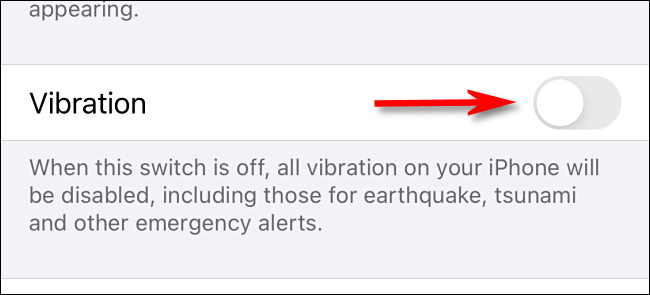
After this, your iPhone will no longer vibrate. If you want to re-enable vibrations, simply visit the “Vibration” button in settings again and tap “Touch” and turn it back on.
Information source: howtogeek.com
