

Party Time: Watch TV with your friends online. Time for a different party than you're used to, watching your favorite series and movies with your friends.
Even a favorite activity at home, like watching TV, can become monotonous sometimes, especially if you're used to hanging out with your friends and watching together.
While you can stream and message, use FaceTime , or share your screen on Zoom, sometimes that's not enough. If you're looking for a way to make watching your favorite shows more social, there are browser extensions that let you host digital TV watch parties.

Here are apps you can use to host movie nights with friends online, along with step-by-step instructions on how to watch.
To use these apps, you'll need your own subscription to each service, and everyone watching will need to sign in to their own account. These extensions work with your existing subscription to sync videos with your friends—they don't provide free viewing to non-subscribers.
NETFLIX PARTY
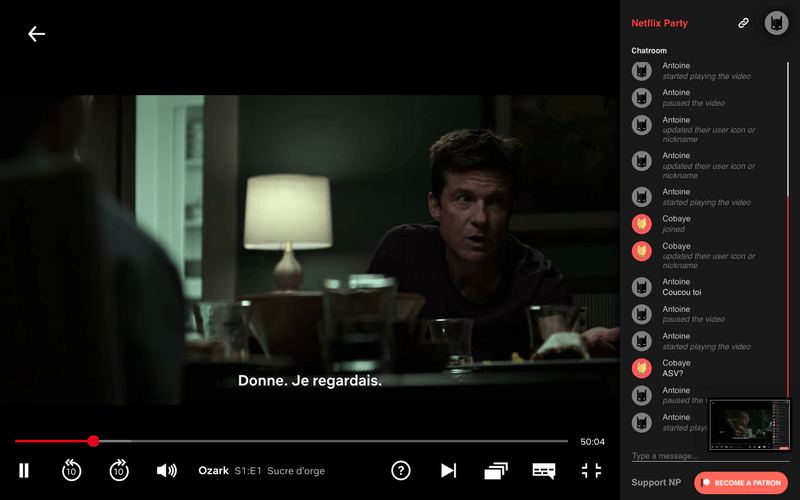
Netflix Party syncs streams with your friends' and adds a live chat to one side of the screen. The app is for use with Netflix and is only available for Chrome.
To host a Netflix Party:
Download the extension
Open Netflix and start playing a video.
The Netflix party extension icon next to the address bar should change from gray to red. Click on it.
A window will appear instructing you to “Create a Netflix Party.” You have the option to either give yourself full control of playback or leave it open to everyone. Click “Start Party.”.
Another window will appear with a link. Click “Copy URL” and share it with your friends. If needed, you can find this link again by clicking the Netflix Party extension icon.
Netflix Party will automatically create an icon. By clicking on the icon, you can change it (there are a few alternatives) and set your nickname.
To join an existing Netflix Party:
Click on the link.
Click the Netflix Party icon.
AMAZON WATCH PARTY
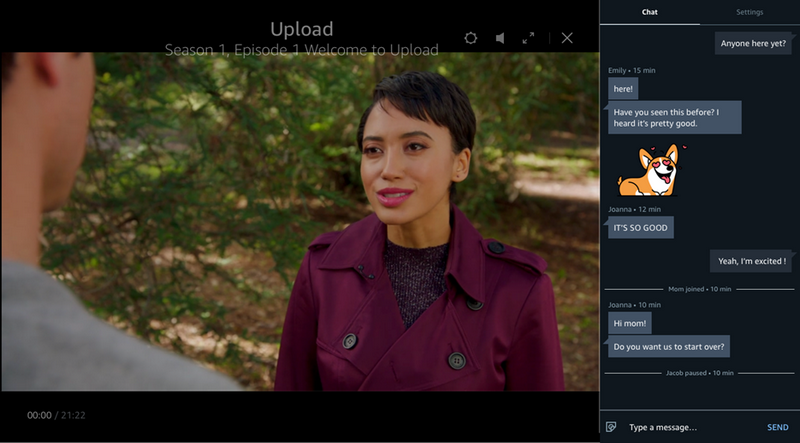
Amazon Prime Video now has a Watch Party app for many (but not all) Prime videos. Up to 100 people can watch at the same time. All participants must be Prime members . It's currently only available on desktop and isn't supported in Safari and Internet Explorer browsers . In this beta, only the host computer can pause, fast forward, or rewind.
To host an Amazon Watch Party:
Go to the details page of the video you selected and look for the “Watch Party” button next to the “Watchlist” button.
In the right column, decide what name you want to use in the chat and type it in there. Click “Create Watch Party.”.
The video is in the center of the screen, while on the right is the chat area and settings tab. Below the settings, you can copy and share the Watch Party link or end the party.
To join an Amazon Watch Party:
Click on the link your friend sent you.
You will be redirected to Prime Video and asked to enter a username. Once you have done this, click on “Join Watch Party.”.
METASTREAM
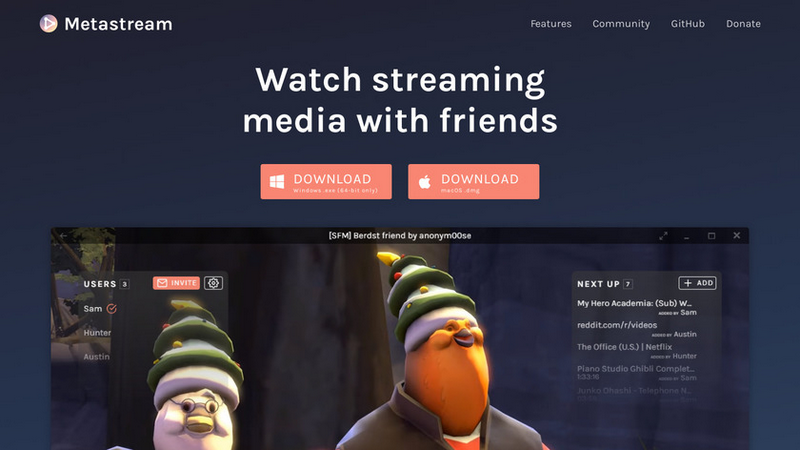
Metastream lets you live chat while watching videos on a range of platforms, including Netflix, Hulu, YouTube, Twitch and Crunchyroll (Metastream opens Netflix in a separate window). The app is still in beta, so there are some hiccups – for example, we had some issues using it with Hulu on Chrome. Metastream recommends using Firefox when watching Hulu, which worked best when we tested it.
To organize a Metastream party:
Download the extension for Firefox or Chrome. The extension will be able to read and change data on websites you visit.
Go to https://app.getmetastream.com/
Type a nickname and click “Get Started”.
Click “Start Session” on the next screen.
Click the “Invite” button on the left to get a link to share, then click “Copy” and send it to your friends. In the same window, you can also make the session public, private, or offline and change the number of users allowed (you can have an unlimited number of users).
Your friends will need to click on this link to join the session. When they do, you’ll see a box on the left with your name and theirs. You’ll need to click the green radio button by their name to let them in. To allow them to add videos and change the playback, click the three dots next to their name, then click “Switch DJ.”
SCENERY
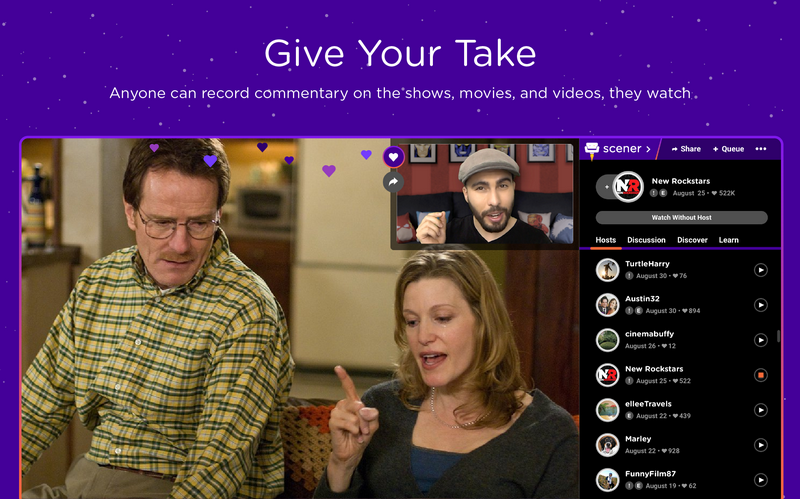
Scener lets you video chat with your friends while watching Netflix, HBO Now, HBO Go (doesn't support HBO Max yet), Disney Plus, or Vimeo. It also has a text chat feature.
To use Scener:
Download the Chrome extension. The extension will ask for permission to read and change your Netflix and Scener data, display notifications, and “communicate with partner sites.”.
Open the app by clicking the extension icon (to the right of the Chrome address bar). If you can't see it, click the puzzle icon and you can access it from there.
A window will then open, along with a sidebar, that will guide you through creating a viewing party. Click “Create Theater” in the sidebar.
You can choose to create a private theater with up to 10 people, but everyone must be invited, or you can host a public theater with up to 10 hosts (with audio and video) and unlimited viewers (with access to chat text only). Make your choice (let’s say you want to create a private theater), then click “Create.”.
A window will appear asking you to create an account. Click the “Create Account” button, or if you have an account, click the button that says, “Already have an account? Sign in here.”
Enter a username, email, and password to create your Scener account.
You will receive a notification explaining how Scener works. Click "Next.".
Select the streaming service you want to use. Then, sign in to that service.
Click the button with a camera icon that says “on” to turn on your camera.
This will open a pop-up window. Click “Allow camera and microphone.” Another window may open suggesting you use headphones. Click “I got it” at the bottom of the window, then “All set” in the first pop-up window.
TWOSEVEN
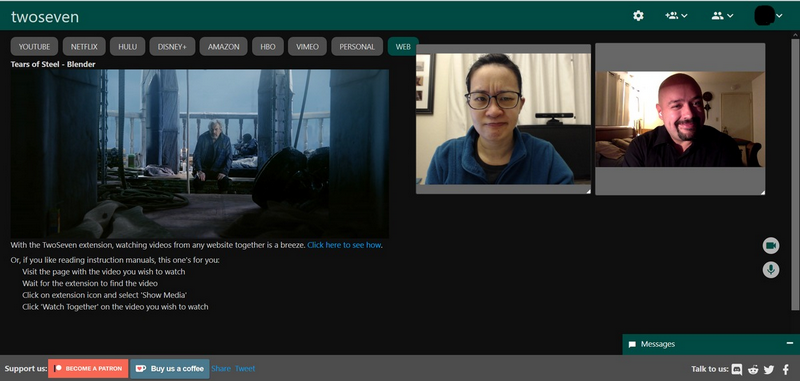
TwoSeven also has a video chat feature, but it supports more services. In addition to Netflix, you can use it to watch Amazon Prime Video, HBO Now, YouTube, and Vimeo. If you pay the subscription fee, you can also use the app with Hulu and Disney Plus. Subscription prices range from $5 to $20 per month, but due to COVID-19, TwoSeven is offering all of these features for $3 per month.
To organize a party with TwoSeven:
Download the extension for Firefox or Chrome. The extension will ask for permission to show notifications and read and change data on websites you visit.
Create an account by clicking the extension icon and going to the website. You will need to confirm your email.
Click on the TwoSeven icon next to the address bar, then click on “Go to twoseven.xyz”
Click “Get Started.” Here you can change your avatar and username by clicking the icon in the top right corner. Select “Account” to access your profile settings.
Click “Start Tracking”.
A pop-up window will appear allowing you to create a private room. Select the checkboxes to allow other participants to access your camera and microphone or to allow only administrators to control playback.
Click on the icon in the top right corner that has two people and a plus sign. Click on “Copy Link” and share this link with friends. Once you do, they will be added to the watch session.
Click the camera and microphone icons on the right side of the screen to enable video and audio.
There is also a live chat feature at the bottom of the screen. Click on “Messages” in the bottom right corner to open it.
HULU WATCH PARTY
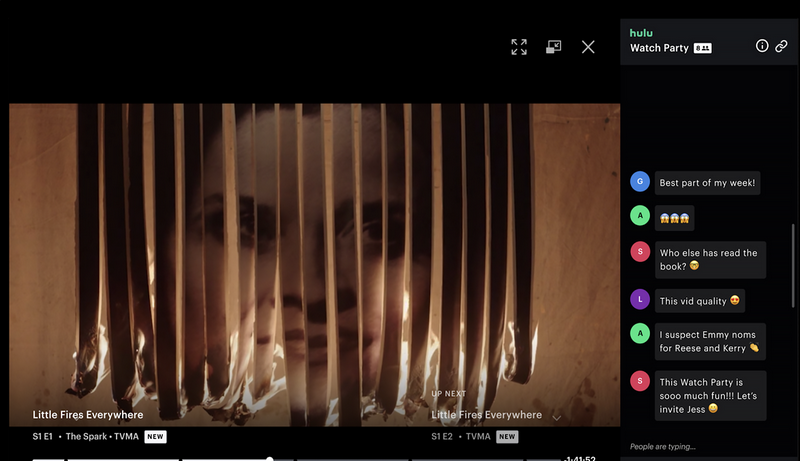
Hulu’s ad-free subscription now lets you host a party for up to eight people using live text chat within the service. While the feature is available with the live TV plan (no ads), you can’t use the “Watch Party” feature for live TV content or content from premium add-ons. You can sign up from your own profile, which means multiple people on the same account can use the “Watch Party” feature together.
Open Hulu.com. Make sure you're using the latest version of Chrome, Firefox, Safari, or Edge.
Find a movie or show to watch. Not all videos are available to watch using Watch Party. You can check if a title is compatible with the feature by looking for an icon showing three people on the “details” page, next to “Start watching.”.
Once you go to the “details” page, click on the “Watch party” icon.
Click “Start the party” in the pop-up window.
Click the link icon to copy the link and send it to others so they can join your party.
When you're ready, click “Start Party.” To add people later, you can click the link icon in the top right corner of the chat bar.
After following the link, your invitees will be connected and see a message acknowledging that they have been invited to a watch party. They can click “Join the Party” to watch with you.
