

Today you will see how you can disable the Command Prompt feature in Windows 10. It is a tweak particularly useful for administrators.

Sometimes it's useful to prevent users from accessing the classic Command Prompt application in Windows 10.For example, if you're a system administrator, you might want to apply this restriction to those who use their computer for secretarial or accounting purposes.
There are two ways to disable the Command Prompt in Windows 10. The first is through Local Group Policy and the second is through the Registry Editor. The first method can be used in Windows 10 Pro, Enterprise, or Education editions. The second in all editions. Let's look at these methods.
To disable Command Prompt in Windows 10 via Local Group Policy.
1. Open the Local Group Policy Editor. If you don't know how, then press the Win + R keys simultaneously and in the run window that appears, write the word gpedit.msc and then press the OK button.

2. In the left pane, go to “User Settings > Administrative Templates > System”.
3. In the right pane, locate the setting “Do not allow access to the command prompt”
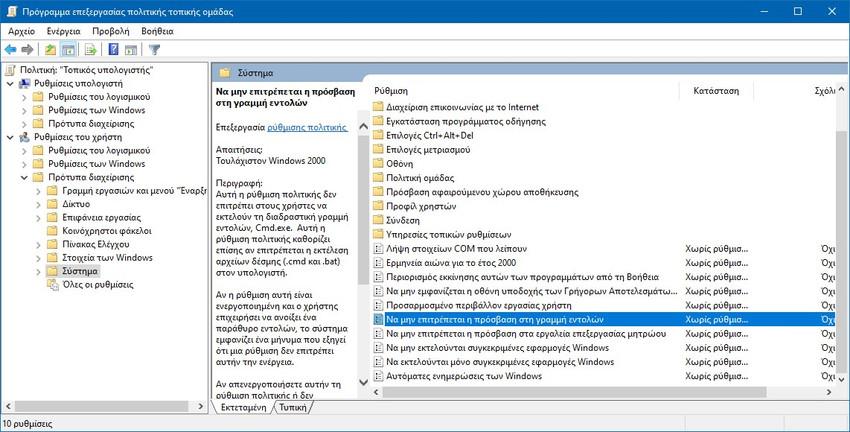
4. Double-click this setting and set it to Enabled.
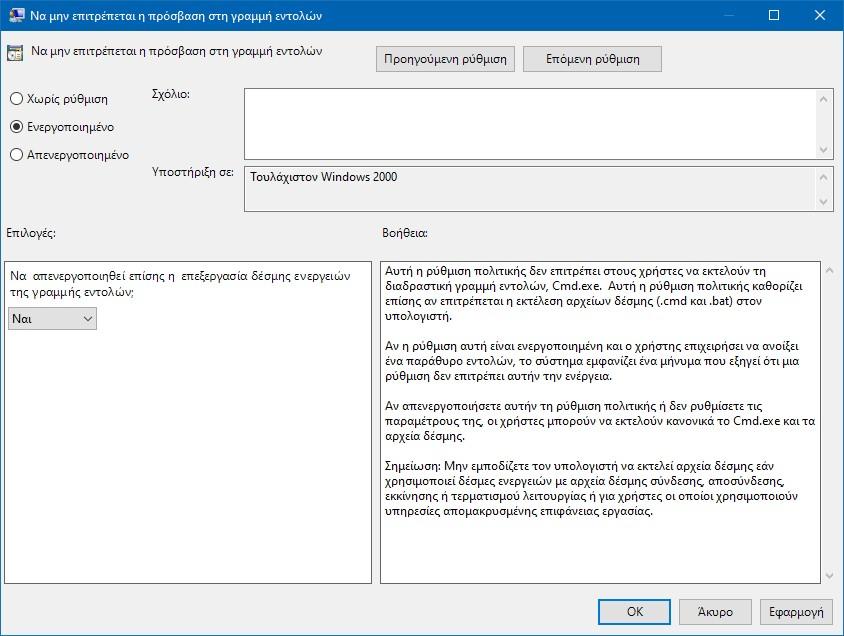
You can also set the option “Also disable command line script processing?” to “Yes”. This prevents the execution of executable files (* .bat and * .cmd)
Click the Apply button and then the OK button.
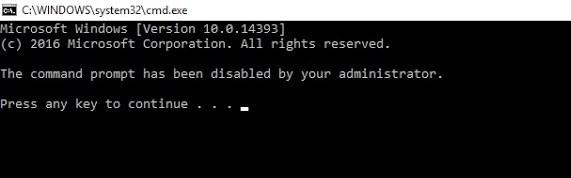
Now if someone tries to access the command prompt, regardless of the method they use, the action will be canceled with the following message:
“The command prompt is disabled by your administrator.”
To disable Command Prompt in Windows 10 via the registry.
1. Open the Registry Editor. If you don't know how, then press the Win + R keys simultaneously and in the run window that appears, write the word regedit and then press the OK button.
2. Go to the following registry key: HKEY_CURRENT_USER\Software\Policies\Microsoft\Windows\System
If you don't have such a key, then simply create it.
3. In the System key, create a new 32-bit DWORD value named DisableCMD. Even if you are running 64-bit Windows, you should use 32-bit DWORD as the value type.
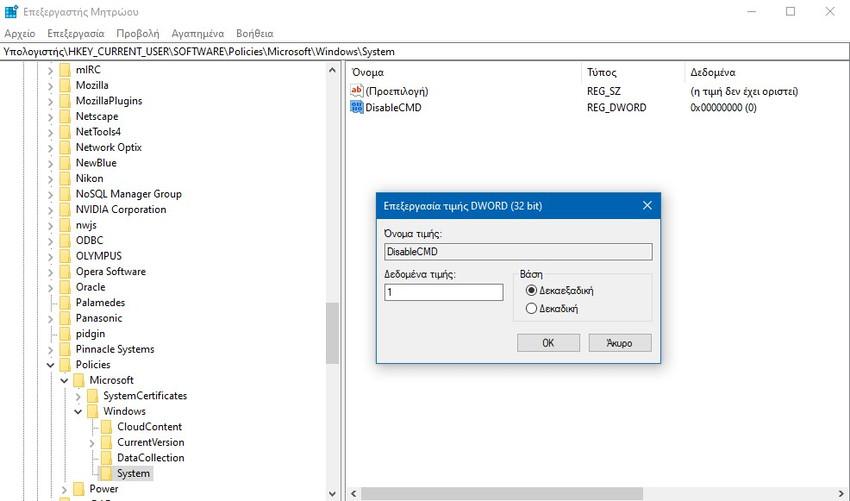
Set to 1 to disable the command line and executables.
Set to 2 to disable only the command line console.
4. Close the registry editor. The changes will be saved automatically, but to make them active you will need to log out and log back in to the user account.
If you regret it, simply delete the DisableCMD value to allow the user to use the Command Prompt.
