

Uptime in Windows 10 is the length of time your operating system has been working since it was last booted.

Unlike Linux/Unix, Windows 10 doesn't have a native uptime command. In Windows 10, you can view your uptime in several ways: from Task Manager, the command line, or PowerShell. Let's take a look at all of these methods.
Check Windows 10 Uptime Using Task Manager
You can check the current value of Windows 10 uptime from the GUI. To do this, use Task Manager.
1. Press Ctrl + Shift + Esc simultaneously to open Task Manager.
2. Click the “Performance” tab.
The current uptime value is displayed at the bottom and slightly to the left of the window, where it says “Uptime” (in this example, the computer has been running continuously for 2 days, 20 hours, and 9 minutes).

Show Your Computer Uptime Using CMD
To see a computer's uptime from the command line, you can use one of the following methods.
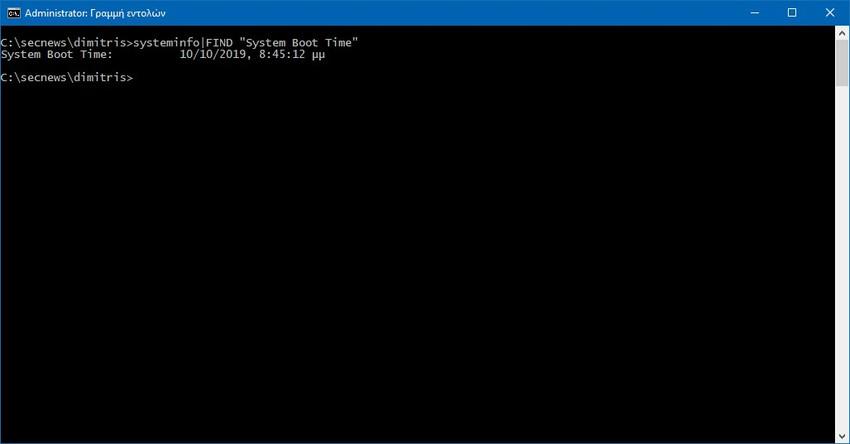
Open a Command Prompt window as administrator and run the command:
systeminfo|FIND “System Boot Time”
The command should return the following response:
system Boot Time: date, time
You can also see Windows 10 uptime using the built-in statistics of any system service that has been running continuously since it was started. These are usually server or workstation services. For example:
net statistics workstation | find “Statistics since”
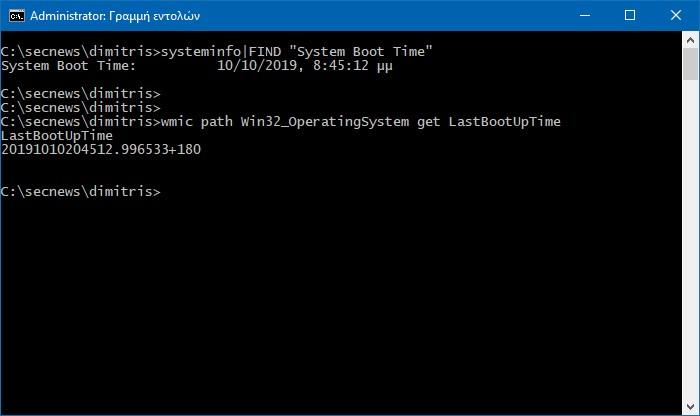
Another way to get Windows 10 uptime is through WMI. Use the standard command:
wmic path Win32_OperatingSystem get LastBootUpTime
How to view Windows 10 uptime using PowerShell
Now let's look at some ways to get Windows 10 uptime via PowerShell.
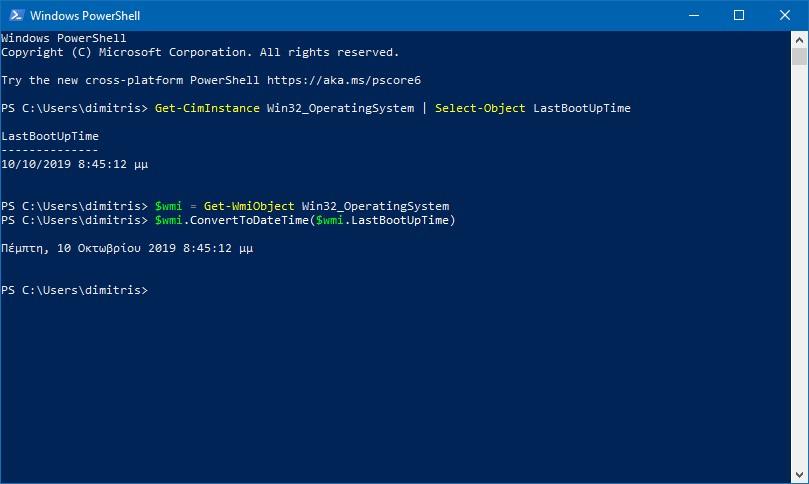
First of all, you can still use WMI:
Get-CimInstance Win32_OperatingSystem | Select-Object LastBootUpTime
Or you can get the date of the last boot of the operating system in a more convenient format, with:
$wmi = Get-WmiObject Win32_OperatingSystem $wmi.ConvertToDateTime($wmi.LastBootUpTime)
If you like precision, then another way is this:
(get-date) - (gcim Win32_OperatingSystem).LastBootUpTime
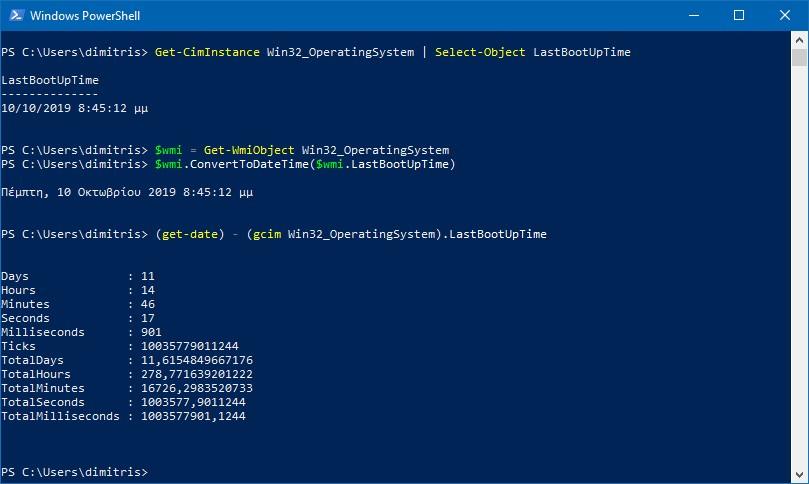
Our computer has not been shut down for:
Days: 11
Hours: 14
Minutes: 465
Seconds: 17
Milliseconds: 901
Ticks: 10035779011244
TotalDays: 11.6154849667176
TotalHours
: 278.771639201222 TotalMinutes
: 16726.2983520733
TotalSeconds: 1003577.9011244 TotalMilliSeconds: 1003577901.1244
Finally, you can use the Event Viewer, where event 6005 represents your computer starting up. You can view this from the Windows Event Viewer itself, but you can also use the following Powershell command:
Get-WinEvent -ProviderName EventLog | Where-Object {$_.Id -eq 6005} | Select-Object -First 1 TimeCreated