

Google Chrome and Mozilla's Firefox support Kiosk mode, via extensions, and not natively until now. Finally, Mozilla has added the long-awaited Kiosk mode to the Firefox Nightly browser (Firefox 71).
The browser can now be launched in full-screen mode using a command line option.
Kiosk mode is a feature of the Windows operating system that allows a single application to run in "true full-screen mode", where the navigation bar, context menu, and menu bars are disabled.
Keyboard access is allowed but is limited and with the F11 button you cannot access other applications or the Windows desktop.
As you generally see the x when you hover over it in full screen mode, it doesn't appear, making it difficult to exit Kiosk mode.
It took Mozilla 17 years to implement this feature in its browser as the first bugs in bugzilla were reported as far back as 2002. The first phase of the Kiosk implementation in Firefox is similar to that of Chrome, and Mozilla says that in the second phase it will add some Firefox-specific features.
How to run Firefox in Kiosk mode
Make sure you are using Firefox 71 Nightly version Right-click on the browser shortcut on your desktop and create another one named Firefox Kiosk or whatever you want, or create another profile. Now right-click on the shortcut, select Properties, in the target field, add “- kiosk” without the quotes at the end. Then click the apply button.
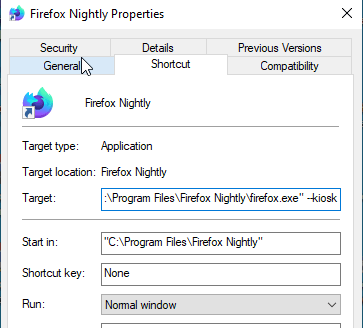
Note 1: You can even “tell” Firefox to open a specific website in Kiosk mode, for this you will need to add – Kiosk “https://www.secnews.gr”
Now launch Firefox and try Kiosk.
Note 2: If you use the -kiosk -printing parameter, the page will start printing immediately.
Because the F11 button doesn't work, you'll need to use Alt+F4 to close the current tab or window.
