It's usually a good idea to install all available Windows 10 updates. However, from time to time, some updates can cause problems. These are the times when you might want to uninstall some of these updates.

In this article you will see how to delete a Windows 10 update that is already installed on your computer. There are three ways to do this. Let's take a look at them:
A. Uninstall a Windows 10 update from the “Settings” app
1. Launch the Settings app by pressing the Win+I keys simultaneously or from the Start menu. In the Settings window, go to the “Update & Security” option.
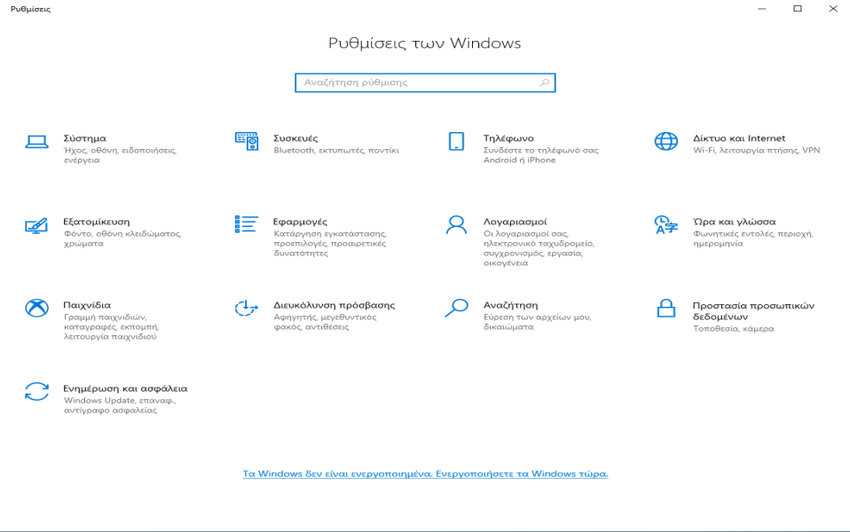
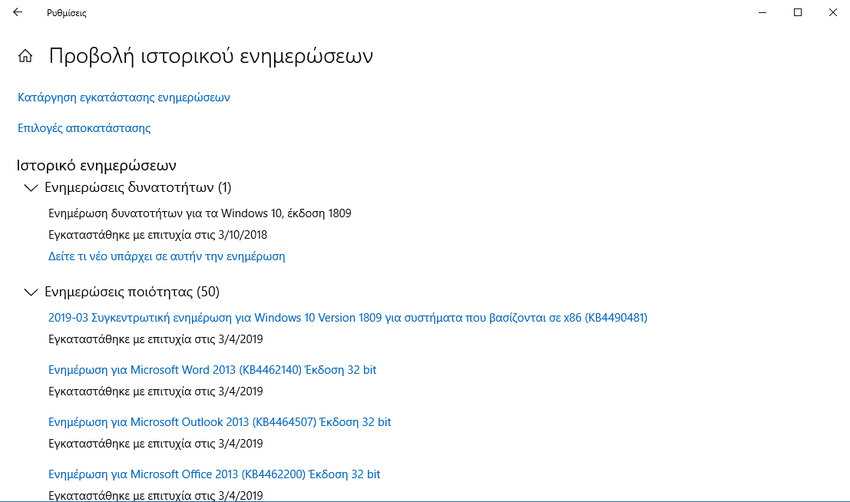
2. On the Windows Update page, click “View update history”.
3. In the “View update history” window, click the first link listed as “Uninstall updates”.
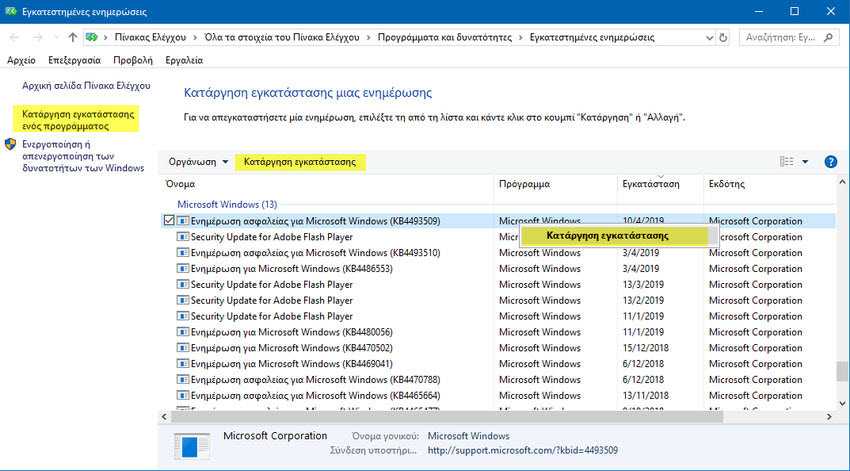
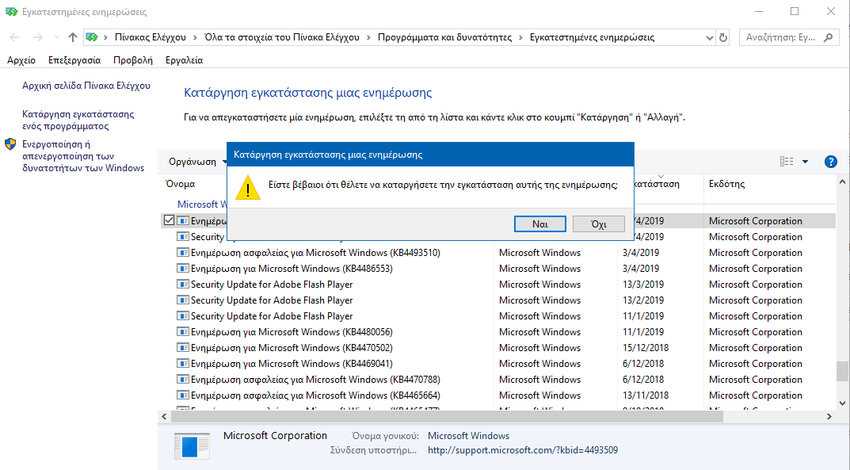
4. Windows 10 will open the Control Panel and display the list of “Installed updates”. The list includes updates for Windows 10 as well as for other software installed on your computer. Locate the Microsoft Windows section and find the update you want to remove. Then, select it and click the Uninstall button from the list header or right-click on it and click “Uninstall” in the small window that appears.
5. Windows 10 prompts you to confirm your choice, asking if you are “sure you want to uninstall this update.” Answer Yes if you wish, or tap No if you have changed your mind.
B. A. Uninstall a Windows 10 update from the Control Panel
For Control Panel lovers, we have the corresponding procedure for uninstalling an update from Windows 10.
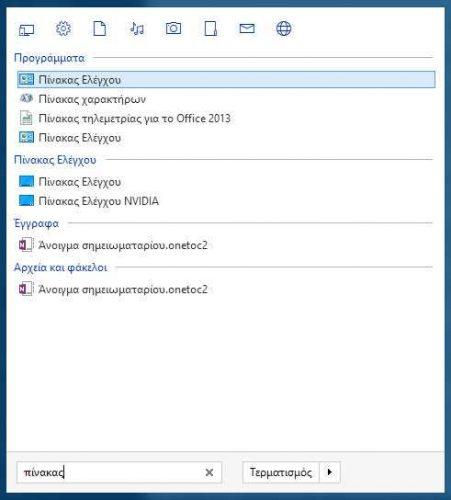
1. Open the Control Panel. A quick way is to type the words control panel in the start menu and then click on the program that appears.
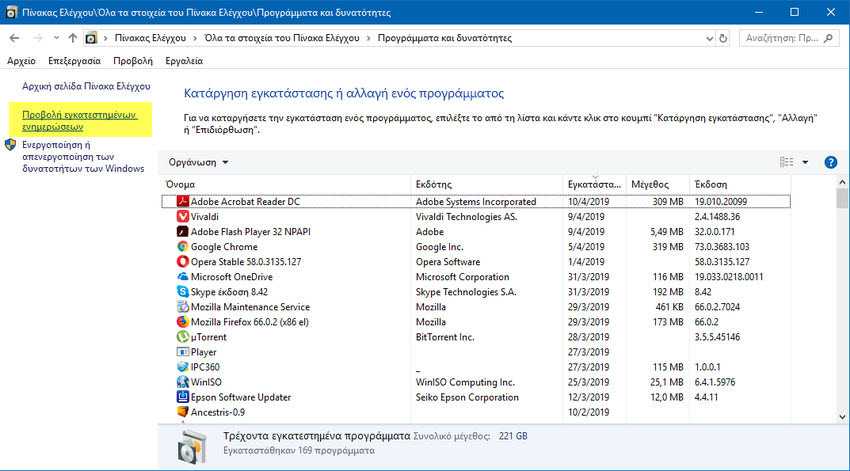
2. Navigate to “Programs and Features” and there in the left pane, click on “View installed updates”.
3. The control panel will open the list of “Installed updates.” From there, follow the same steps as method 1 from step 4 onwards.
C. Uninstall a Windows 10 update from the Command Prompt or PowerShell
You can also uninstall Windows 10 updates using the Command Prompt or PowerShell.
1. Open a Command Prompt or Powershell window with administrator privileges. If you don't know how, at least for the Command prompt right-click on the start (or press Win+X simultaneously) and select “Command Prompt (Admin)”
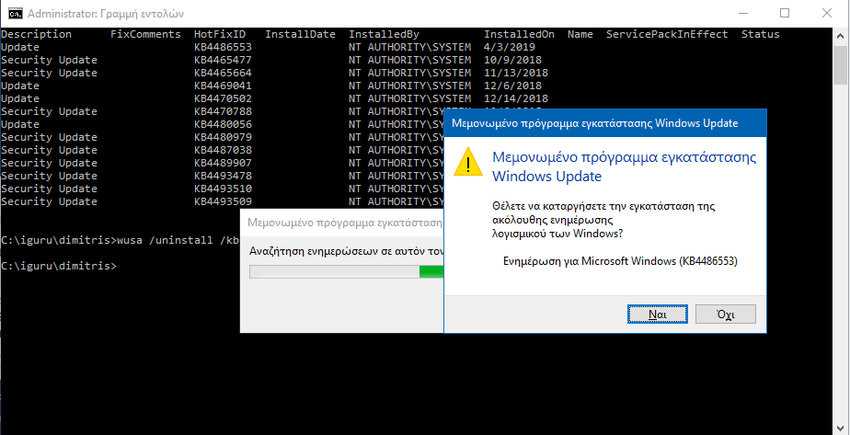
2. Then, type the following command: wmic qfe list brief /format:table .
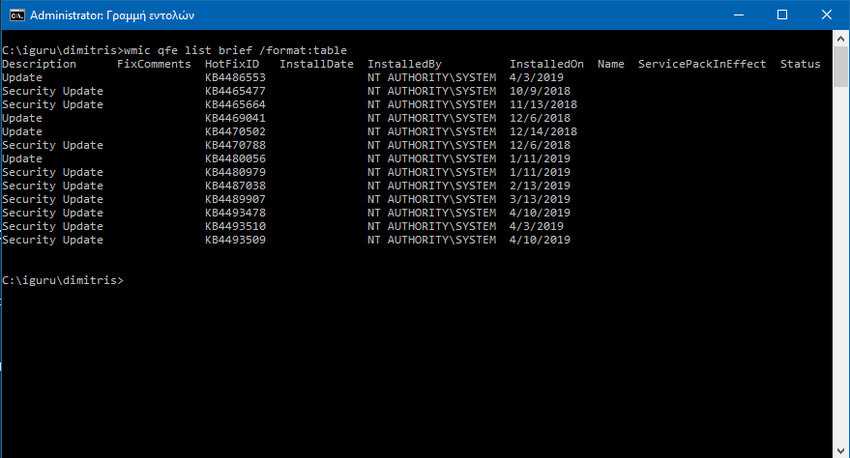
The above command displays all installed system updates for Windows 10. Find the codename of the one you want to remove, and then type the following command to uninstall it: wusa /uninstall /kb:onoma , where “onoma” is the ID number of that update.
For example, let's say we want to uninstall update KB4486553. To do this, you would type: wusa /uninstall /kb:4486553.

3. Press Enter and Windows 10 will load a dialog box asking if you are sure you want to uninstall this update. Click Yes or press the Y key on your keyboard to confirm the uninstall.