

Problems with your Windows 10 installation key? Windows 7 will stop receiving security updates from January 2020, which means the operating system will be vulnerable to any new vulnerability that is released.
So for many users, although they don't want to upgrade to Windows 10, they probably won't avoid it because at some point it will become mandatory.
In a previous post, we mentioned that you can still upgrade to Windows 10 for free as long as you have a legitimate installation key from an older version of the company's operating system (Windows 7 or Windows 8).
So if you are interested in a free upgrade, read:
Windows 10 Free upgrade from Windows 7
Usually, the above method does not cause any problems and everything goes smoothly. However, there are some (rare) reports that the key does not activate Windows 10.
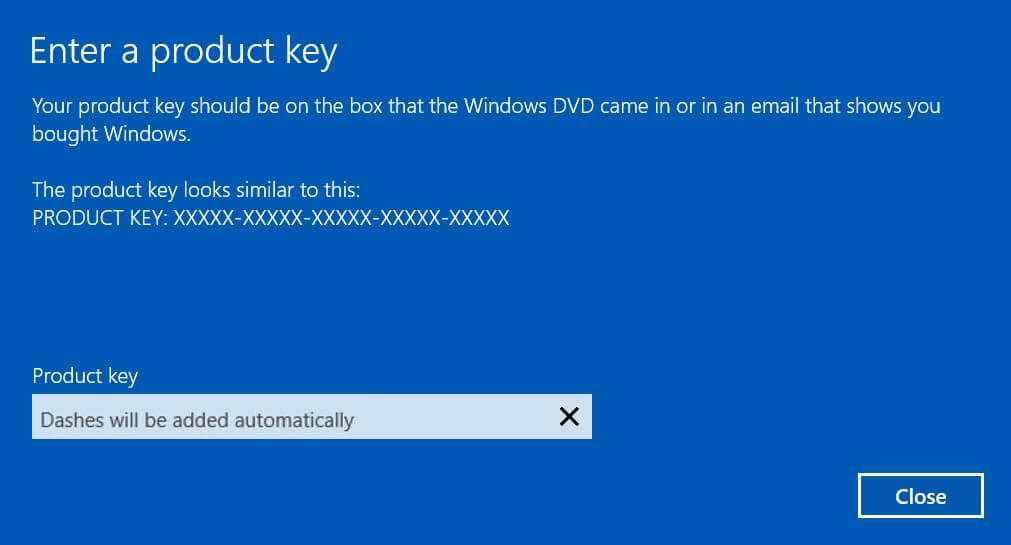
Below we will see what you can install on a Windows 10 upgrade or repair that displays the error: “Setup has failed to validate the product key” or in English “Setup has failed to validate the product key”
The issue occurs during installation for a version upgrade or a service pack upgrade, after the “We’re getting some things ready for you” screen
Then the message in question appears:

If you see the above screen during installation, you cannot do anything other than a clean installation.
But before you proceed, try the following:
Make sure you have the latest Windows updates installed
Run the Windows Disk Cleanup utility to delete temporary files on your computer and try the installation again
Try installing the latest version of Windows 10 through Windows Update
If your system is part of a domain, temporarily remove it and proceed with the upgrade
Temporarily remove any third-party security software from your computer
If you are still facing the problem, try the solution below, which works in this case.
1. Extract the Windows 10 installation ISO using any decompression software, such as 7-zip, or use UltraISO to view all files without extracting.
2. Open Notepad or NotePad++ which we recommend.
3. Copy and paste the following into a new file:
[EditionID] [Channel] Retail [VL] 0
4. Now save the file with the name “ei.cfg”. Select “Save As” under “All Files”. Add the file to the sources folder inside the ISO.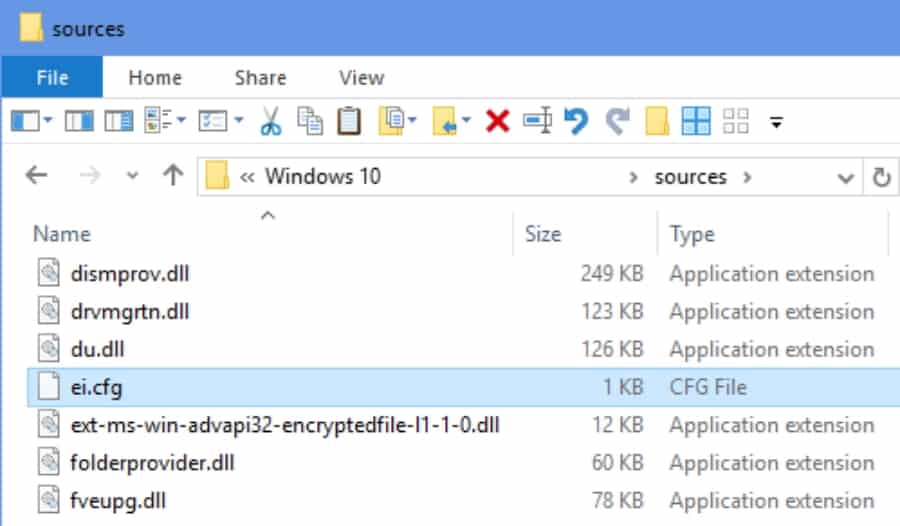
Now for the upgrade you can directly run setup.exe to start the installation wizard. With UltraISO you can create a bootable ISO (don't forget to add ei.cfg to the sources folder) to use on USB for a clean install. This time the error will not appear.
________________
