

A corrupted SD card is probably a photographer’s worst nightmare. All those amazing photos can be lost forever because a few 1’s and 0’s are in the wrong place!!!
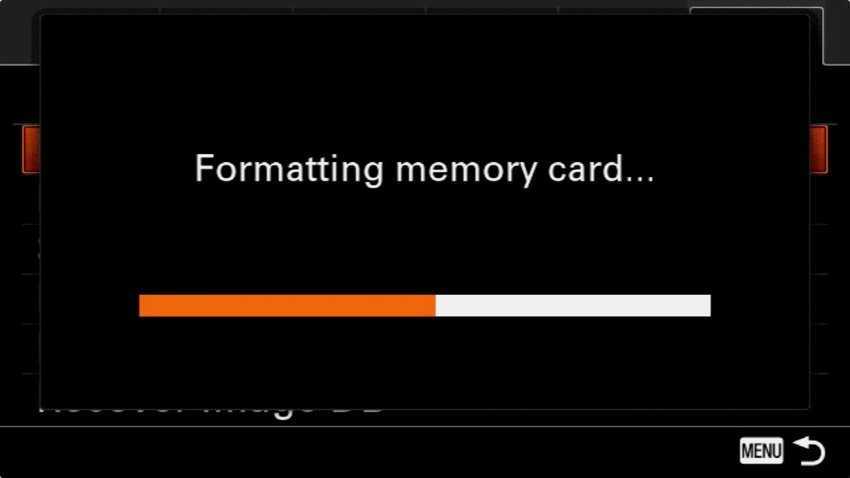
While you might be able to recover your photos from a corrupt SD card, you definitely don’t want to be in that situation, and that means you need to know how to format them properly.
It also means you need to work with a high-quality SD card. Buying a cheap, no-name card is not justified, especially if you’re storing unique files that you can’t find anywhere else on the internet, like your personal photos. There’s no excuse not to use the best card.
Erasing VS Formatting
When your camera’s SD card is full, you’ll probably be tempted to view it on your computer, delete a few photos from it, and then put it back in your camera, ready to shoot. Don’t do it!
Simply deleting files from an SD card is a bad idea, for the following reasons:
- Each additional function (or use, if you prefer) increases the likelihood of data corruption.
- Deleting some photos is a very slow way to free up space on a card.
- The performance of the SD card degrades with use.
Instead, it would be better to format your SD cards when they are full (or whenever you can). Formatting wipes and clears the card and at the same time reorganizes the digital camera folder structure (DCIM). And it does so without the drawbacks of simply deleting the files.
Store and back up your photos
First of all, don't format an SD card that contains photos that you haven't backed up elsewhere. Remember, when it comes to data security, one copy is not enough and it's always a good idea to have two or more.
We recommend importing your photos to a computer via a photo browser and simultaneously to a cloud storage provider like Dropbox or Google Drive etc. (Don't use Google Photos because this service compresses photos to save space and thus loses their original resolution). This way your photos are well organized and, even if something happens to your computer or external drive, they are safe in the cloud.
Reformat the SD card in the camera
Once you are sure that you have backed up all the photos on your SD card and that the backups are complete, then you can format the card.
There are other ways to format SD cards and as long as you don't do anything fancy (like try to change the format or add partitions or do anything else weird), they will all work fine. But the standard advice from most photographers and from every camera manufacturer is that the best way to format an SD card is to do it with your camera, rather than your computer, to minimize the risk of anything going wrong. It is also the fastest and most convenient way, since you don't need to involve any additional software.
So, while modern operating systems allow you to format an SD card, our advice is to follow the manufacturer's recommendations and do it with the camera (don't do anything other than format it).
The formatting process varies a bit from camera to camera, but in general, it should go something like this: With a Canon camera, go to Menu > Settings > Format card. Select the card you want to format, then press OK. If for any reason you're having trouble finding the format card option, refer to your camera's user manual.
