

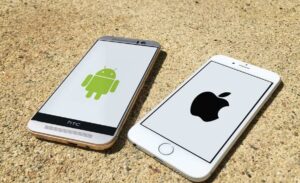
If you've just bought your first iPhoneand have only had Android, you may have difficulty transferring data from your old device. It's usually recommended to install the Move to iOS on your Android smartphone .
However, even if you follow the steps requested, an error and prevent you from transferring.
Here's what you can do if the Move to iOS app is unable to connect the two devices.
How to use the Move to iOS app [Trick]
First of all, you need to reach the window where your Android app asks you to enter the code displayed on the iPhone. Then, follow these steps:
- Go to WiFi settings on your Android phone.
- Select the temporary Wi-Fi created by your iOS device. It will look something like iOS *****. Connect to the network.
- You will be asked to enter a password. The password is the same as the network name. For example, if the WiFi network name is iOS1234 then the password will be iOS1234
- In a few minutes, a pop-up will appear that says “iOS **** has no internet”
- Tap the notification and connect to the network.
- Now return to the Move to iOS app and enter the code.
Is the migration to iOS still not working?
If the above process doesn't work and you still can't transfer data to iOS, try doing it without Move to iOS.
What is the alternative solution?
Camera Roll
If your photos are stored locally on your device, simply use iTunes software to transfer files from Android to iOS.
If the photos are stored in Google Photos, simply back up all the content on your Android device.
Contacts
Once you log into your Google account on the iPhone device, the contacts will be transferred automatically.
