

Video Speed Controller is a free extension for Chrome that gives you more options when playing a video.
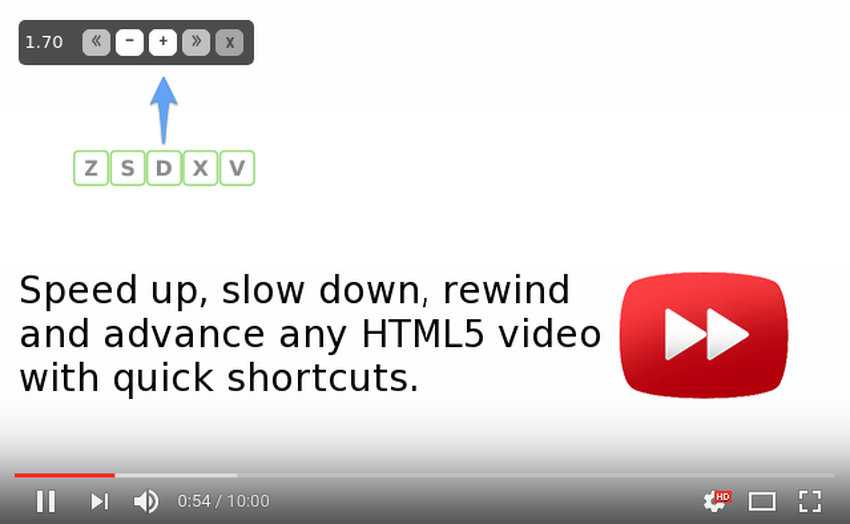
Most video sites offer only the basics of playback. You can pause, skip to the next video, change the volume, and tweak media options. Some offer more advanced controls, like YouTube, which has a playback speed option in its menu that lets you increase or decrease the playback speed.
Video Speed Controller is a free extension for Chrome that adds a button overlay over HTML5 videos. It doesn't work on all websites. However, it works on most video streaming sites, such as YouTube, where it works perfectly.
The overlay that the extension adds appears when you hover your mouse over the video. Doing so will show you the current playback speed as well as two main options:
- Increase or decrease the video playback speed in .10 steps.
- Skip forward or backward 10 seconds.

Simply select any of the options to enable the feature. Chrome users who prefer keyboard shortcuts over the mouse can also use the following shortcuts:
Decrease speed – V
Increase speed – D
Step back – Z
Step forward – X
Reset speed -R
Preferred speed – G
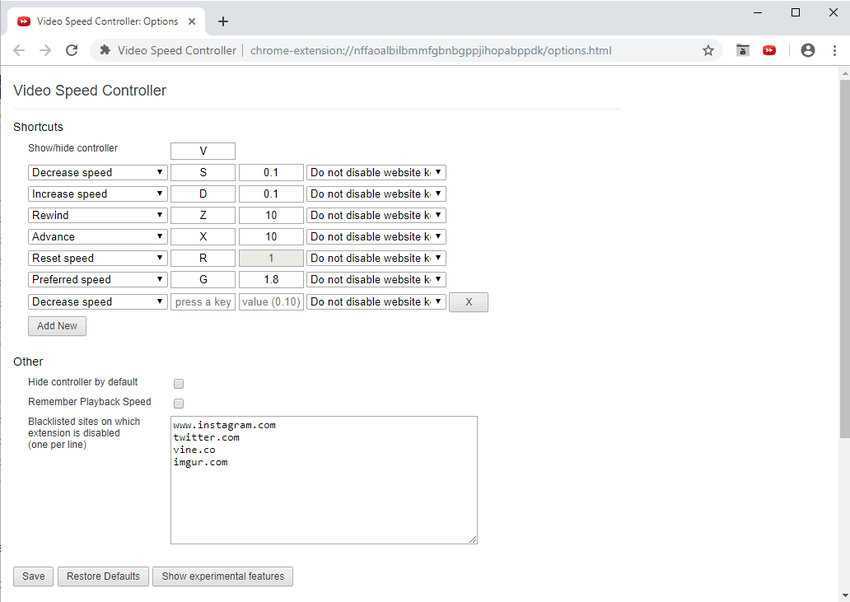
Simply press the above keys to activate the feature while the video is playing. You don't need to hover over the video for the shortcuts to work.
Video Speed Controller supports two additional shortcuts that you can assign to keys of your choice. You can add “mute” or “pause” shortcuts to execute them with the press of a key.
Also, because the extension does not work on all websites, it provides you with a Blacklist of sites so that the extension is disabled when these sites are loaded.
