

If you want to make any changes to UEFI, such as changing the boot device priority, enabling or disabling secure boot, changing any other low-level settings, etc., then you will need to enter UEFI and make the desired settings from there.
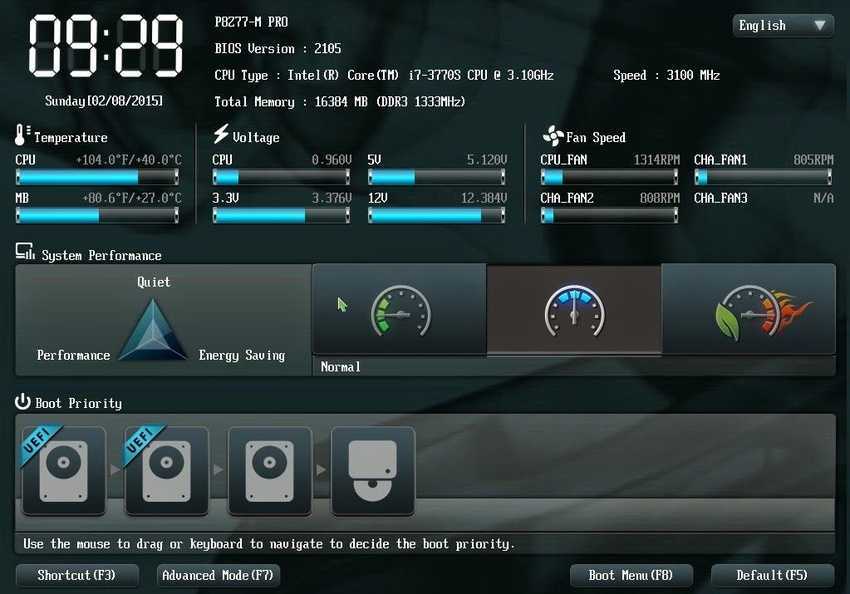
Depending on the motherboard manufacturer, you may need to press specific keys or key combinations on your keyboard during boot to access UEFI mode. While your screen will usually display a message during boot with the keys you need to press, the whole process can be quite confusing for novice users. You can make your life easier by entering UEFI mode directly from within Windows by simply restarting it. This eliminates the need to press the relevant keys as quickly as possible during boot.
Booting Windows while booting into UEFI mode is not a difficult process. However, you can only do it if your motherboard supports it. If your motherboard does not support UEFI and is only with the old BIOS, you cannot boot UEFI from Windows. Most modern motherboards are equipped with a UEFI chip and support both UEFI and legacy BIOS.
If you don't know or aren't sure whether your motherboard supports UEFI or not, you can easily verify it directly from Windows. Here's how.
Check if your system supports UEFI or legacy BIOS
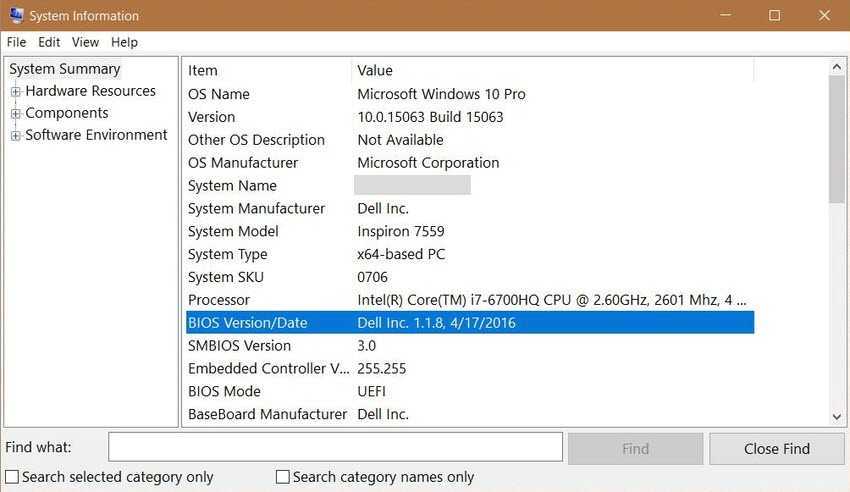
There are several ways to check if you are using UEFI or BIOS. One way is through Windows System Information. Windows displays all of your system information in a single application called System Information.
1. Press Win+ R, and in the “Run” window that appears, type msinfo32 and press Enter. This will open the System Information application.
2. Select “System Summary” in the left pane. In the right pane, you can see whether you are using BIOS or UEFI next to “BIOS Mode.” If you see UEFI, then your system is using UEFI. If you see “Legacy,” then your system is using BIOS.
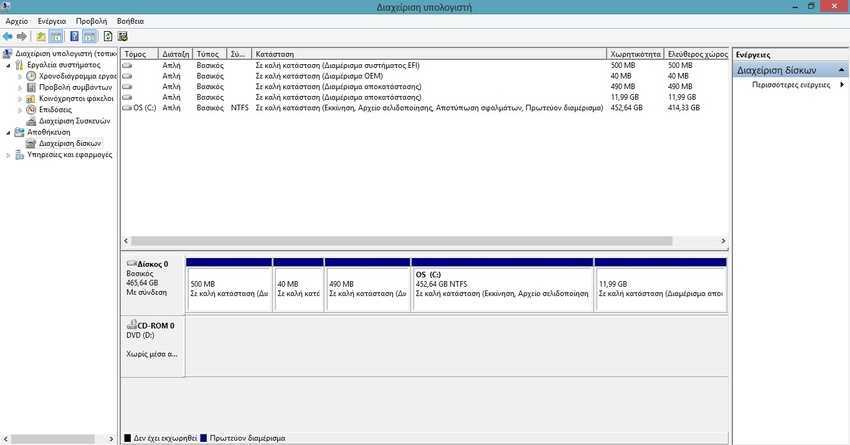
Alternatively, you can also find it using the disk management tool.
1. Open the “Start” menu and search for “Check and format hard disk partitions” and open it. Don’t worry, we are not going to partition or format your hard disk.
2. If you see a partition called “Healthy (EFI System Partition)”, then your system supports UEFI. If you don’t have this partition, then your system is using legacy BIOS.
Once you have confirmed your motherboard's support for UEFI, proceed to the next steps of booting into UEFI directly from Windows 10.
Booting into UEFI from the Windows 10 Settings app
To boot into UEFI from the Settings panel, we'll use the Advanced Boot options.
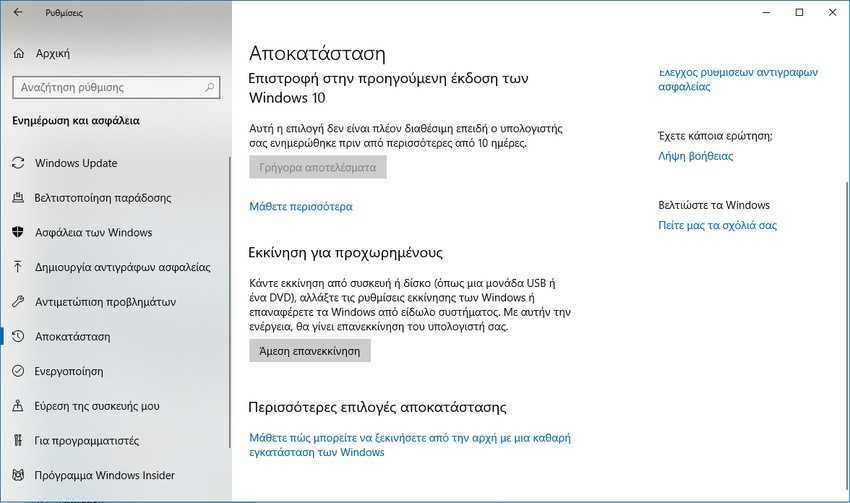
1. Open “Settings” from the Start menu or from the status bar at the bottom right. Go to “Update and Security -> Recovery” and click the “Restart Now” button under the Advanced Start-up section.
2. On the next “Make a choice” screen, go to “Troubleshoot – Reset your PC or view advanced options” and on the next screen, go to “Advanced options”.
3. On this screen titled “Advanced Options” you will find various options with the possibility of having more than 6 initial options and the screen will state at the bottom the phrase “Show more recovery options”. In any case, you are looking for the option “UEFI Firmware Settings”. Once you find it, click on it.
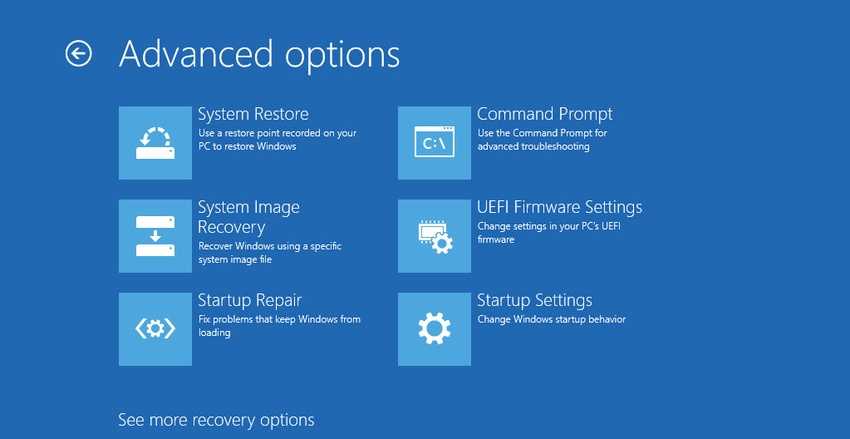
4. On the next screen, click the Restart button and you will be taken to the UEFI screen.
Booting into UEFI from the Command Prompt
You can also restart Windows 10 by performing a “standby” into UEFI by running a single command from the Command Prompt.
1. Open Command Prompt with administrator privileges.
2. Run the following command:
shutdown /r /fw
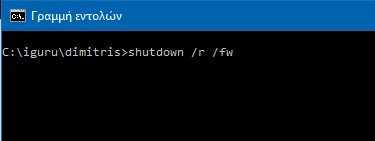
3. Windows will display a warning message stating that the system will restart in less than a minute. Close the warning message and save all your work. The system will automatically restart and enter UEFI mode.
