

Taking a screenshot in Windows 10 has become even simpler, faster, and more reliable in 2026, thanks to new keyboard shortcuts and significantly improved built-in screenshot tools. Previously, the classic Print Screen key was the only option, but today Microsoft offers multiple and smarter ways to take screenshots.
Even though Windows 11 has been around for a while, many users still use Windows 10 on a daily basis, whether on personal computers or in corporate environments where the upgrade has not yet been completed. For this reason, knowing all the available screenshot methods remains just as useful in 2026.
Regardless of your experience, by learning the right shortcuts you can take a screenshot in seconds, without needing any additional third-party apps.
See also: Armored Likho targets government services and energy with BusySnake Stealer
Quickly take a screenshot with the Win+PrtScn combination
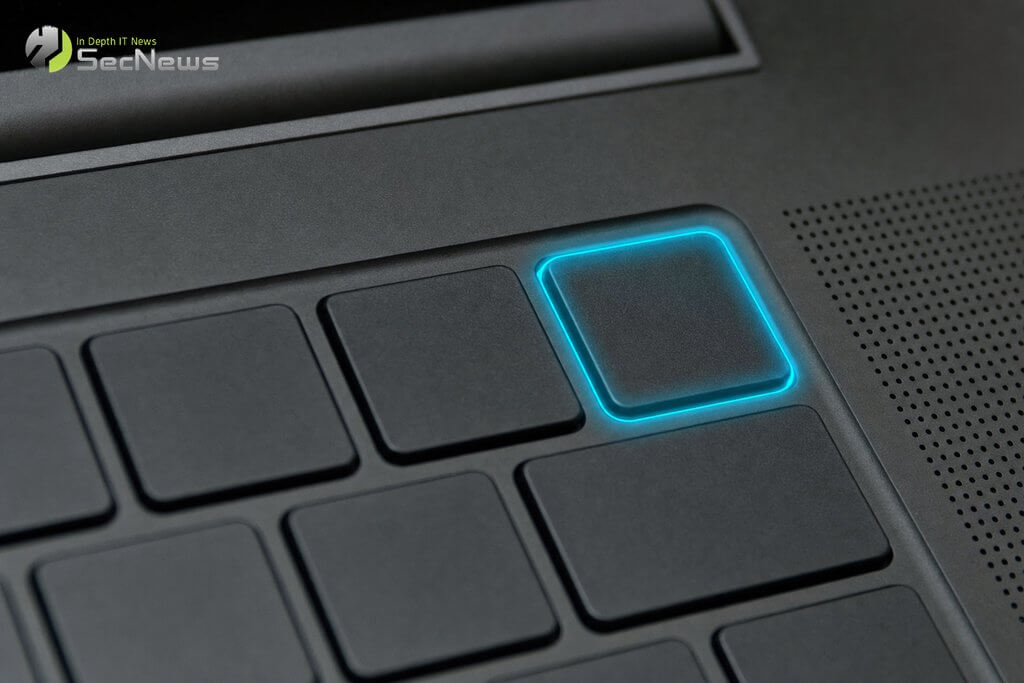
The fastest way to take a screenshot of the entire screen remains the Win+PrtScn key combination. Pressing them simultaneously will cause the screen to go dark for a moment, indicating that the image has been automatically saved, without the need to paste it into another application.
The file is automatically saved in the C:Users[username]PicturesScreenshots folder, organized by numbered name so you never lose old captures. If you prefer to simply copy the image to the clipboard without saving the file, just press the Print Screen key. You can then paste the image into any application that supports clipboard import, such as Word, Paint, or even an email.
On laptops without a dedicated PrtScn key, the Fn+Win+Spacebar combination is usually required. The exact placement varies by manufacturer, so it's worth checking your device's user manual if the basic combination doesn't work. On many newer 2026 slim laptop models, the PrtScn key has been replaced by a combination with the Fn key, as manufacturers are constantly reducing the number of physical keys in favor of a more compact design.
Take a screenshot of a specific area
See also: Supply Chain Attack: TeamPCP Targets Developer Tools
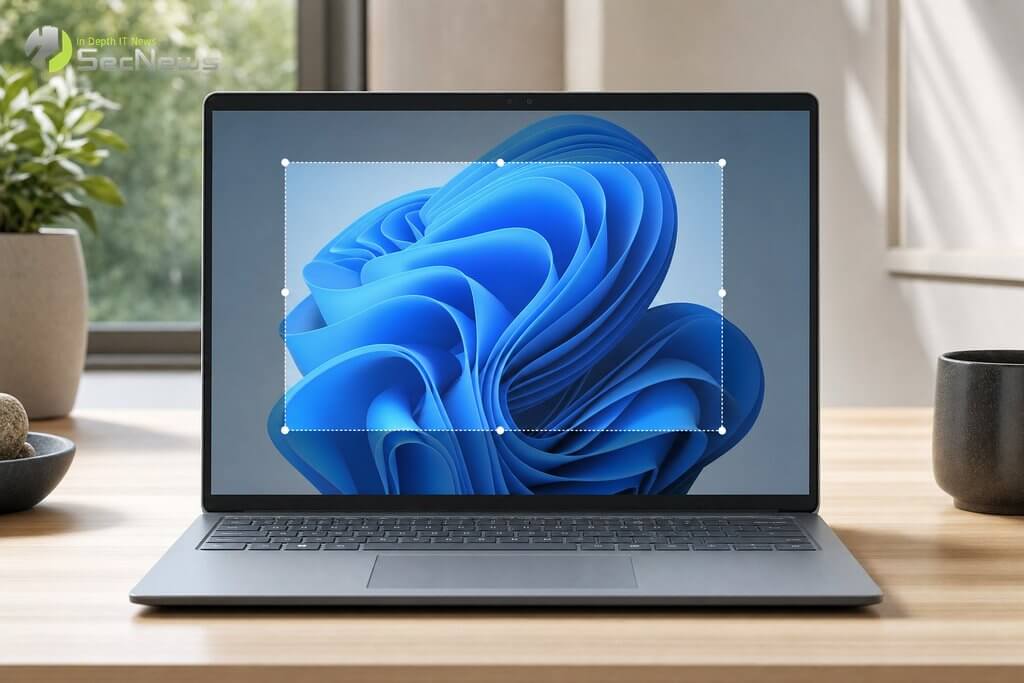
When you need to screenshot just a portion of the screen, Win+Shift+S instantly opens the snipping tool. You can select a rectangular area, freeform, entire window, or full screen, and the image is copied directly to the clipboard for instant pasting.
This method is ideal when you want to share just a specific error message or a section of a web page, without revealing the rest of your screen in chats or emails. Additionally, the snipping tool has a 3- or 10-second capture delay, useful when you need to first open a menu that automatically closes when you switch windows. After capturing, a small notification appears in the bottom right corner of the screen, where you can click to add quick notes, arrows, or highlights before saving or sharing the image.
Capture only the active window
To quickly take a screenshot of just the active window, use the Alt+PrtScn key combination. The image is copied to the clipboard and you can paste it directly into applications like Paint, Word, or OneNote, without having to crop out the rest of the desktop background. This method saves valuable editing time, especially when you're preparing technical documentation or guides with many images in a row. If you need this feature regularly, you can create a shortcut on your desktop that opens the Snipping Tool directly, saving even more time in everyday use.
Recommendations
See also: Spotify reacts to Kalshi and Polymarket after a song's suspicious rise in the charts
In summary, taking a screenshot on Windows 10 in 2026 remains a quick process with the system's built-in tools. Choose the key combination that best suits your needs, depending on whether you want to capture the entire screen, a specific area, or just a window. With a little practice, these shortcuts will become second nature and save you from unnecessary third-party software downloads for such a simple everyday task.
Finally, if you need more advanced and specialized features, such as automatic cloud upload or full-page scrolling capture, there are several reliable and free third-party applications that effectively complement Windows 10's built-in screen capture tools. However, for the majority of everyday needs, the above shortcuts fully cover every use case, without any additional cost, waiting time, or complex software installation settings.
