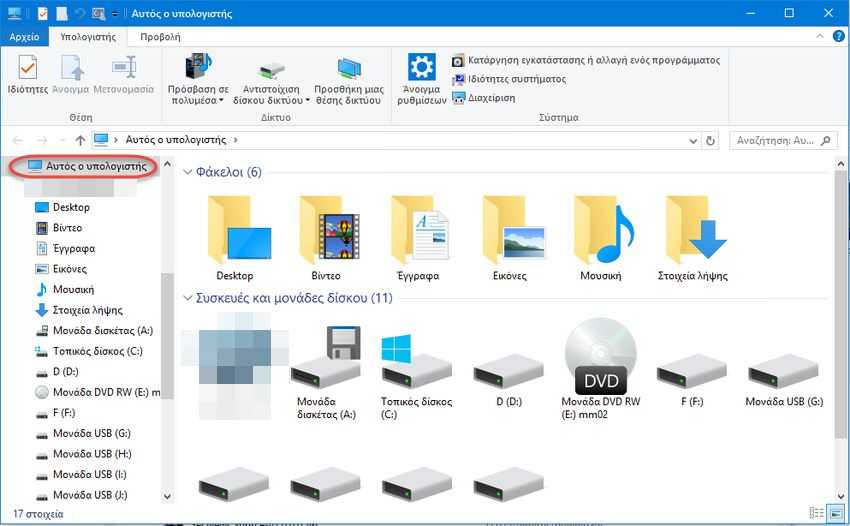
In Windows 10, File Explorer opens to the Quick Access folder by default. After build 9926, it is possible to change its behavior and set it to open to the “This PC” folder instead of Quick Access.

How to set explorer to start from “This PC” instead of “Quick Access” by default.
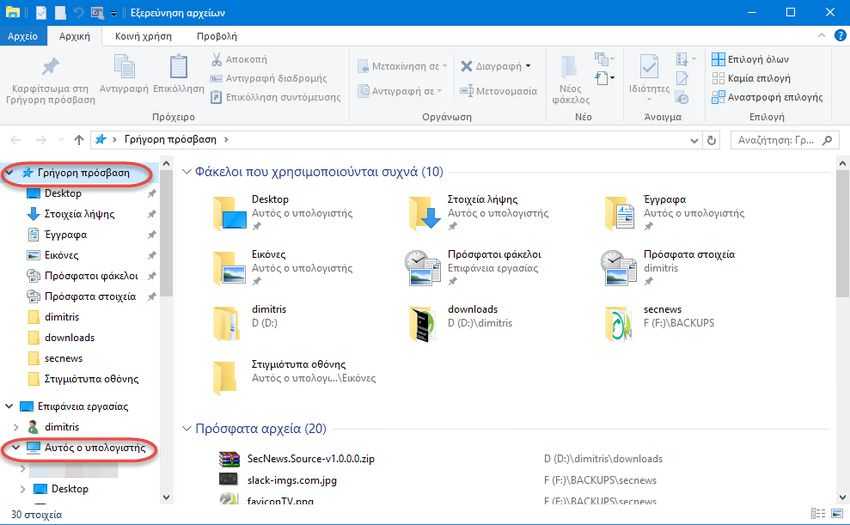
Microsoft has taken care of this by adding a new option that allows you to set the default folder that File Explorer opens to. You will need to do the following:
1. OpenFile Explorer.
2. Go to the “View” tab and click the “Options” button. Alternatively, right-click on the “Quick Access” folder and in the pop-up menu click “Options”
3. On the General tab in the folder options, select “This PC” from the drop-down list instead of “Quick Access”
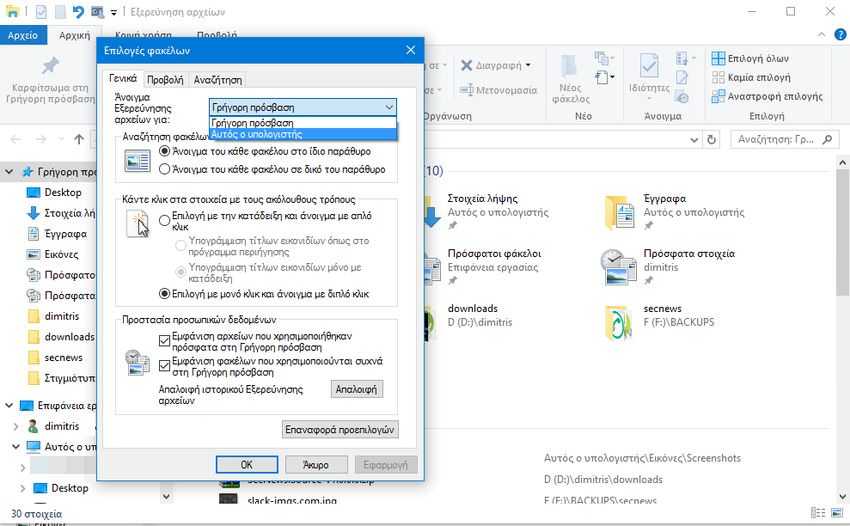
4. Press the “Apply” button.
Close everything and now if you simultaneously press the Win + E keys on your keyboard or if you simply click on the File Explorer icon on the taskbar, it will open directly to “This PC”