

It hasn't been officially approved yet, but it looks like you can now use openSUSE Leap or SUSE Linux Enterprise Linux operating systems inside Windows 10 via the Windows Subsystem for Linux (WSL).
As you may know, the latest versions of the Windows 10 operating system come with a full Ubuntu Bash shell that developers can use to run Linux software or commands directly on the Windows desktop. It's called "Bash on Ubuntu on Windows," and it's accessible from the Start menu in Windows 10.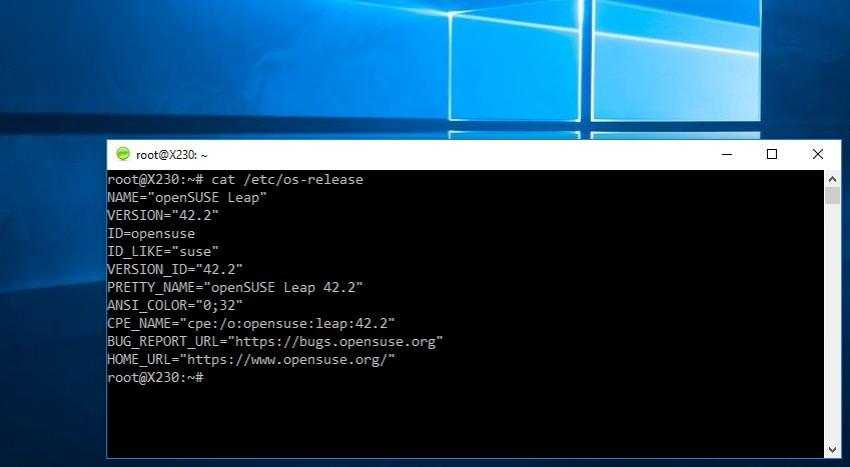
SUSE Senior Product Manager Hannes Kühnemund was probably not happy with the new addition after mentioning that Microsoft chose to launch a "wrong" Linux distribution, by default, in the Windows Subsystem for Linux that is present in the latest build of Windows 10.
So he decided to add SUSE inside WSL.
“Why SUSE? Well, SUSE knows what they're doing, because they've been developing Linux since 1992. Try to find a Linux distribution that's older. You won't find one,” says Hannes Kühnemund.
If you are a fan of SUSE and want to use your favorite distribution inside Windows 10, Kühnemund will help you add it to Microsoft's operating system right away. Yes, forget about virtual machines and dual boot and let's add openSUSE Leap 42.2 to WSL.
The instructions below also work for SUSE Linux Enterprise Server (SLES) 12 Service Pack 2, but you will need to download a different file. So, if you are ready, you should first enable WSL by following this guide. Be sure to create a regular user (with password) during the installation.
Run the first command to download openSUSE Leap 42.2 docker userspace.
wget -O openSUSE-42.2.tar.xz https://github.com/openSUSE/docker-containers-build/blob/openSUSE-42.2/docker/openSUSE-42.2.tar.xz?raw=true
After that, open the Linux bash shell from the Start menu, and run the following commands to extract the file and exit the shell. Ignore any warnings while running these commands.
sudo mkdir rootfs
sudo tar -C rootfs -Jxf openSUSE-42.2.tar.xz
exit
Once you are done, backup your “Bash on Ubuntu on Windows” installation using the following commands. Then, you can copy the new rootfs (root file system) of openSUSE Leap 42.2. Next, you will need to give root as the default user with the last command.
cd %localappdata%\lxss\
rename rootfs rootfs.ubuntu
move .\home\\rootfs .\
lxrun /setdefaultuser root
That's it. You can run openSUSE or SLES userspace in Windows Subsystem for Linux.
 As a bonus, you can also replace the default icon with the SUSE favicon which you can download from here.
Then run the commands
cd %localappdata%\lxss\
rename bash.ico Ubuntu.ico
rename Saki-NuoveXT-Apps-suse.ico bash.ico
