

When making calls with Skype on a computer running Windows, you may have encountered a very annoying feature.

Before you start a Skype, your computer's volume is at the level you've set. But as soon as Skype starts making a call, the computer's volume inexplicably lowers itself. The phone call remains at normal levels, but everything else in the background is now almost silent.
This kind of behavior may not please you and you may be looking for a way to fix it. Do not unfairly search in the settings of Skyρe. The sound lowering is not caused by this! It is built into Windows itself. So, before you start cursing the Skype communication program for the lack of options, see the steps below that give you the right to configure your computer's behavior according to your wishes.
What actually happens here? Windows has a service that, if it detects a telephone call taking place on your computer, can lower the sound volume by a certain amount. This reduction can range from a drop of 50% up to 100% of all other system sounds. When you make or receive a Skype call, your computer detects that you are making a phone call. Automatically, Windows then lowers the volume of all other sounds to the pre-set percentage.
But you haven't configured anything, right? Windows, upon installation, comes with a pre-configured option that simply hasn't been communicated to you. This explains why this feature is enabled and you don't recall anything you “tampered” with in the Windows settings that was related to sound. Fortunately, this particular option is very easy to find and equally easy to configure.
You can tell your operating program not to lower the volume, or if you want, to lower it even more than it is now. How to set it up:
1. Go to the Windows Control Panel
2. Go to the “Hardware and Sound” category and then to “Sound” (or to “Manage audio devices”)
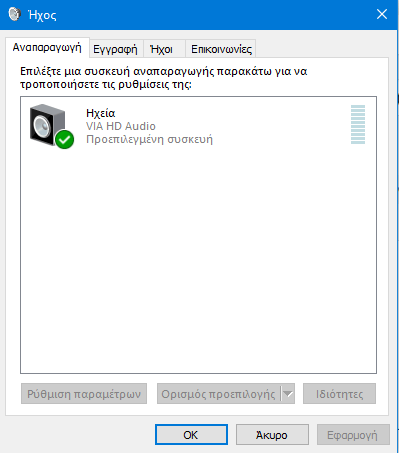
3. In the new Sound window that will open, go to the “Communications” tab
4. You now have in front of you the four options that are responsible for the specific behavior of your computer, as well as an explanation at the top of the window, which states:
“Windows can automatically adjust the volume of different sounds when you use your computer to make or receive phone calls.”
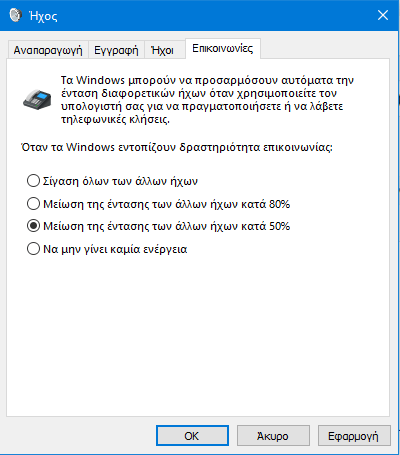
The options offered to you by your operating system at this point are as follows:
a. Mute all other sounds
b. Reduce the volume of other sounds by 80%
c. Reduce the volume of other sounds by 50%
d. Do nothing
All of the above is not at all complicated or incomprehensible. If you do not want the sound to be reduced during a call via Skype, simply select the last option and press the OK button
On the other hand, if you want to completely mute all other sounds except the telephone call one, select the first option and press the OK button.
The intermediate options are personal preferences of each individual, so try them out and if you are satisfied, keep them.
What actually confuses users about this particular problem is that the issue lies in how the operating system handles the software, not in the software itself. Changing this option means that you can enjoy music, watch a video, or play games while talking simultaneously with friends or your family.
