

Do you want to view certain web pages while you surf the web with Firefox? Or do you want to view a web page that contains real-time information (such as stock market, statistical services, etc.) while you are looking at other web pages at the same time?

You can easily do dual browsing in Firefox by opening the sidebar and displaying one website you're interested in while simultaneously viewing another in the right pane. No, we're not talking about the traditional method where you open two browser windows and resize them to each take up half the screen. We're talking about a built-in Firefox feature that can display a regular website in the sidebar while the right pane displays another.
In short, Firefox allows you to browse a web page by opening it on the left side of the browser, specifically in the sidebar, while you are also surfing in the large right window. Let's see how you can use this feature.
Note: The page in the sidebar doesn't actually behave like a separate browser window that you can easily navigate. It's just a web page with information that you can simply view and interact with. You can't navigate away from this page. If you click on any link on it, the result will open in the original browser window on the right.
1. Bookmark a website
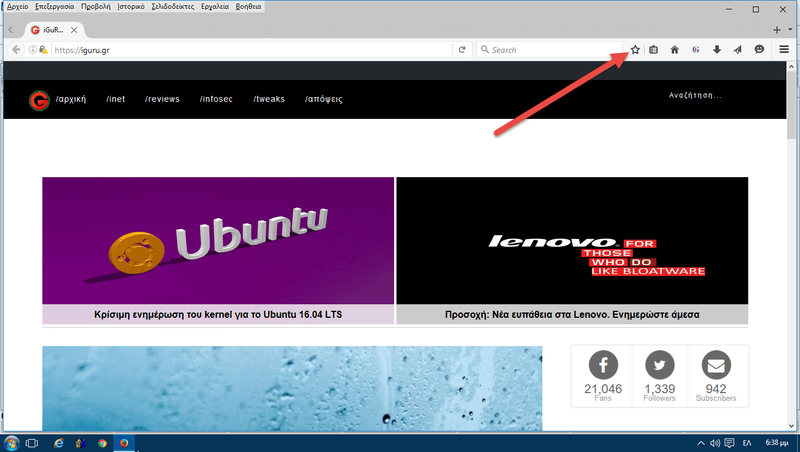
First of all, you need to load the website you are interested in into the bookmarklet, and in fact uncategorized. To do this, simply press the “star” while you are on the website you want. Firefox will automatically add it to your uncategorized bookmarks.
2. Load the website in the Sidebar
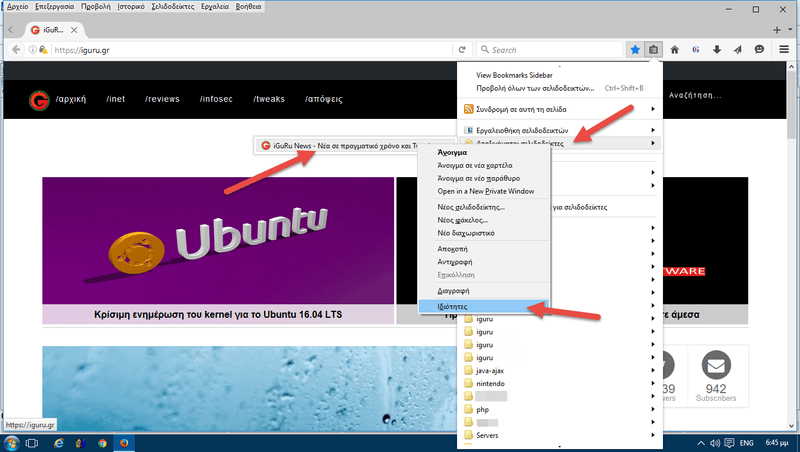
Now go to your bookmarks, in the uncategorized bookmarks section and right-click on the page you just saved. The easiest way to do this is to simply left-click on the “Show your Bookmarks” button next to the star (or else press Ctrl + Shift + B). From the bookmarks menu that will appear, left-click on “Uncategorized Bookmarks” and from there right-click on the name of the website you saved in Step 1. In the new submenu that will appear, go to “Properties” of the website in question.
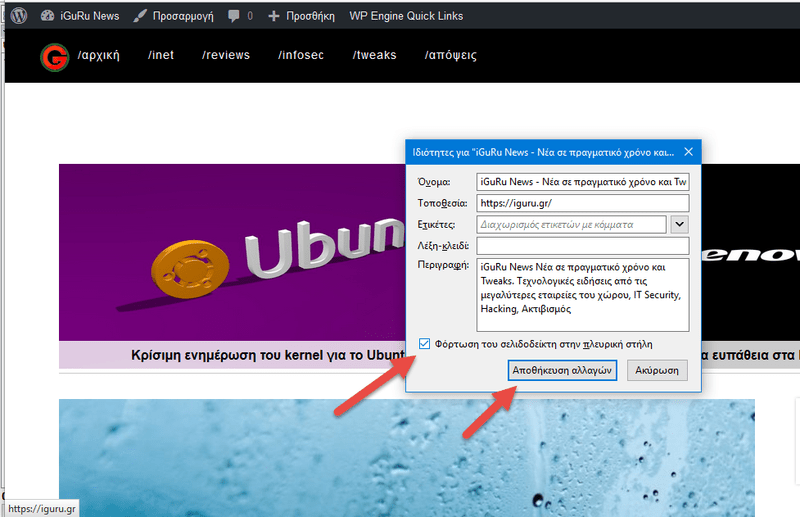
In the menu that appears, check the option “Load bookmark in sidebar”. Click “Save changes”.
3. View the sidebar
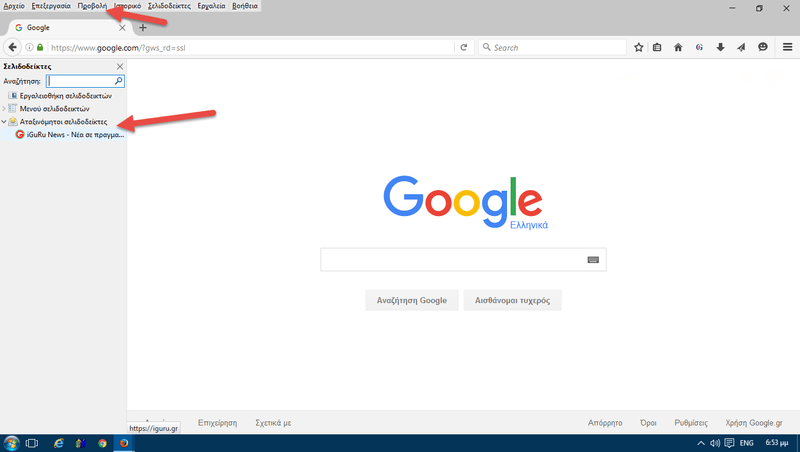
From the Firefox main menu, go to View > Sidebar > Bookmarks (you can press Ctrl + B to go directly to it). The sidebar will appear on the left. There, click on “Uncategorized Bookmarks” and you will see the webpage you saved. The sidebar space can be customized, but there is a limit that allows it to only cover about forty percent of the screen.
4. View the website in the sidebar
By clicking on your website in the sidebar you will see it displayed in the left pane. You can also use the sidebar to open the main page of a website and then easily navigate through the entire menu of the website by keeping the main page in the sidebar. For example, you can open the iguru homepage in the left sidebar and in the right main pane you can view the various articles, saving yourself from opening multiple tabs or from repeatedly going back and forth from the home page.
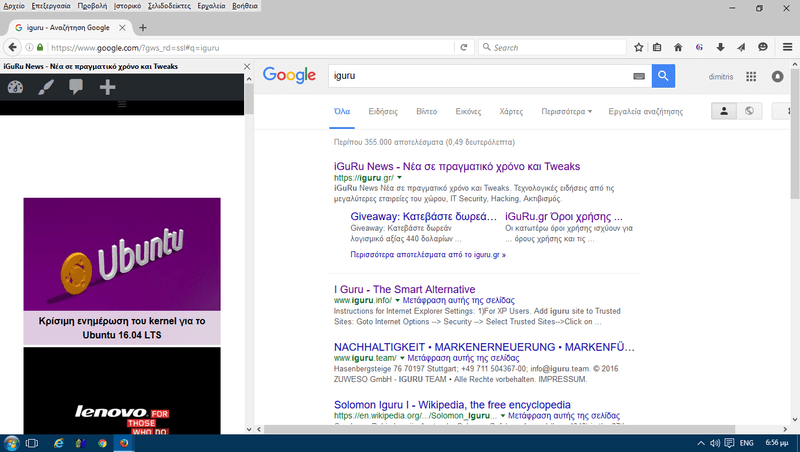
Also, keep in mind that the sidebar will remain in place even if other tabs or windows are closed or moved. If you want to close it, you can click the X button on the sidebar or close the browser completely.
