

One of the biggest drawbacks of Windows Media Player is that it cannot load external subtitles. It's an annoying omission that hasn't been fixed to this day.
And so most users when they have a movie with external subtitles in their hands, usually use third-party media player applications, such as VLC player or KMPlayer, etc. to load the subtitles.
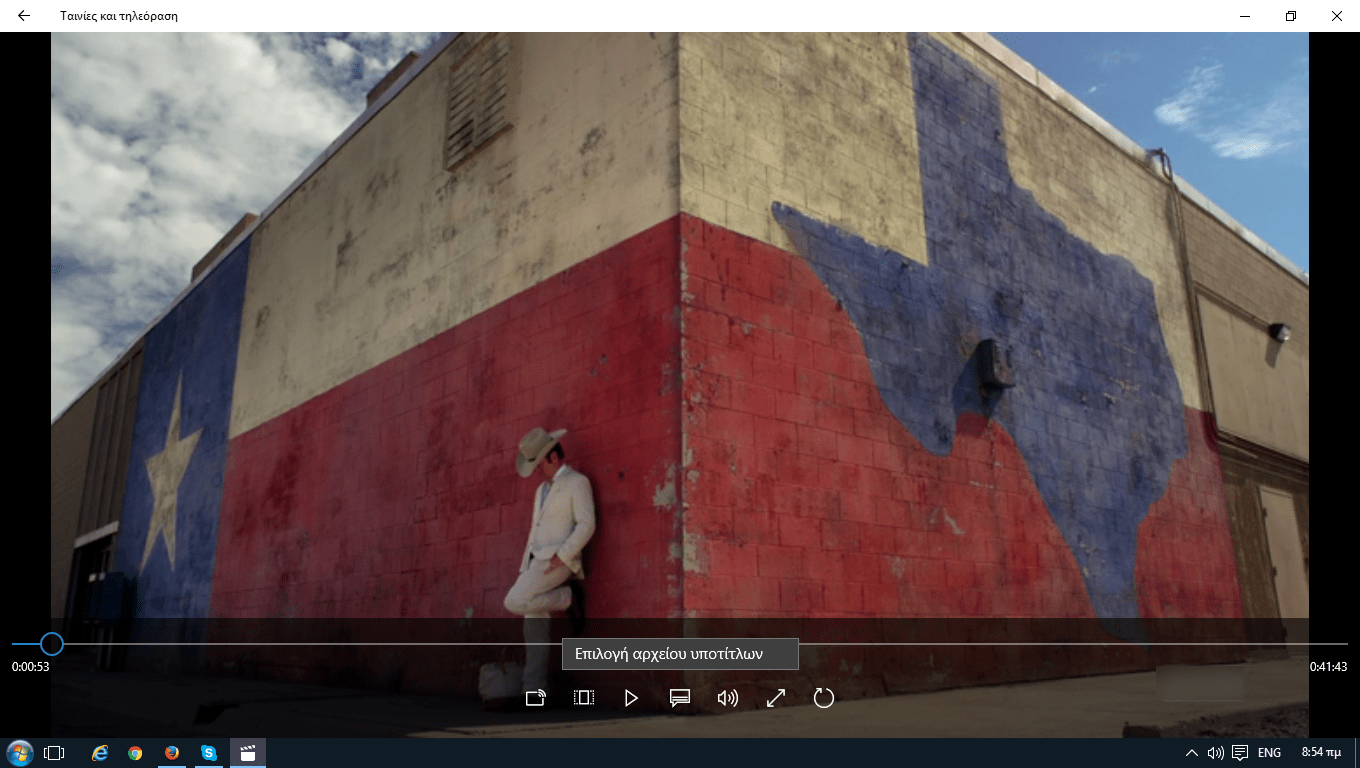
Although Microsoft has not yet fixed it, it has introduced and integrated into Windows 10 a new media player application called “Movies & TV” (Movies & TV for those with an English environment) that supports loading external subtitles.
Below you will see how you can load an external subtitle file in “Movies & TV” for Windows 10.
Download the subtitles for the movie or TV show you want to watch. You can save the file anywhere you want on your hard drive, but make sure it's in SRT format. If you downloaded the subtitles in a compressed file, make sure to unzip it first.
Run the video in the Movies & TV app and tap the square button with two horizontal lines inside it next to the “Play” button. You’ll see a submenu titled “Choose subtitle file.” Click on it and an explorer window will open with your computer’s drives. Navigate to where you have the subtitles saved, highlight the SRT file you’re interested in, and tap the “Open” button. The subtitles will start appearing on your screen immediately.
