

Whether you're browsing a notorious website or you're having some other issue, clearing your browser history is something that comes in handy first. But what if you need to do it really quickly and you're not that familiar? Since it's better to be proactive, you should take some time to learn what the fastest way to clear your browser history is. So, whether you're using Google Chrome, Mozilla Firefox, Opera, Internet Explorer, Microsoft Edge, or Apple Safari, here's the fastest way to do it.
For almost every browser, a keyboard shortcut is all you need to clear your browser history. When you're ready to wipe out every trace of your online activity, press Ctrl + Shift + Delete for Windows or Cmd + Shift + Delete for Mac.
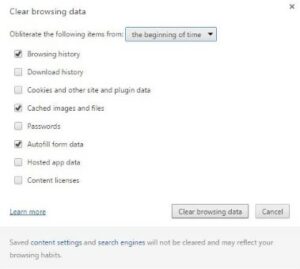
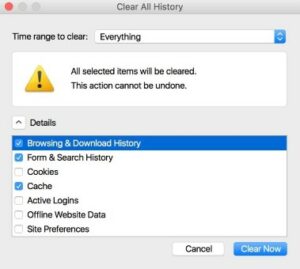
A pop-up menu will then appear, where you can choose which items of your browser history you want to delete. At the very least, make sure “History,” “Browsing History,” and/or “Search History” are selected, then click “Clear Browsing Data” or “Delete Now.” After that, all of your browser history will be deleted.
This is what it looks like in Chrome:
and in Firefox:
Safari (Mac): Apple 's default browser hasn't had a handy keyboard shortcut like its competitors since Safari 7, when they had a "Reset Safari" option available. But it's still incredibly simple to clear your browsing history in newer versions of Safari . From the menu bar at the top of the screen, click either "Safari" or "History," then select "Clear History" to get rid of your browsing data quickly.
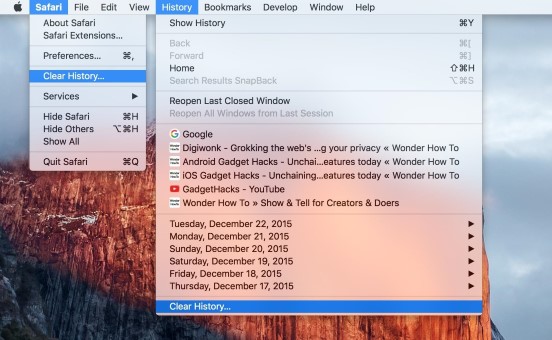
Make sure the drop-down says “Entire history” (unless you just want to clear the last hour or day), click “Clear” to confirm, and you’re done.
Safari (for Windows):
In the Windows version of Safari, the steps are slightly different.
First, click the gear icon to the right of the address bar and select “Show Menu Bar.”
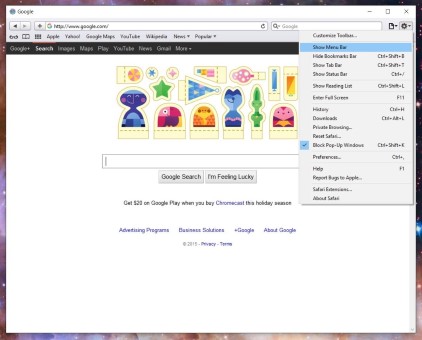
Now click on “History” in the menu bar and then select “Clear History”.
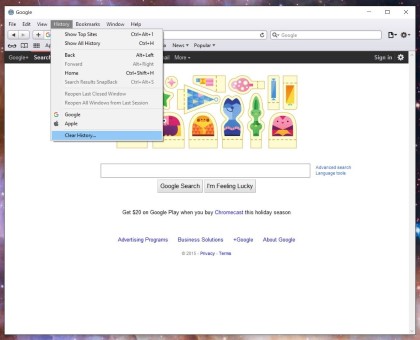
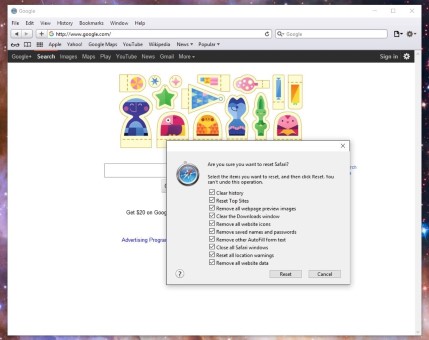
To perform a full reset, click the gear icon, then select “Reset Safari” and select the items you want to remove.
That was all about clearing your browser history, so don't hesitate to give it a try!
