

Microsoft Office 2013 works closely with Microsoft services, and if you use a Microsoft account for Windows 8/8.1, then Office 2013 automatically connects to your account without asking you. Once Office 365 is connected, the cloud capabilities are also enabled .
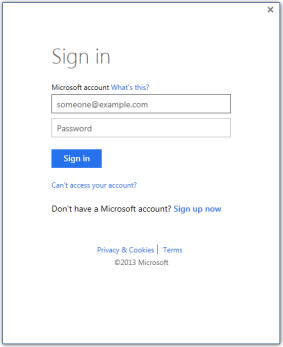
If you don't want the integration of cloud services with Office 2013, you might want to know how to disable the automatic sign-in that it performs. In this article, we'll look at how to disable it with a simple registry tweak.
1. Open the Registry Editor (press Win + R and then type regedit in the new window)
2. Navigate to the following key:
HKEY_CURRENT_USER\Software\Microsoft\Office\15.0\Common\SignIn
3. Create a new DWORD value named SignInOptions and set its value to 3. This will completely disable the sign-in window feature in Office 2013. The other possible values for SignInOptions are as follows:
| Value | Result |
|---|---|
| 0 | Users can sign up and access Office content using their Microsoft account or Domain Account/Organization ID. |
| 1 | Users can sign in using only their Microsoft account. |
| 2 | Users can register using only Organization ID. |
| 3 | Users cannot log in to any Cloud account. |
4. Restart the Office applications.
It wasn't that hard, was it? If you're one of those who likes to "tweak" things on your computer, either to improve a service, for your security, or because you have nothing better to do, stay tuned to iGuRu.gr for more Tips n Tricks.
Source: secnews.gr
