

If you want to connect Apple AirPods to a MacBook, the process is very quick and simple.

AirPods stand out as one of the top wireless headphone options, offering models like the AirPods 4, AirPods Pro 2, and AirPods Max.
Below are detailed instructions for connecting, which is usually completed within a few seconds.
See related: What features make AirPods Pro 2 special?
1. Charge your AirPods

Make sure your AirPods are charged and placed in their charging case before connecting them to your MacBook Pro. They don't need to be fully charged, but they do need to have some charge. Charge them and place them in the case, ready to use.
2. Place them near your MacBook
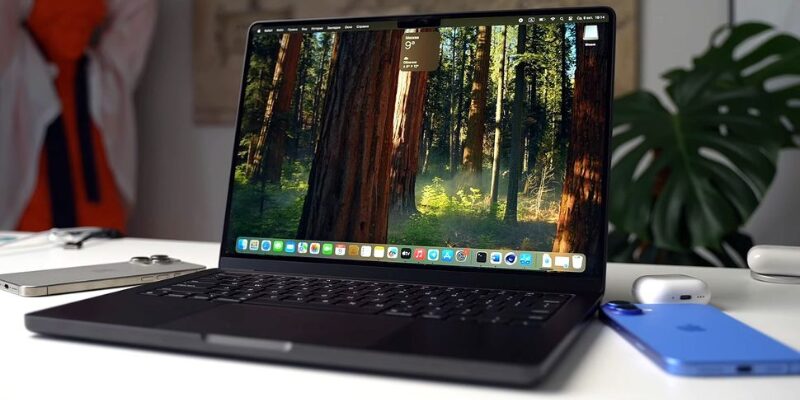
Place your MacBook and AirPods close together. Open the lid of your AirPods and wait for your MacBook to automatically detect them. If you have other Apple devices nearby, move them away so they don't detect those AirPods. If they don't appear automatically, tap Control Center in the upper-right corner of your desktop and select your headphones.
3. Start using your AirPods
Read also: Apple fixes AirPods Bluetooth vulnerability
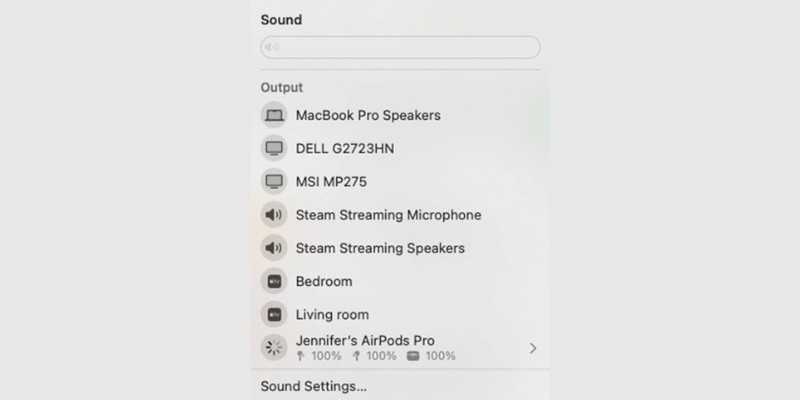
Your AirPods should connect automatically. If not, click Control Center on your Mac desktop and select them from the audio menu. You can also adjust various settings from here.
Why aren't my AirPods connecting to my MacBook?
If your AirPods aren't connecting to your MacBook, check a few things before you panic.
Make sure your AirPods and MacBook are charged, both devices are fully updated, Bluetooth is turned on, and the devices are close to each other. This should solve the majority of problems.
How do I put AirPods into pairing mode?
See also: Apple: New firmware for AirPods Pro, AirPods and AirPods Max
If you're new to AirPods, read how to connect AirPods for the first time. It's a simple process, but you may need to press the pairing button on the back of the charging case.
Source: techradar
