

T-Mobile has added the new SIM Protection feature to protect you from SIM swap attacks.
Hackers have been exploiting SIM swap attacks for years, leaving customers vulnerable to being locked out of their phone service and having their personal information stolen. Fortunately, T-Mobile is taking the issue seriously, introducing new measures aimed at better preventing such breaches.
SIM swap attacks work by someone contacting your carrier's customer support, impersonating you, and requesting a new SIM card. If successful, they can obtain one while also disabling connectivity and the number from any device you own. It's not uncommon for these attack methods to be used in conjunction with SMS- based two-factor authentication or passwords obtained from other data breaches to gain access to a person's online accounts .

See also: T-Mobile: Its Hacker Sentenced to 10 Years in Prison
In an effort to combat SIM swap attacks , mobile carriers have implemented various tactics, including improved training for customer service representatives and additional authentication measures. However, they still occur occasionally. T-Mobile recently introduced an account setting – “SIM protection” – that blocks all attempts to swap a SIM card until it is manually overridden by the user.
T -Mobile makes it easy to turn on the option—however, it’s not enabled by default. This is likely due to people who frequently switch SIM between their devices. If you’re a T-Mobile, you can find this feature in your “Privacy and notifications”. You can choose to turn it on for all lines on an account or for each line individually.
How to enable SIM protection in the T-Mobile app
Step 1: Open the Account and then tap Profile Settings.
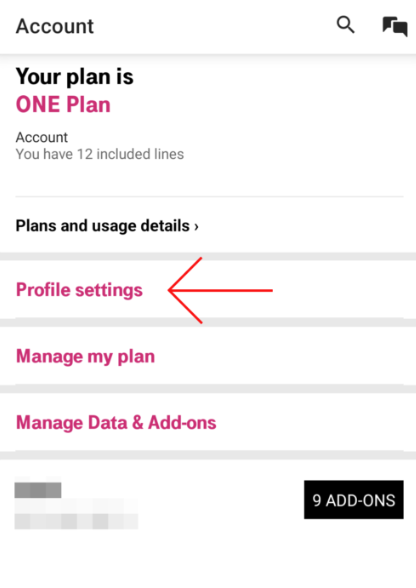
Step 2: Tap Privacy and notifications.
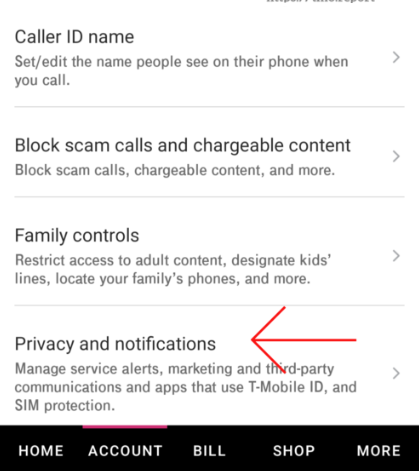
Step 3: Tap the new SIM Protection.
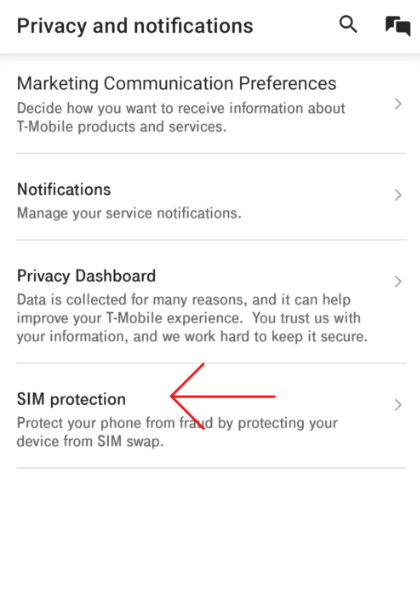
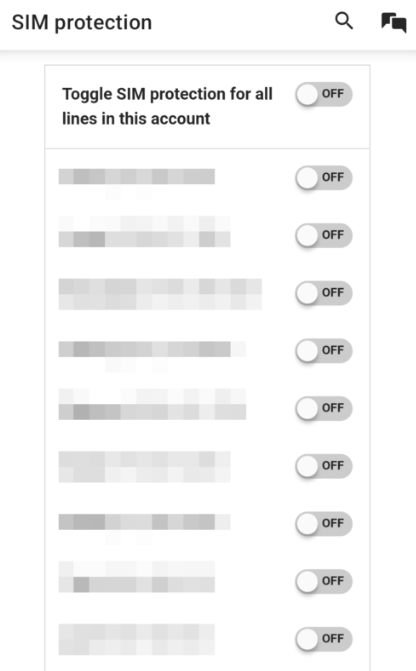
Step 4: You will see a list of all your lines. You can either enable SIM Protection on individual lines or use the top option to enable protection on every line at once. When you are done, scroll down and click Save changes.
How to activate SIM protection on the T-Mobile website
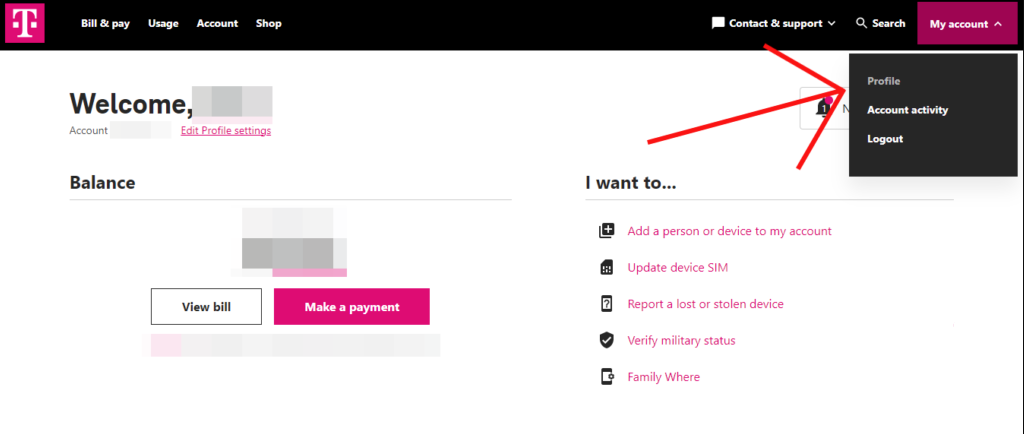
Step 1: Click on My account in the top right and then click on Profile.
See also: T-Mobile store owner stole credentials and unlocked phones
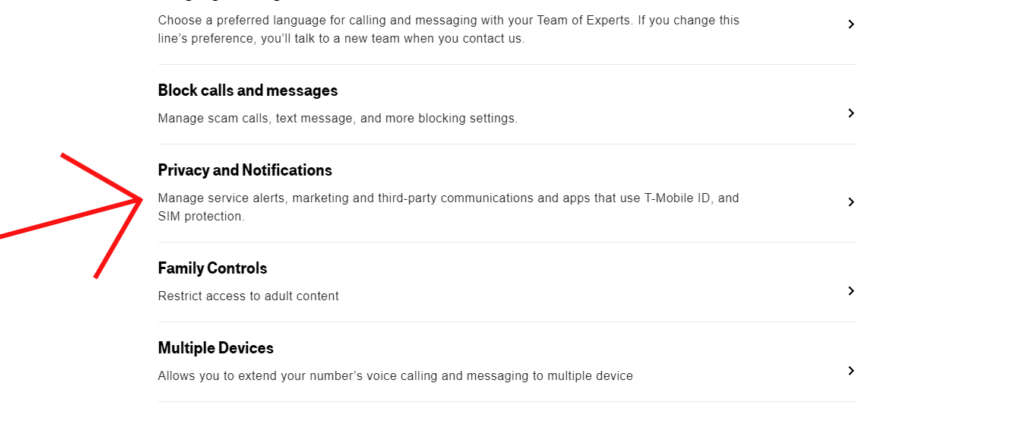
Step 2: Scroll down and click on Privacy and Notifications.
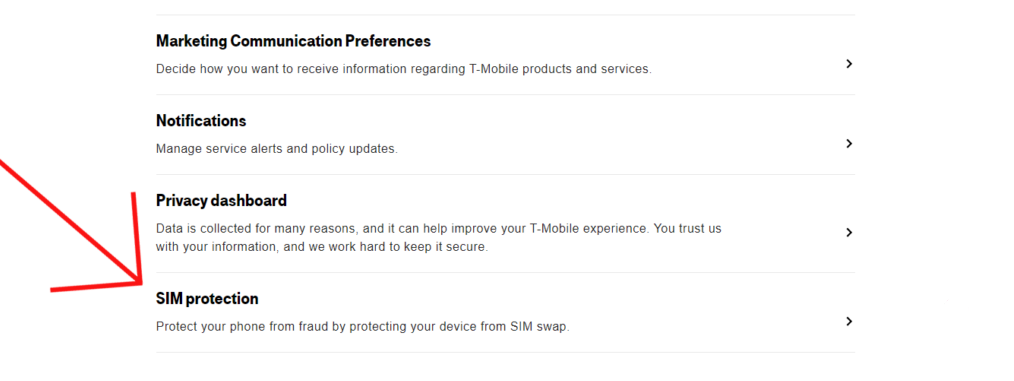
Step 3: Click on SIM protection.
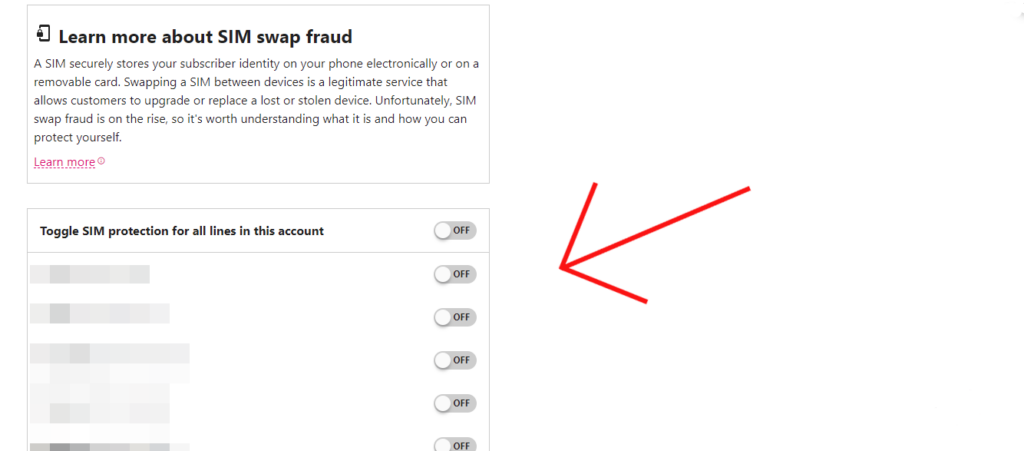
Step 4: Enable SIM protection for individual lines or all lines on the account, then scroll down and click Save changes.
It's encouraging to see increased security measures being implemented on phone lines, especially considering that many carriers are still struggling to integrate features commonly found in other online accounts (like two-factor authentication ). Let's implore all networks to integrate a similar feature.
Source: howtogeek.com
