

Google Chrome can force dark mode on every website you visit, putting an end to those blinding white backgrounds on your nice dark desktop.
See also: Chrome OS Flex: It's now available on old PCs and Macs

How to force dark mode on all websites
Want to try it? This option has been available as a hidden flag since Chrome 78. (We confirmed that it still works in Chrome 103 in July 2022.) Like all flags, it's an experimental option that can be changed or removed at any time. One day it may transition to a proper option in Chrome's Settings screen, or it may disappear altogether.
See also: Screencast: How to use it on Chromebook?
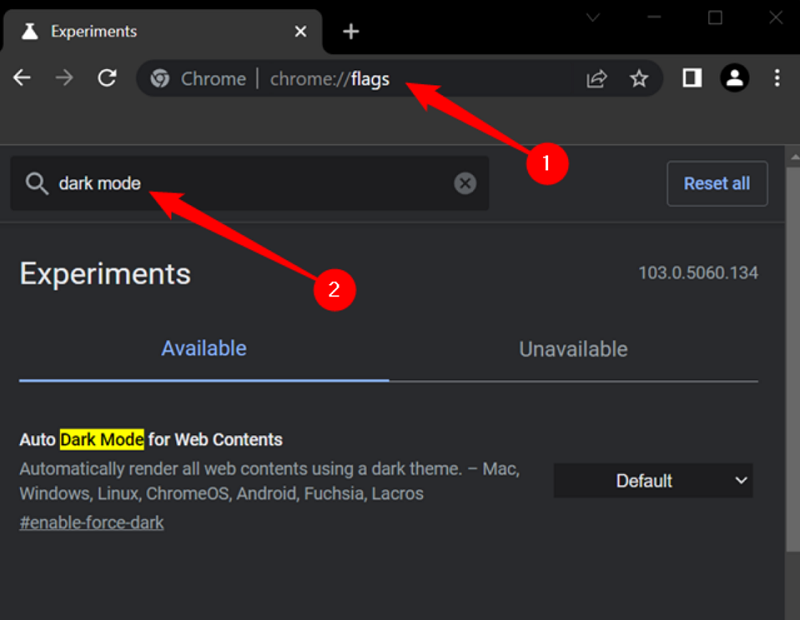
To find it, type “chrome://flags” in the main Chrome box and press Enter.
Search for “dark mode” in the search box at the top of the Experiments page that appears.
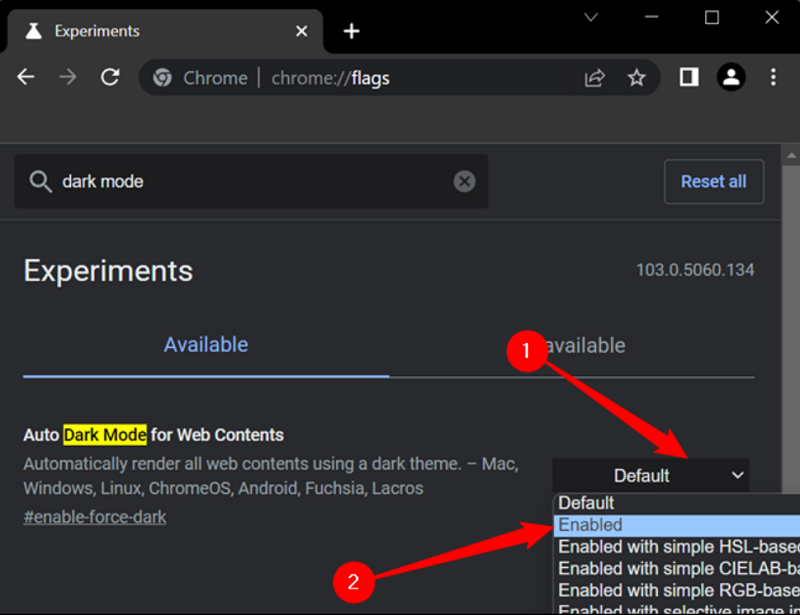
Click the box to the right of “Auto Dark Mode for Web Contents” and select “Enabled” for the default setting.
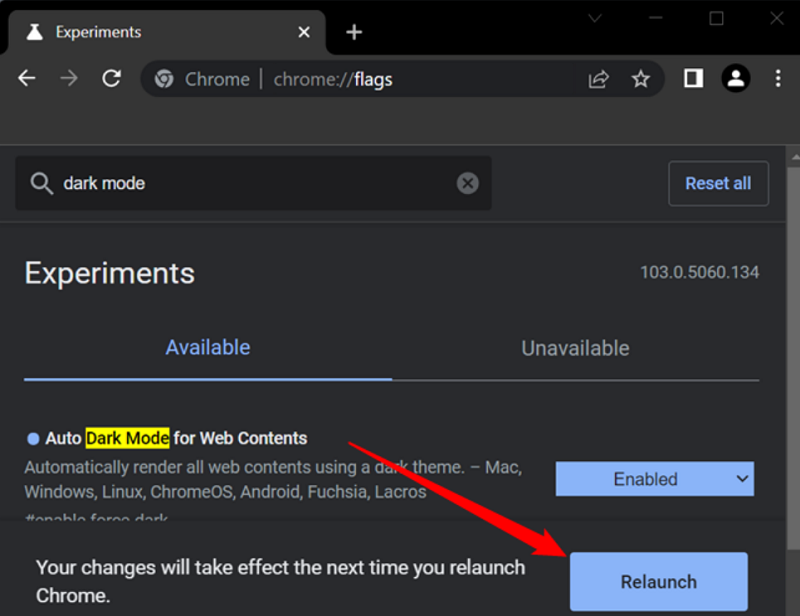
Click “Relaunch” to restart Chrome. Chrome will close and restart all your open web pages. Be sure to save any content on those pages – for example, things you’ve typed into text boxes – before restarting the browser.
See also: Chromebook: How to update it?
Browse around and see how it works. If you don’t like it, go back to Chrome’s Experiments screen, change this option to “Default,” and restart the browser. Chrome will stop messing with website colors after you disable this option.
Information source: howtogeek.com
