

A smartphone is an essential tool for most people. To be able to use it more effectively, it is important to have an organization. For example, the iPhone allows you to better organize apps by creating folders in which you can group related apps. This makes it easier to find apps and makes your phone's home screen look cleaner and tidier.
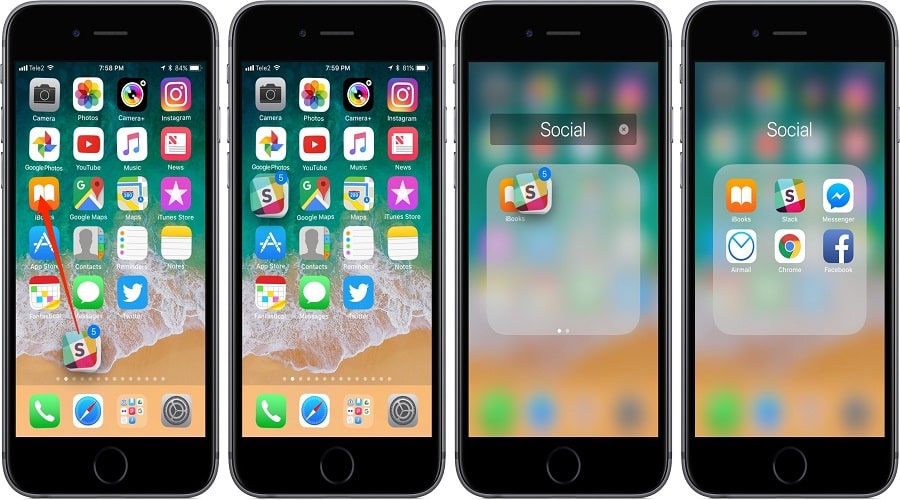
If you want to try organizing your apps into folders, see below how you can do it.
See also: iPhone: Will it have technology that will make it easier to use in the rain?
How to create folders for your apps on iPhone?
To create a new folder, you need to “grab” and drag an app onto another app on your iPhone’s home screen. The two apps will then be inside a new folder.
- To do this, locate the first app you want to add to a new folder.
- Then, long-press on that app until all your app icons start to wiggle.
- Drag the app and drop it on top of another app. This will automatically create a new folder and the two selected apps will be inside it.
- Depending on the apps you moved to the new folder, your iPhone will assign an appropriate name to the folder. If you want to rename the folder, open it, tap and hold the existing name, and type the new name you want.
Of course, you can add more apps from the home screen to your new folder in the same way. All you have to do is select them and drag them to the folder. Similarly, to remove apps from your folder, drag those apps out of the folder. This will remove the apps from the folder, but not delete them from your device.
See also: Gmail: How to add and use it on your iPhone?
That was the process! In the above way, you can create many different folders on your iPhone and group apps for better organization.
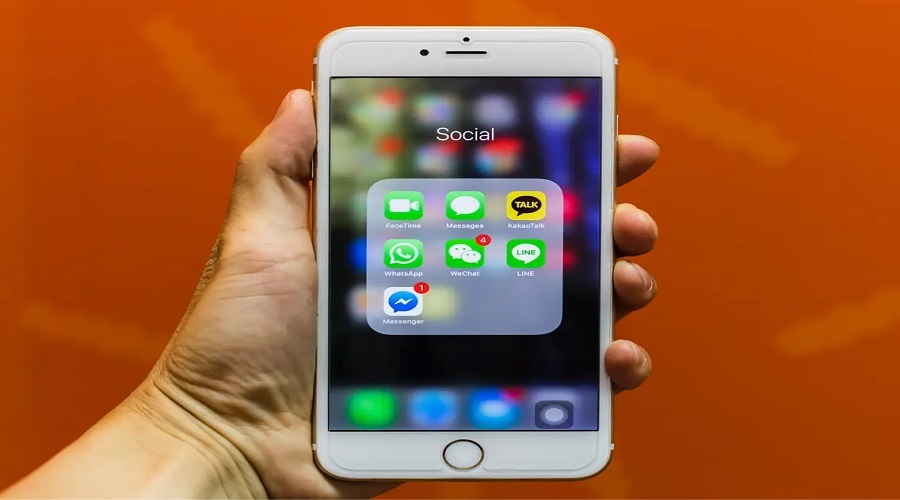
How to delete a folder with apps on iPhone?
To delete a folder from your home screen , you will need to remove all the apps located in that folder.
- First, select the folder you want to delete. Open it and drag all the apps out of the folder.
- Your iPhone automatically deletes the folder when the last app is removed.
See also: Apple executive says Samsung copied the iPhone
Remove all app folders on iPhone
Your iPhone also lets you quickly delete all the app folders you've created on your Home screen. This way, you don't have to remove each folder individually. Removing folders doesn't uninstall the apps in them.
- Open Settings on your iPhone. Then go to General > Reset.
- On the “Reset” page, select “Reset Home Screen Layout”.
- Then, select “Reset Home Screen“.
- All of your app folders have now disappeared from your home screen. Your installed apps are now organized alphabetically after the iPhone.
Source: www.howtogeek.com
