

Microsoft provides OneNote with a feed similar to what you see when you log into a social media app. The feed in OneNote aggregates notes, shows page changes, and lets you add sticky notes in one handy spot.
Here are a few things to keep in mind if you use the OneNote feed:
- The feature is available in OneNote for Windows 10, OneNote desktop, OneNote for the web, and OneNote for Android.
- The feed syncs notes associated with the same Microsoft account, including OneNote, Samsung Notes, and Sticky Notes across all your devices.
Open the feed in OneNote
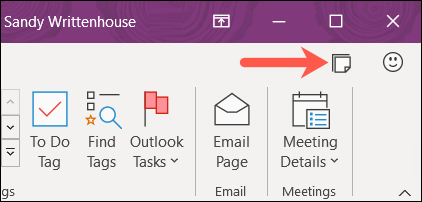
Fortunately, you can view the feed in OneNote with the click of a button. In the upper-right corner of the OneNote window or screen, click the Open Feed.
Also read: How to convert Microsoft OneNote notes to PDF
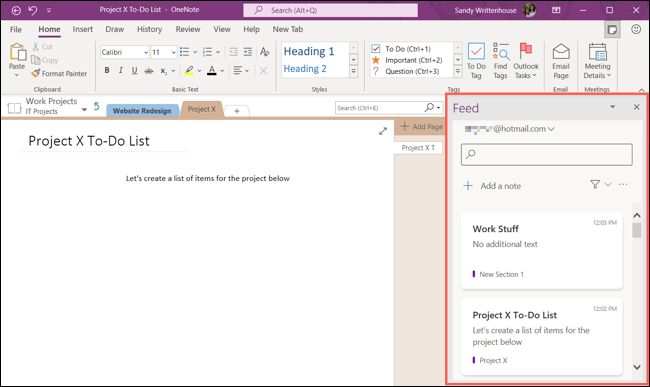
This displays the feed window on the right side and shows your most recent edits and additions.
How to use the OneNote feed
While the feed in OneNote is a great place to review your most recent items, it offers more than just a quick glance at your notes. You can switch between accounts, create and edit Sticky Notes, open a OneNote or Samsung Note page, and search or filter.
Switch Microsoft accounts
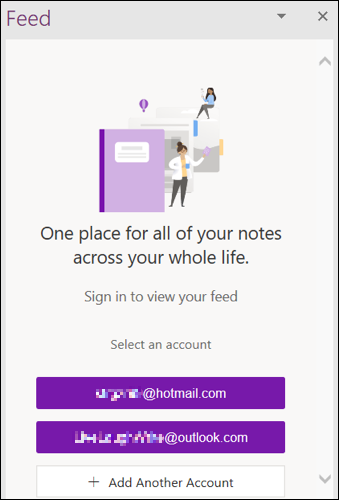
If you have more than one Microsoft account that you use with OneNote, you can easily switch between them in the feed.
At the top of the feed window, click on your current account to display a drop-down list of options. Select “Sign Out”.
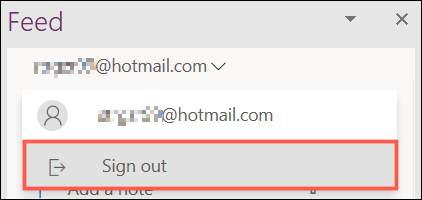
When the window refreshes, select the account you want to use at the bottom, or click “Add another account” to connect a different Microsoft account.
Create or edit a sticky note
It's very easy to add a sticky note to your OneNote feed. Click “Add Note” near the top of the window.
See also: How to embed Pinterest pins in OneNote/Word for the Web

Type your note, then customize it if you want. Use the three dots in the top right to change the color or the toolbar at the bottom to format the font, create a bulleted list, or insert an image.
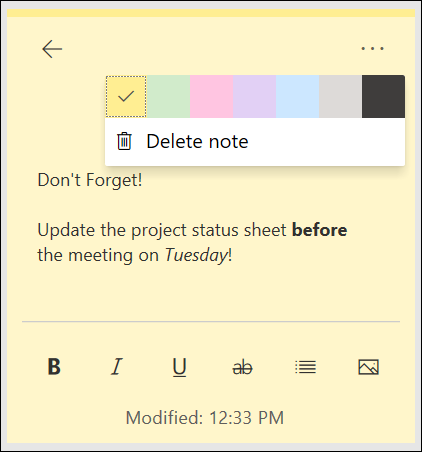
When you're done with your note, click the arrow in the top left to return to your feed.
If you want to edit a note you see in your feed, just click on it. This will open it in the same type of screen as when you created it. After you make changes, click the arrow to return to your feed and your changes will be saved.
Open a OneNote page
You can see OneNote pages you've recently created or edited in your feed. And that includes pages you've worked on in the OneNote app on other devices or on the web.
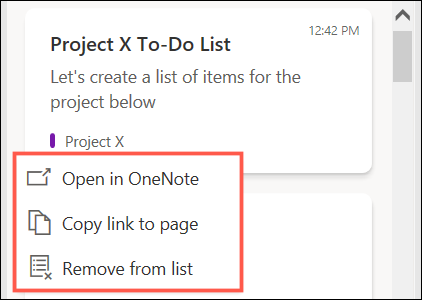
Click on a page (block) in your OneNote feed to open it. You can also right-click to copy a link there or remove it from your feed.
Open a Samsung Note
If you use Samsung Notes on your phone, you can sync them with OneNote to view in your feed. To open a Samsung Note, simply click on the OneNote feed. When you’re done, click “Back” in the top left to return to your feed.
Search and filter your feed
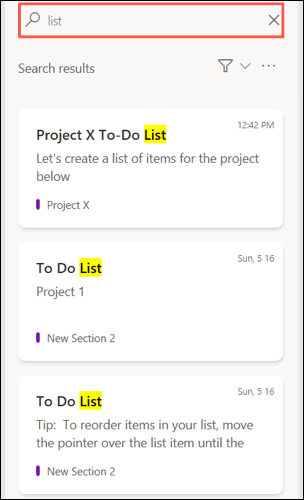
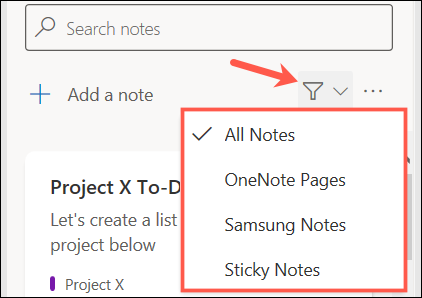
When you need to find a specific item in your feed, you have two options: You can use the appropriate search box at the top or the filter options.
To search, enter a keyword or phrase in the Search. You'll see results with the word or phrase highlighted below.
Suggestion: How to allow pop-ups in Microsoft Edge
To filter, click the Filter icon and select a type from the drop-down list. You can filter by OneNote Pages, Samsung Notes, or Sticky Notes. The default option is to show all notes.
When you're done with your feed, you can close it by clicking the X in the top right or the Open Feed button (to deselect it) in the top right corner of the window or screen.
If you do a lot of work in OneNote, the feed will be a handy tool for you. You can quickly see recent pages, create new notes, and find what you need.
Information source: howtogeek.com
