

Microsoft has added a built-in network packet sniffer to the Windows 10 October 2018 Update that has gone unnoticed.
A packet sniffer, or network sniffer, is a program that monitors network activity flowing over a computer at a packet level.
This can be used by network administrators to diagnose networking issues, to see what types of programs are being used on a network, or even to listen in on network conversations sent in clear text.
While Linux users have always had the tcpdump tool to perform network sniffing, Windows users had to install third-party programs, such as Microsoft Network Monitor and Wireshark.
This all changed when Microsoft released the October 2018 Update, as Windows 10 now comes with a new “Packet Monitor” program called pktmon.exe.
Built-in packet sniffer comes to Windows 10
With the release of the Windows 10 October 2018 Update, Microsoft quietly added a new network diagnostic and packet monitoring program called C:\Windows\system32\pktmon.exe.
This program has a description of “Monitor internal packet propagation and report dropped packets,” which indicates that it is designed to diagnose network problems.
Similar to the Windows "netsh trace" command, it can be used to fully inspect packets of data sent through the computer.
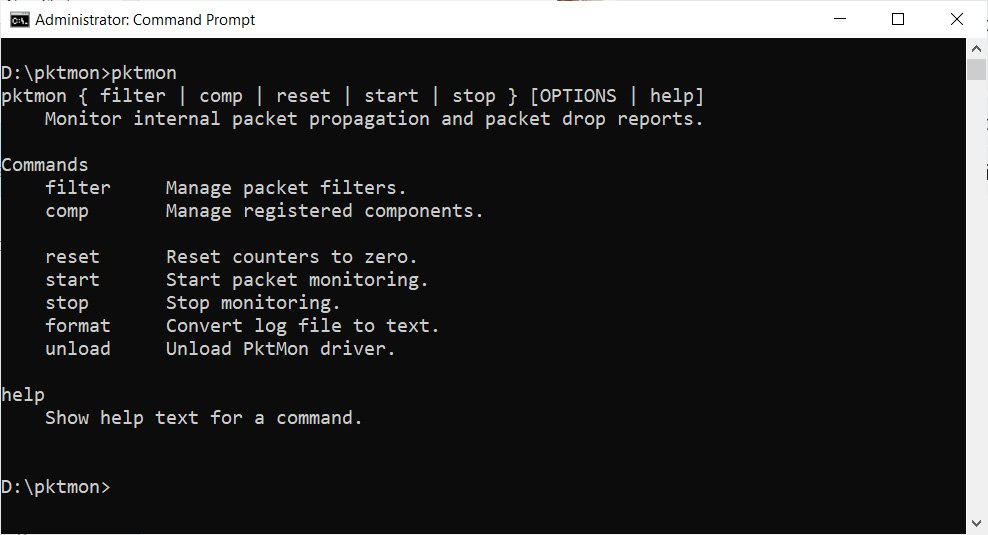
This program has no mention on the Microsoft website that we could find, and we had to learn how to use it by playing around with the program.
Fortunately it includes a fairly extensive help system which can be used by typing 'pktmon [command] help'.
For example, pktmon filter help will give you the help screen for the filter command.
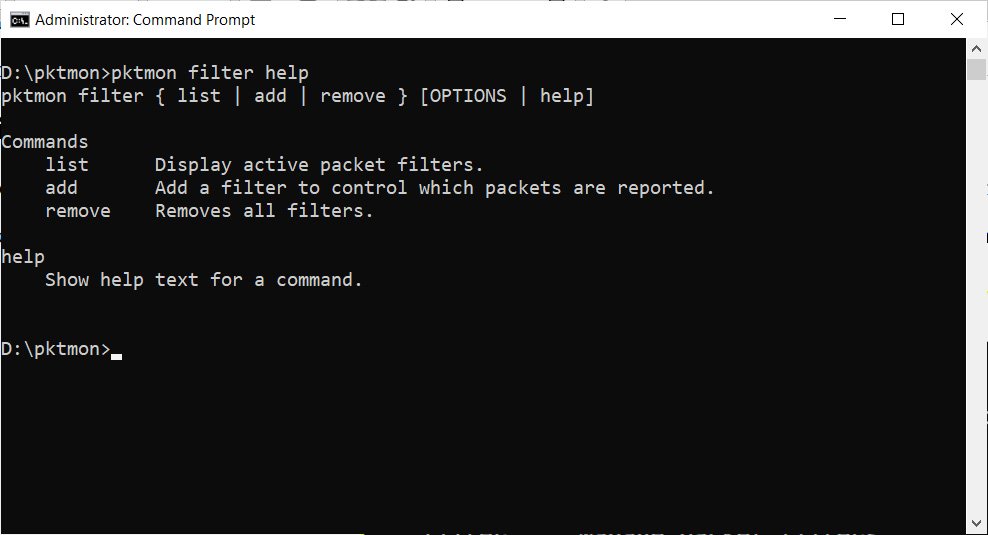
To learn how to use Pktmon, I suggest you read the help documentation and “play around” with the program. We also provide an example in the next section to help you get started.
Using Pktmon to monitor network traffic
Unfortunately, diving into the full feature set of Pktmon is beyond the scope of this article, but we wanted to show you a basic example of how you can use the tool.
For example, we will use Pktmon to monitor FTP traffic from the computer it is running on.
To do this, we first need to launch a command prompt with upgraded Windows 10, as Pktmon requires administrator.
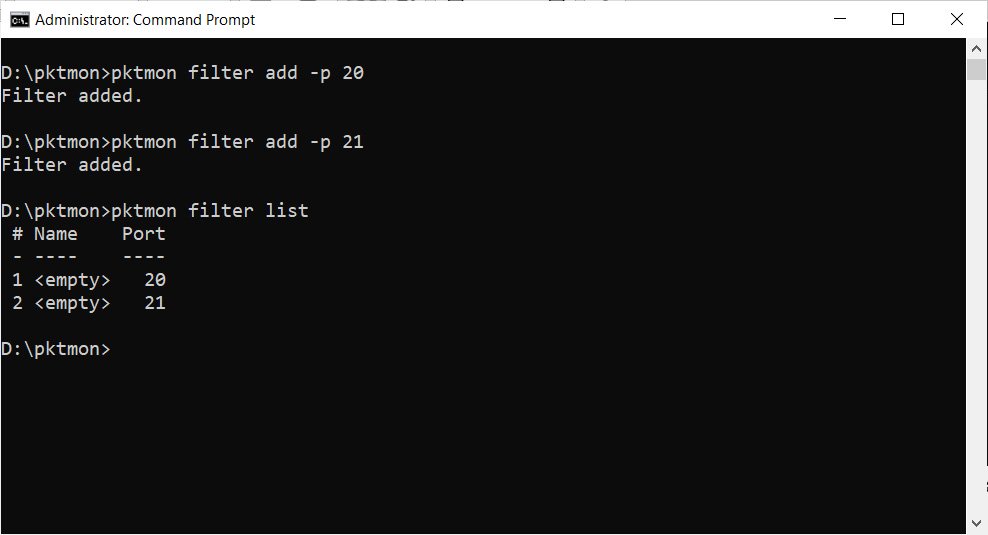
Next, we need to create two packet filters that will tell Pktmon what traffic to monitor, which in our example will be traffic on TCP ports 20 and 21.
These filters can be created using the pktmon filter add -p [port] command for each port we want to monitor.

Then, you can use the pktmon filter list command to view the packet filters we just created.
To start monitoring for packets communicating on TCP ports 20 and 21, we need to use the pktmon start –etw command.
Once executed, pktmon will record all packets on all network interfaces on the device to a file called PktMon.etl and will only record the first 128 bytes of a packet.
To capture the entire packet only from a specific ethernet device, you can use the arguments -p 0 (capture the entire packet) and -c 13 (capture only from the adapter with ID 13).
To determine what ID your adapters are, you can run the pktmon comp list command
When we combine all the arguments, we get a final command:

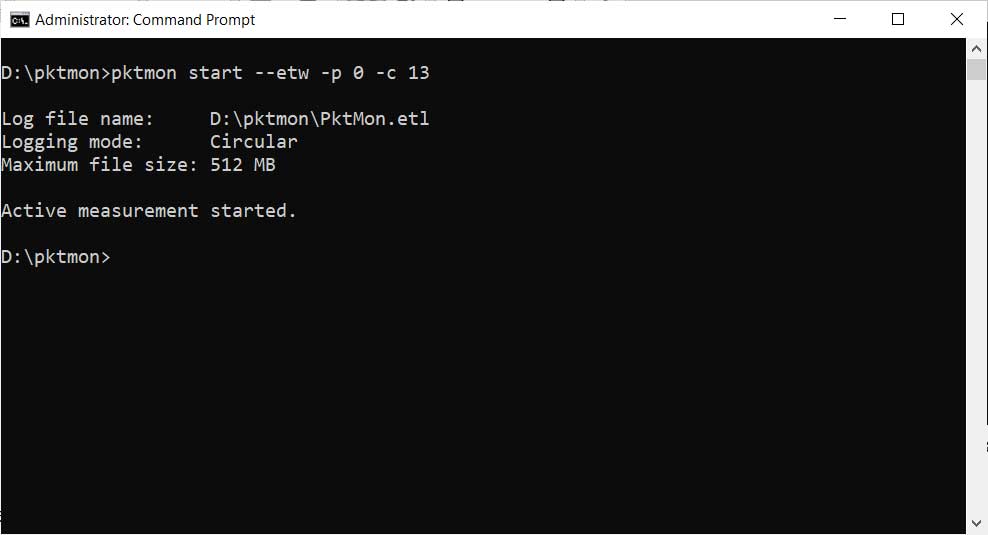
Pktmon will now run silently while capturing all packets that match our incoming filters.
To stop receiving packets, enter the pktmon stop command and a log file called PktMon.etl will be created in the same folder that contains the raw data.
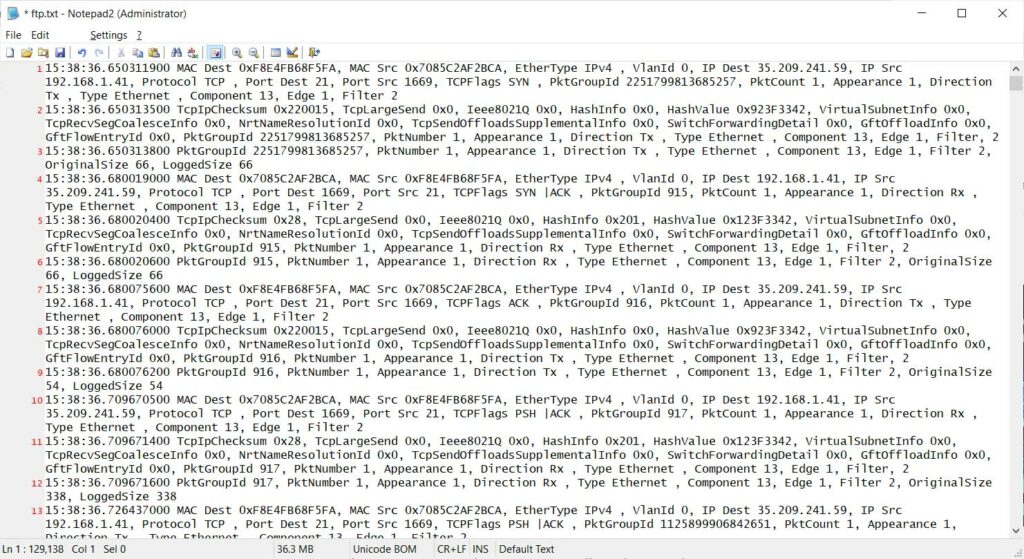
This data in this file cannot be used directly, so you need to convert it to a human-readable text format with the following command:

Even converting to text, it is not going to give you the full packets, but only a summary of the network traffic, as shown below.
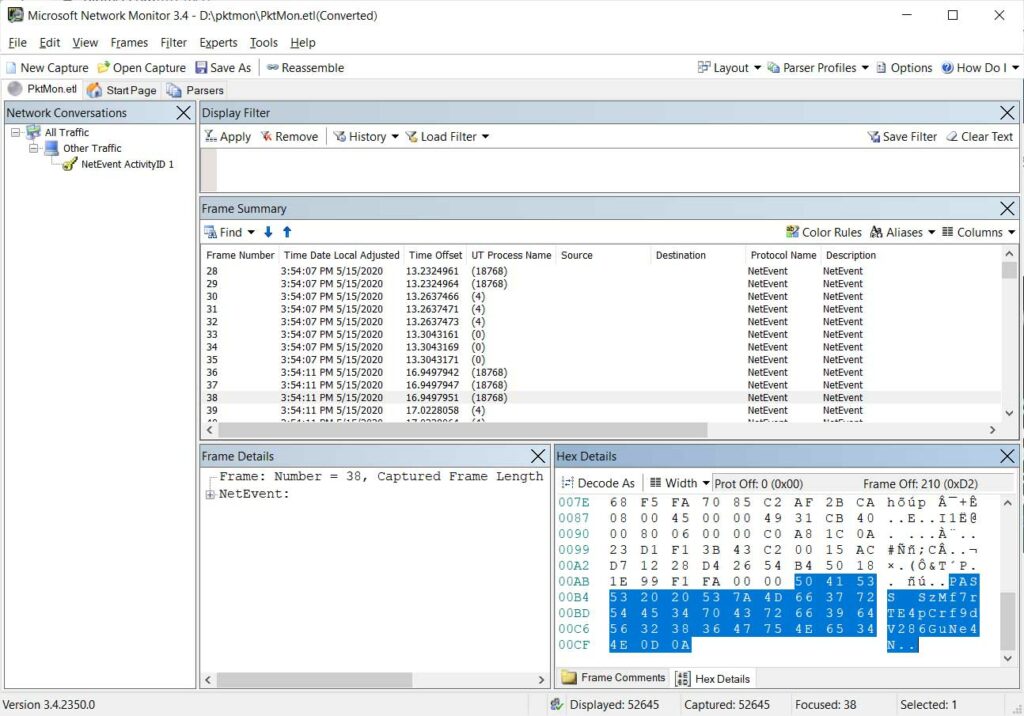
To take advantage of the recorded data, I recommend downloading and installing Microsoft Network Monitor and using it to view the ETL file.
Using Network Monitor, you can see the full packet that was sent, including any clear text information.
For example, below you can see a packet containing the clear text password we entered when connecting to this FTP test site.
When you are finished using the Pktmon program, you can remove all created filters using the command:

Coming soon, real-time monitoring and pcapng support
With the upcoming release of the Windows 10 May 2020 Update (Windows 10 2004), Microsoft has updated the Pktmon tool to allow you to display monitored packets in real-time and convert ETL files to PCAPNG format.
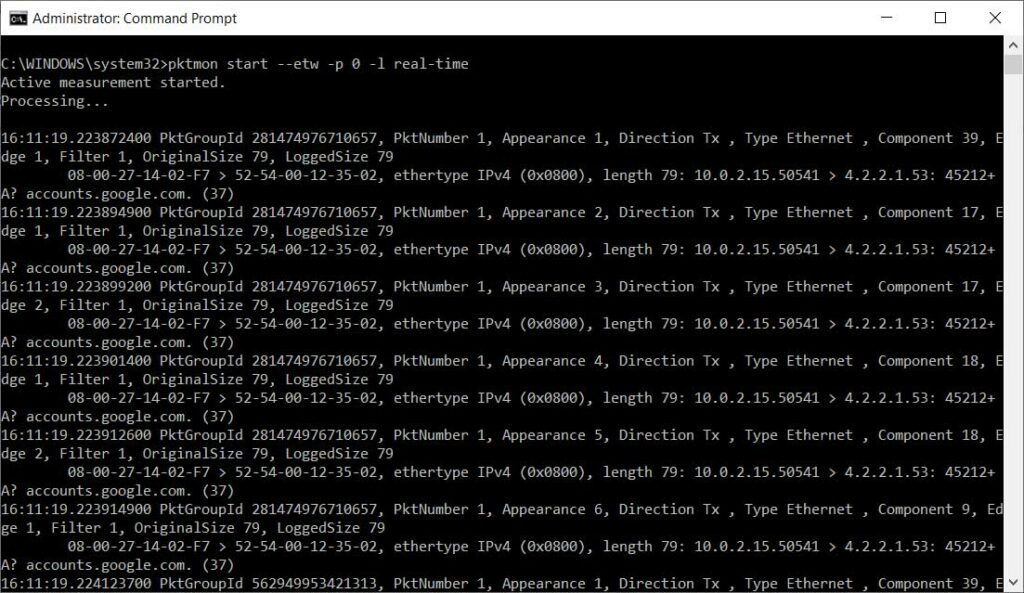
In the version of Pktmon coming in the next feature update, you can enable real-time monitoring using the -l real-time argument.
This will cause the “directly pulled” packages to appear on the screen, while also saving them to the ETL file.
Microsoft is also adding the ability to convert ETL files to PCAPNG format, so they can be used in programs like Wireshark.
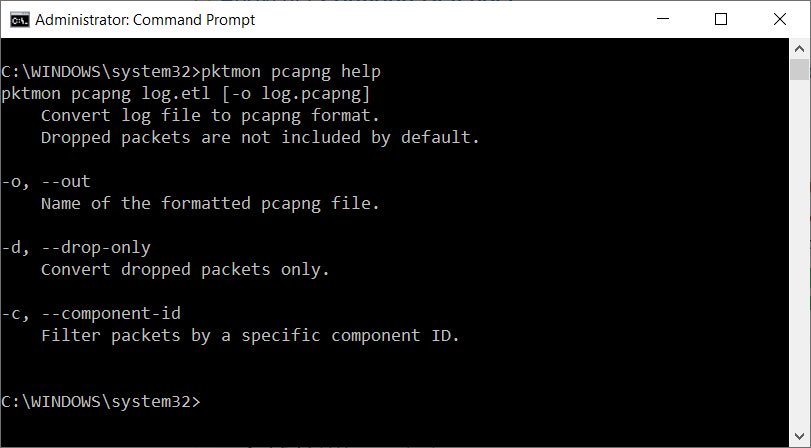
Once the file is converted to PCAPNG format, it can be opened in Wireshark so you can better see the network communication.
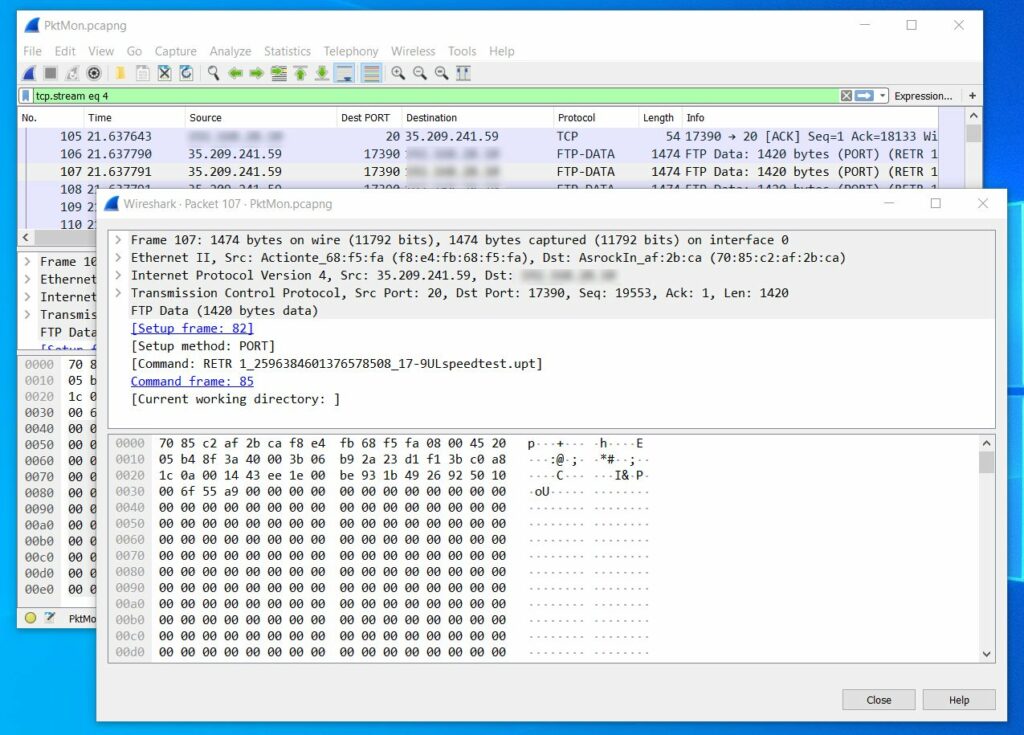
Once again, these features are not available in Windows 10 1903/1909 and will come to Windows 10 2004 when it is released at the end of the month.
