


Have you ever been playing a game and wanted to save a screenshot of the best moment, but didn't know how? Have you ever pressed print screen and nothing happened? In this article, you will see some ways in which you can very easily take a screenshot at any time and if you need to, without thinking about the above problems!
1) Snip & Sketch
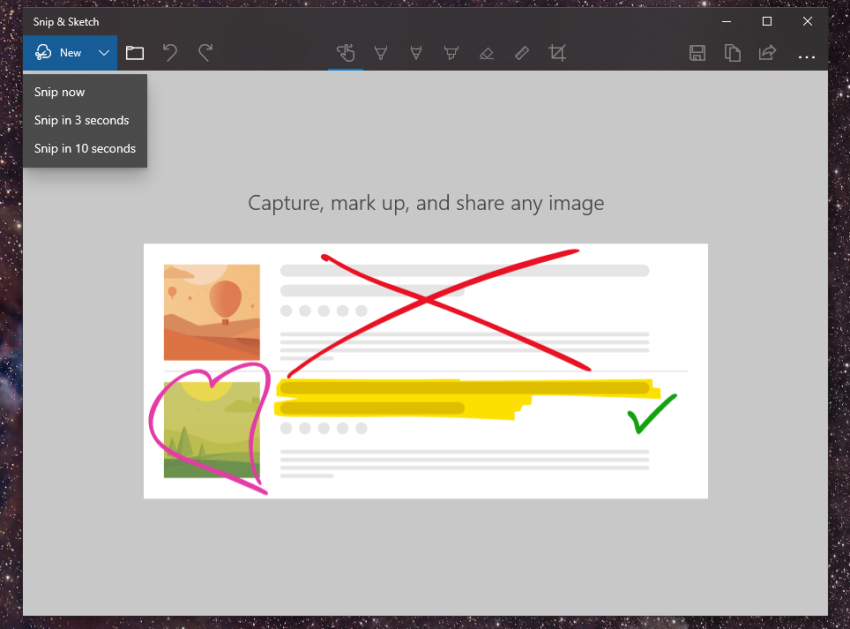
Snip & Sketch is a tool that makes it easy to create and edit screenshots. After you take one, the screenshot is automatically loaded into Snip & Sketch, which allows you to edit it with various tools at the top of the window. The screenshot is also automatically copied to the system and will contain any changes you make through the tool.
2) Snipping Tool
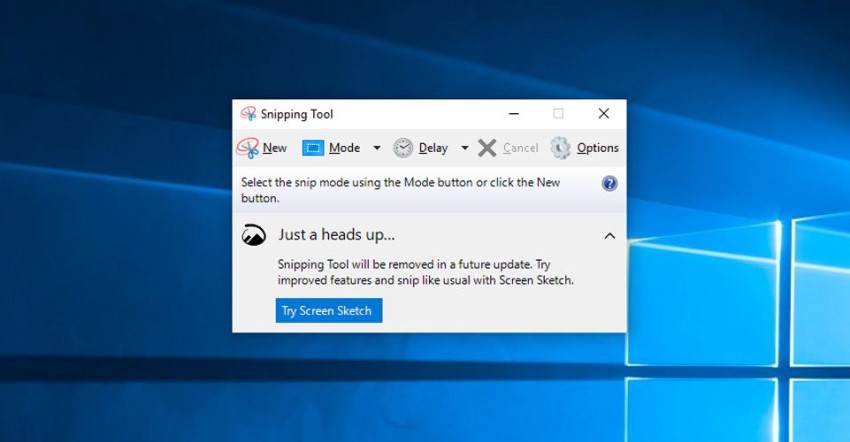
Although it is old and has been around since Windows Vista, the Snipping Tool is a very popular tool for taking screenshots, this tool does not support auto-saving. In fact, you have to save the files through the program, before exiting it. However, the screenshots are copied to the system clipboard. Their default type is rectangular, but you can also choose other shapes, such as freeform.
3) Print Screen
To take a screenshot of the entire screen, press the Print Screen, also known as PrtScn. This will create a screenshot, but it will only be saved to the clipboard. You will then need to open an image editing tool like Paint and paste the screenshot to save it as a.
4) Windows + Print screen
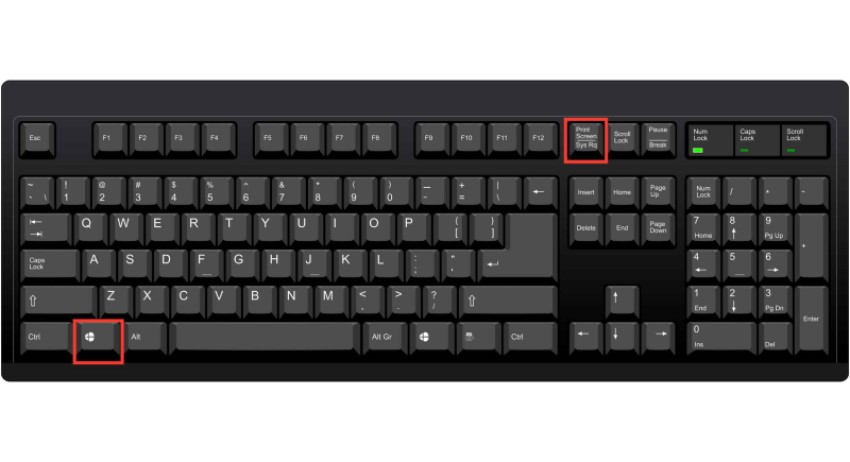
To take a screenshot and save it automatically, press the Windows together with the Print Screen key. The screen will turn white for a moment, indicating that the action was successful. You can then find the image in the “screenshots” folder which is located in the pictures folder.
5) Windows + Shift + S
The keyboard also has several shortcuts for taking screenshots. By pressing the Windows key together with shift and S, you can take a screenshot with Snip & Sketch. The screen will go blank for a few seconds, and then a small icon will appear at the top of your screen from which you can choose the type of screenshot you want to take.
6) Alt + Print Screen
Another way to take a quick screenshot is to use the shortcut Alt + PrtSc. This will copy your screen to the system clipboard. However, you will need to open any application to save the image.
7) Game Bar
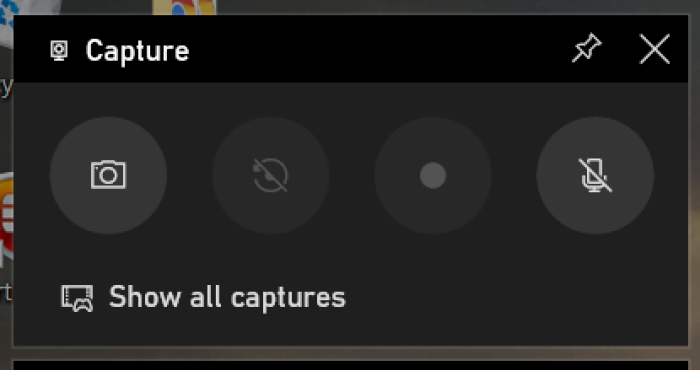
Whether you're playing a game or not, you can use the Game Bar to take a screenshot. Press the Windows key and G at the same time to bring up the Game Bar. Here you'll find a button that says "screenshot." You can also use the default shortcut, which is Windows + Alt + PrtScn, to take a screenshot of your entire screen.
8) Lightshot

This is an application that is available for Windows and Mac. However, you need to install it before you can use it. You can find the application by clicking here. With Lightshot you can take a screenshot simply by pressing Print screen. This will open a window where you can select the type of image, draw on it, and then save it or upload it to the internet with a simple click.
