

Windows 10 monitor: Yes, there are a lot of hardware components. Manufacturers use a generic name to identify them, but also a model number to clarify the specifications.
The generic name is the company name, and is usually easy to remember, but the model number is very complicated to remember.
Laptops usually have stickers to identify the hardware, or in some cases manufacturers have an application that if installed on your system will help you identify the component they manufactured.
Below we will see how you can find information about your computer screen in Windows 10.
Finding the brand of a monitor often doesn't require using your operating system. The manufacturer's name is usually on the screen, or when you turn on your monitor it may display the manufacturer's logo for a few seconds.
But the model number is not showing. Let's see where it is.
First, connect the monitor you are interested in to the system. Make sure that the system “sees” the monitor you connected.
Open the Settings app in the System group of settings. Select the “Display” tab and look for the option “Advanced display settings.”
Click on the option and on the screen that appears, open the Display option drop-down list.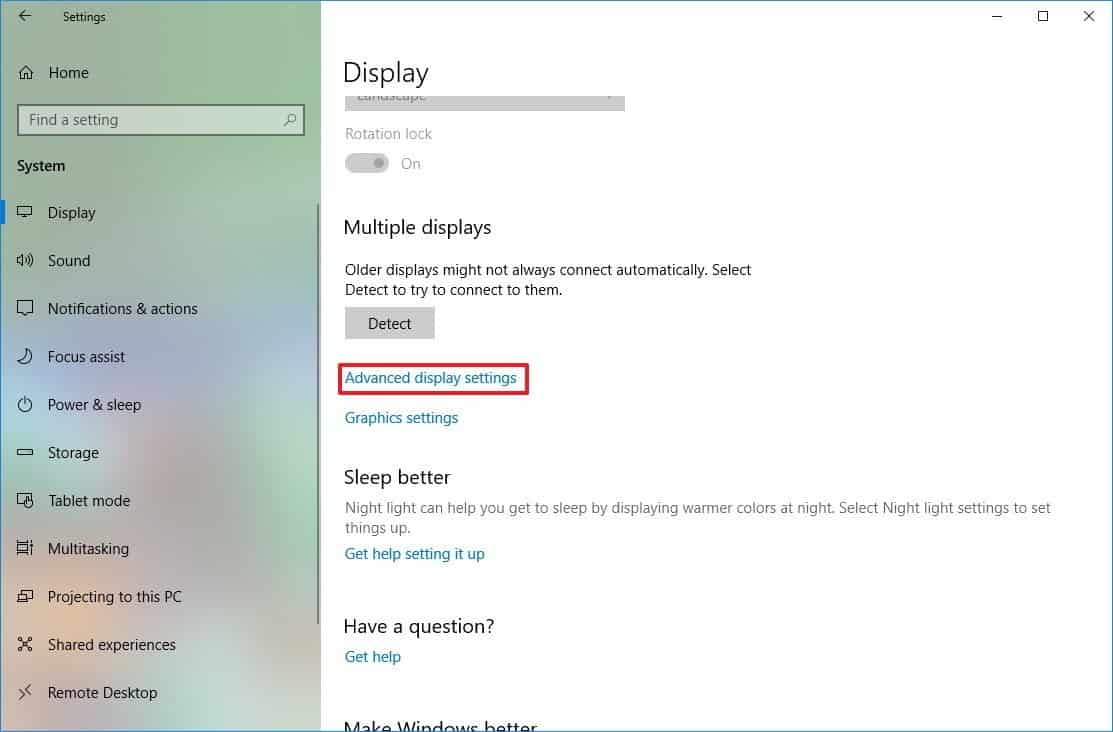
Select the secondary display/external display from the list. The display will be displayed with the brand and model number. The image below shows the brand and model number of the display.
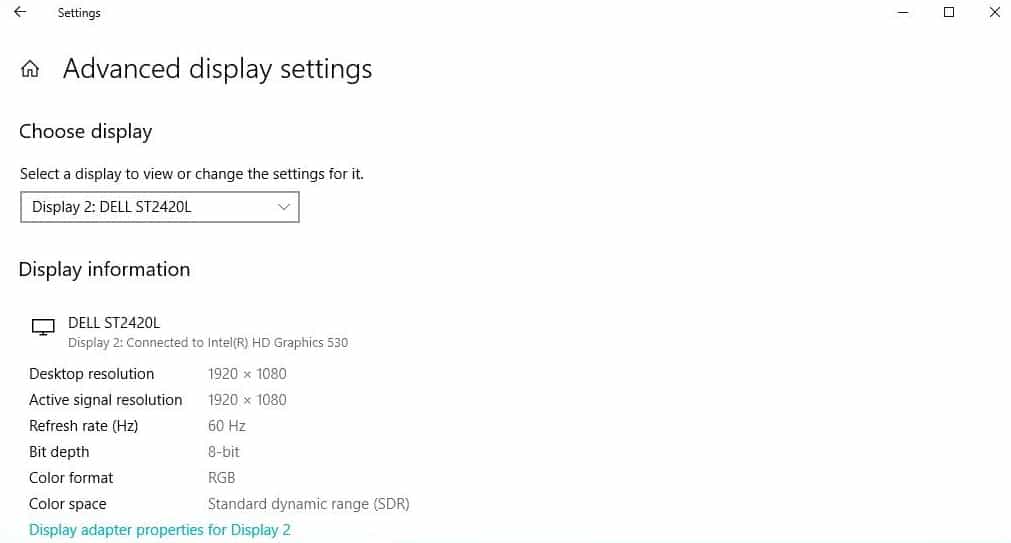
There is a display adapter properties option in this window and if you click on it, the window that will open has a dedicated Monitor tab.
The display tab allows you to manage some settings on your display, however the information about the display brand or model is not accurate.
____________________
- Google is building its own village with 8,000 homes
- Kodachi Linux 5.5 anti forensic anonymous operating system
- 5 Linux tools to recover data from damaged drives
- Google: ceded Duck.com to DuckDuckGo
