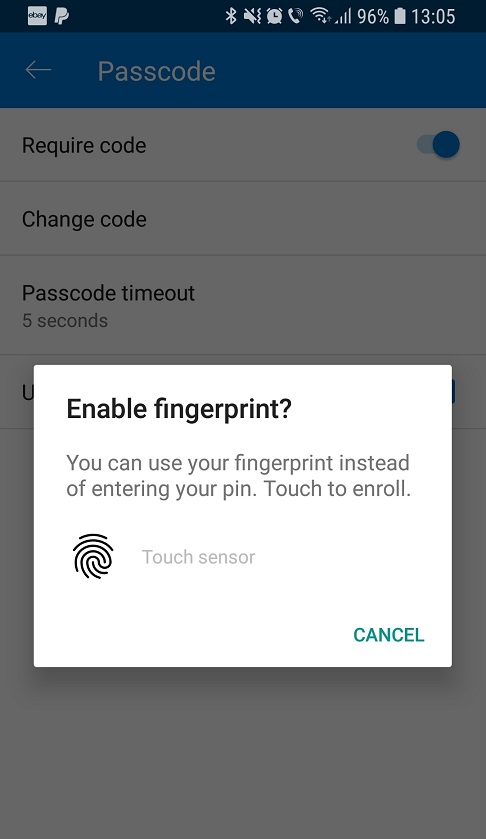
Microsoft has updated OneDrive for Android to version 5.14, finally bringing a feature that has been available on iOS devices for so long. With this new version, Microsoft OneDrive for Android supports fingerprint unlocking, which means you can protect your files stored in the Cloud and easily authenticate with a simple scan of your fingerprint.
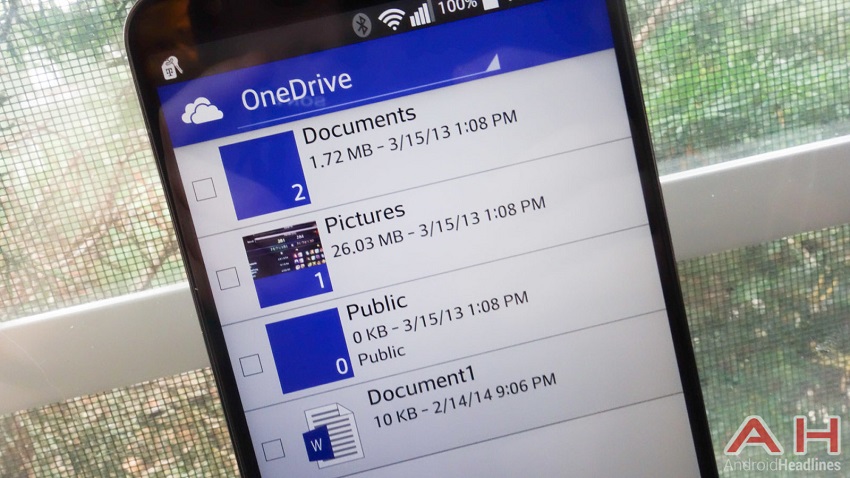
Needless to say, this feature requires a fingerprint scanner on your phone and requires you to set a PIN to block access to the app. Every time you open OneDrive on Android, the app asks you to scan your fingerprint, thus ensuring that only authorized users have access to Cloud data.
This feature is already available on iOS devices, and installing the latest version of the OneDrive client brings it to Android.
Additionally, OneDrive for Android version 5.14 also includes changes to how photos are displayed within the app, with Microsoft explaining the following in the official release notes:
“We’ve improved the grid view to help your photos stand out and look better, and we’ve made it easier for you to see which photos are backed up in the Photos tab.”.
The update to version 5.14 is rolling out for Android users on the Google Play Store.
To enable fingerprint authentication in the OneDrive app for Android, you need to click on Me in the navigation bar at the bottom of the screen, then go to Settings > Passcode. After you set up a passcode to protect the app, OneDrive will ask you to set up a fingerprint.
If the passcode was already set up before the update, you need to open the Passcode section and then select the option to “Use fingerprints for authentication.” Again, you will need to scan your fingerprint to complete the setup process.