

It is well known that Windows 10 comes with bloatware. It is something that Microsoft is used to with its operating systems. Windows 10 comes with a bunch of useless apps and games. In addition to the installed games, Microsoft also installs apps that an average user is very unlikely to use, for example 3D Builder.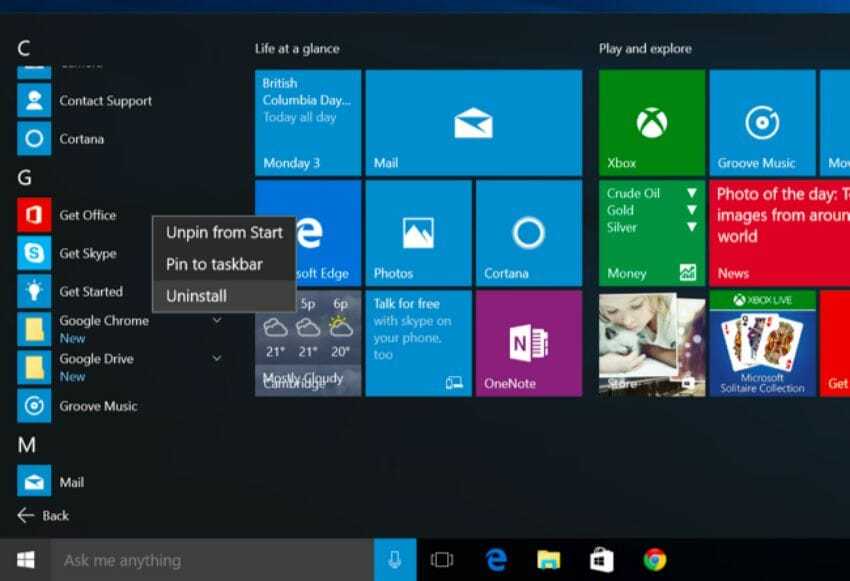
All of this can be removed, but it takes a lot of time. Below we will see how you can do it easily with a PowerShell script. The script will remove all bloatware from Windows 10 without breaking your system.
There are many applications for removing bloatware from Windows 10, but this particular script is quite reliable. You will not need to install any application to remove other applications. The PowerShell script will remove the bloatware with a click and will also clean the Windows registry.
Let's see which applications will be removed automatically:
[su_spoiler title=”Click to view the list” style=”simple” icon=”folder-1″]3DBuilder, Appconnector, Bing Finance, Bing News, Bing Sports, Bing Weather, Fresh Paint, Get started, Microsoft Office Hub, Microsoft Solitaire Collection, Microsoft Sticky Notes, OneNote, OneConnect, People, Skype for Desktop, Alarms, Camera, Maps, Phone, SoundRecorder, Store, XboxApp, Zune Music, Zune Video, Windows communications apps, Minecraft, PowerBI, Network Speed Test, Phone, Messaging, Office Sway, OneConnect, Windows Feedback Hub, Bing Food And Drink, Bing Travel, Bing Health And Fitness, Windows Reading List, Twitter, Pandora, Flipboard, Shazam, CandyCrush, CandyCrushSoda, King apps, iHeartRadio, Netflix, DrawboardPDF, PicsArt-PhotoStudio, FarmVille 2 Country Escape, TuneInRadio, Asphalt8, NYT Crossword, CyberLink MediaSuite Essentials, Facebook, Royal Revolt 2, Caesars Slots Free Casino, March of Empires, Phototastic Collage, Autodesk SketchBook, Duolingo, EclipseManager, ActiproSoftware, BioEnrollment, Windows Feedback, Xbox Game CallableUI, Xbox Identity Provider, and ContactSupport.[/su_spoiler]
After downloading the script you can right‑click it and run it with PowerShell, however for it to work you will need to change the PowerShell execution policy to be able to make changes to your system.
The two modes the script runs are: Silent and Interactive.
Silent mode handles everything for you, while Interactive mode will ask you if you want to create a restore point, etc.
Once you create the backups and restore points, the script will remove all bloatware from Windows 10. It will not ask you whether you want to keep specific apps or not.
https://codeload.github.com/Sycnex/Windows10Debloater/zip/master
Read the instructions carefully
