

Every time you reinstall your computer's operating system and format your hard drive partitions, the data on them is not completely wiped. Therefore, if someone gets their hands on an old hard drive that hasn't been adequately wiped, they can recover personal files and sensitive data from it.
Below we will see some methods by which we can completely erase (or wipe) a hard drive on Linux.
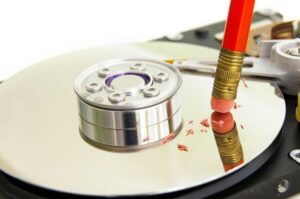
Wipe / DD Command
The most common method for securely erasing a hard drive in Linux is via the DD command. This method is not fast, but it is quite accessible, since every Linux and Unix system has this tool pre-installed. There is one major drawback, however, and that is that the DD command cannot be run on a drive that is in use. This means that you cannot run a DD overtop of your Linux operating system. Instead, you will either have to disconnect the hard drive and place it on a second computer, or load a Linux live disk.
Assuming you have proceeded with one of the above actions, you can safely erase a hard drive using DD on Linux.
[su_note note_color=”#fcfcd8″ text_color=”#494134″ radius=”1″]Note: The Shred and DD commands require you to know which letter corresponds to the disk unit you want to erase. To find the disk unit letter for the hard drive you intend to erase, open a terminal and enter the lsblk command. The names that appear correspond to the hard drives.[/su_note]
Step 1: Make sure the drive is not mounted. If it is, disable it using the file manager. Alternatively, use the umount command.
WARNING: Replace X with the appropriate drive letter and Y with the partition number.
sudo umount /dev/sdXY -l
sudo dd if=/dev/urandom of=/dev/sdX bs=10M
Note that the above process, which will fill your hard drive, is going to take a long time. So the best way to use the DD tool is to run the above commands at night, so that the process will complete within the night hours. You will know that the DD command has completed when you can type again in the terminal window.
Wipe / Shred
Another reliable way to erase your hard drive is to use the GNU Shred tool. Like DD, Shred is included in all Linux distributions. However, unlike DD, Shred can erase either individual files or the entire hard drive. This feature is especially useful, particularly if you want to erase specific sections of a hard drive, but not the entire file system. You can use the following commands to perform shred on specific files or paths:
shred -u file.odt photo1.png photo2.zip
or
find /path/to/folder/to/shred/ -exec shred {} \;Finally, use the Shred tool to delete the entire hard drive by executing the following command.
WARNING: Replace X with the letter of the disk unit (e.g., / dev / sda).
sudo shred -vfz /dev/sdX
Note that, as with DD, using Shred to erase a drive takes a long time, so it is recommended to leave it running during night hours. You can learn more about the features that Shred offers here.
