

Chrome is the most popular web browser, and one reason for its dominance is the fact that it remains one of the fastest browsers.

The fact that it spans multiple processes on your PC means it takes advantage of your computer's memory to speed up your browsing in ways that Firefox currently doesn't. But that doesn't mean you can't achieve even greater speed. Here are the five best ways to speed up your already fast browser.
Suspend tabs you're not using
Typically, the amount of tabs open simultaneously in Chromecan reach double digits, especially with higher resolution screens, which are able to display more and sharper information.
Open tabs continue to run in the background and thus continue to consume your system resources. Instead of simply closing unnecessary tabs, you can enable a flag in Chrome that suspends tabs you are not using, and then restores them when you click on them, saving them in memory.
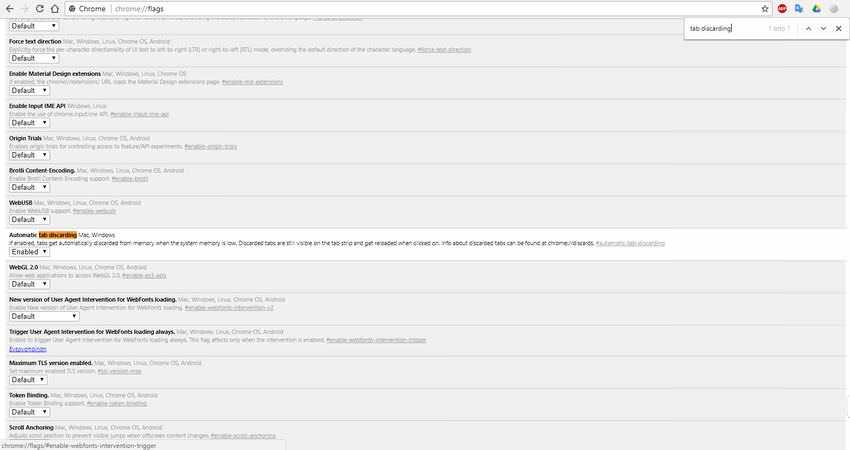
To enable this flag, go to chrome://flags/, then press “Ctrl + F” and search for “tab discarding”, click the drop-down box, select “Enabled”, and restart Chrome.
Compress web pages as they load
If you're using a desktop computer, you probably don't worry about how much data you use each month. However, saving on data can also speed up Chrome.
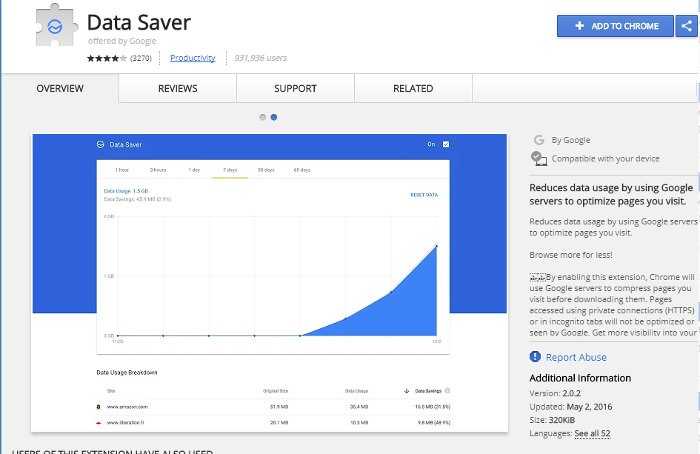
Google offers its own data-saving extension for Chrome that works in the same way as the built-in feature in the Android version of Chrome. It compresses most web pages (except encrypted HTTPS ones) as they load, meaning there's less information to load and therefore the page loads faster. It's that simple.
Use an Ad-Blocker
If you have already installed and activated an add-blocker then a website must be particularly attractive and respectful to disable the blocker, so that you can enjoy reading as it is. Usually, however, this is not done because on most websites the ads are not discreet, on the contrary they are ugly, annoying, and sometimes they have the audacity to take over your entire screen, which forces your browser to load more data on your computer.
There are several ad-blockers, such as the classic Adblock Plus and Ghostery, which give you the ability to fine-tune the type of ads you enjoy seeing.
Enable hardware acceleration
The graphics card in your computer—whether it’s a rudimentary one built into your motherboard or the latest beast from nVidia—is a valuable part of keeping your browsing experience running smoothly. In Chrome, you can use “hardware acceleration” to harness the power of your graphics card to make the browser’s graphics-intensive processes more efficient.

You can enable hardware acceleration by going to Chrome Settings, then clicking the “Advanced” button and going to “System.” Then click the slider next to “Use hardware acceleration when available” to turn it on.
If you're interested, you can take a look at what aspects of Chrome hardware acceleration are affected by going to chrome://gpu/
Use Chrome Task Manager to manage tasks
Chrome has a built-in task manager where you can see all the processes running across all your tabs. Just click the menu icon in the top-right corner of Chrome, then “More tools,” then “Task manager.” (Alternatively, you can press “Shift + Esc” when Chrome is open.)
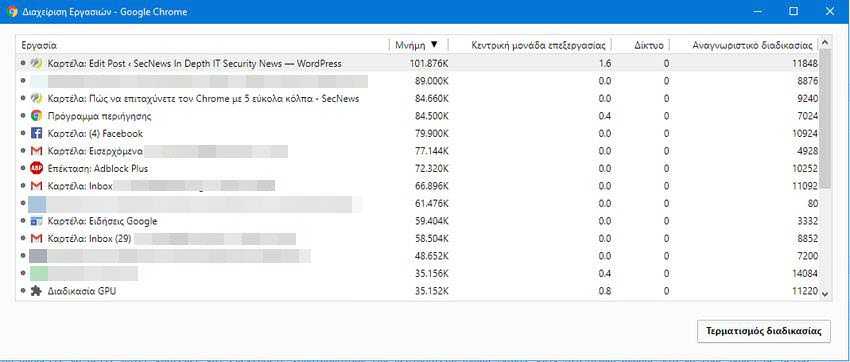
Here you will be able to see which tabs and extensions are using the most memory (Click on the memory column to sort them by the amount of memory they are using.) Of course, items that consume large amounts of memory will slow down your browser. If you see a process that is consuming unusual amounts of memory or CPU, you can end it by selecting it and clicking the “End Process” button.
Conclusion
Each of the above tricks may not have a significant impact on your browser speed, but if you implement them all together you will start to see the benefits. If you follow these tips, then you are obviously someone who cares about your browser speed and you have probably already done your due diligence to not have too many extensions installed, and not have too many tabs running at the same time. If you have any additional tricks or tips for speeding up Chrome, then you can share them with our readers by leaving a comment below this article.
