

A PIN is an additional security feature available in Windows 10 and Windows 8.1 to protect a user's account and all the sensitive data within it. When enabled, it can be entered instead of a password.
Unlike a password, a PIN does not require the user to press the Enter key to log in and can be a short 4-digit number. Once you enter the correct PIN, you should be able to log in to your Windows 10 immediately. Below we will see what you need to do if you want to change your PIN complexity requirements in Windows 10.
The main difference between a PIN and a password is the device on which it can be used.
- While you can use your password to sign in to your Microsoft account from any device and any network, a PIN can only be used with the device you created it on. Think of it like a password for a local (non-Microsoft) account.
- When you sign in with a password on an online device, it is transmitted to Microsoft servers for verification. The PIN will not be sent anywhere and actually acts like a local password stored on your computer.
- If your device has a TPM module, the PIN will be additionally protected and encrypted thanks to the TPM hardware support. For example, it will be protected against PIN attacks and after too many incorrect attempts, the device will be locked.
However, a PIN is not a replacement for a password. To set a PIN, you must have a password for your user account. Additionally, if you need to start your computer in safe mode, the PIN will not work.
To set the minimum and maximum PIN length in Windows 10, do the following.
Before proceeding, make sure that your user account has administrator privileges. Now, follow the instructions below.
1. Open the Registry Editor application. If you don't know how, then press the Win + R keys simultaneously and in the run window that will appear, write the word regedit and press the OK button.
2. In the registry editor window that will appear, go to the following registry key.
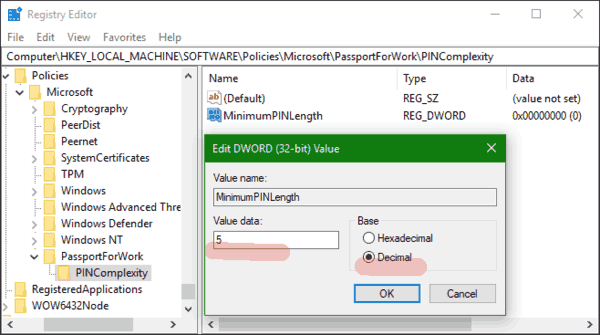
HKEY_LOCAL_MACHINE\SOFTWARE\Policies\Microsoft\PassportForWork\PINComplexity
Note: If you don't have such a key in the registry, simply create it. In our case, we created the PassportForWork key, and then the PINComplexity key.
3. In the right pane, create a new DWORD 32-Bit value named “MinimumPINLength”. Set it to decimal and give it the minimum PIN length as the value data. The number can be between 4 and 127. Note: Even if you have 64-bit Windows, you should still create a 32-bit DWORD value.
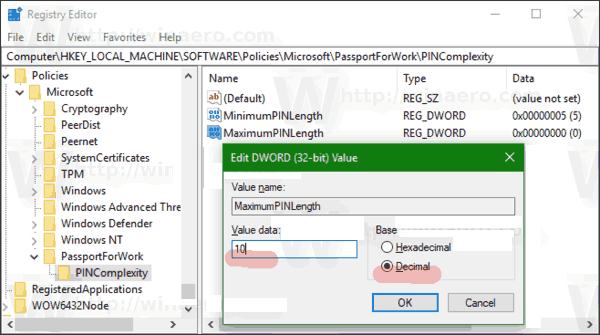
4. If you want to set the maximum PIN length, then create a new 32-bit DWORD value named "MaximumPINLength" and type in the value data a number between 4 and 127 and set the base to decimal.
5. Restart Windows 10.
ALTERNATIVES:
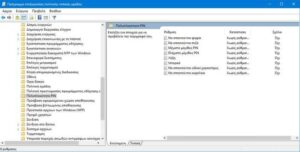
If you're running Windows 10 Pro, Enterprise, or Student edition, you can use the Local Group Policy Editor to configure the options listed above, with a more familiar graphical interface.
1. Press the Win+ R keys simultaneously and in the run window that appears, type the word gpedit.msc and press the OK button.
2. In the Local Group Policy Editor window that opens, go to Computer Configuration\Administrative Templates\System\PIN Complexity.
3.Configure the PIN length requirements and you're good to go.
