

Today we will show you how to add the “Copy to folder” and “Move to folder” commands to the right-click options in Windows 10.
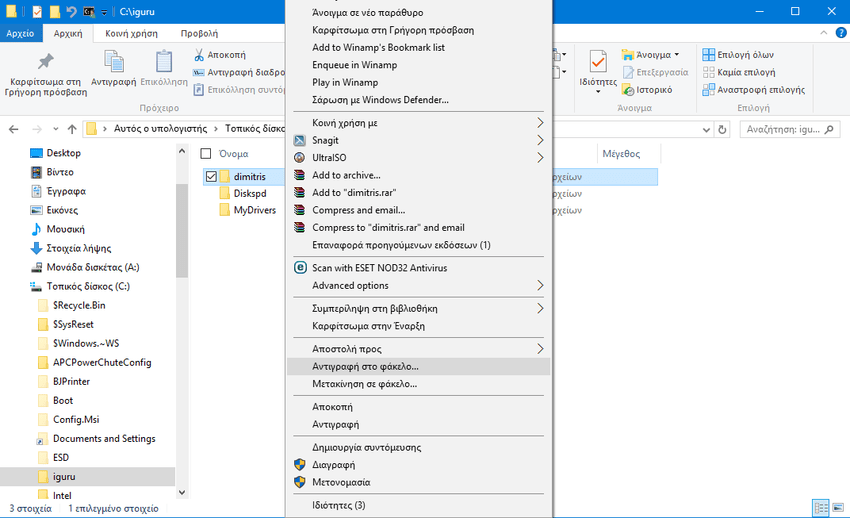
The usefulness of these two commands in Windows may not be of equal importance to all users, but those of you who like this type of copying and moving will find it particularly convenient.
The process of registering the two new commands is of course done through a small change in the registry. Let's see how:
1. Open the registry editor. To do this, press the Win + R keys simultaneously and in the run window that appears, type the word regedit and press the OK button

2. In the registry editor window, navigate to
HKEY_CLASSES_ROOT\AllFilesystemObjects\shellex\ContextMenuHandlers
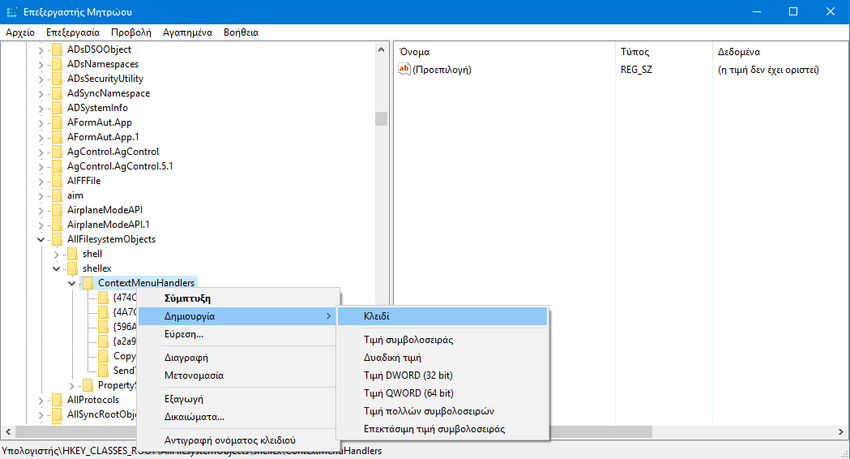
3. There, create the following subkeys under the ContexMenuHandlers registry key:
{C2FBB631-2971-11d1-A18C-00C04FD75D13} {C2FBB630-2971-11D1-A18C-00C04FD75D13}The key {C2FBB631-2971-11d1-A18C-00C04FD75D13} is the Move to folder command and the
key {C2FBB630-2971-11D1-A18C-00C04FD75D13} is the Copy to folder command.
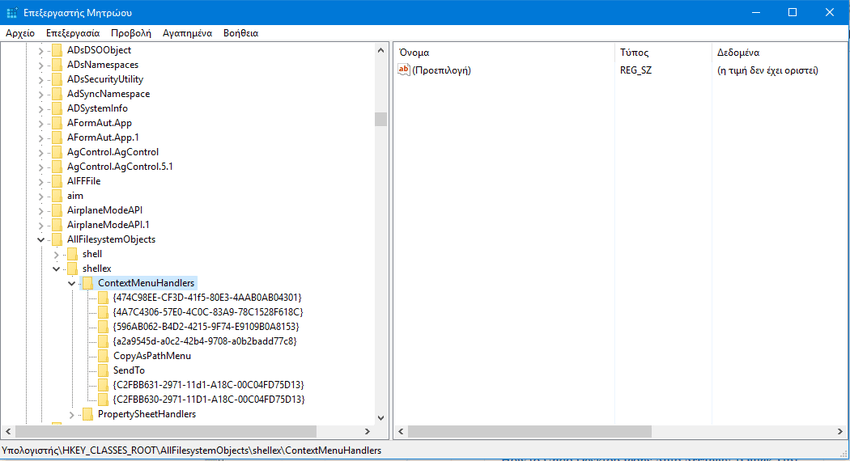
4. Just close the text editor. Your changes will be saved automatically. You're done.
Now if you go to explorer and select a file or folder (or several of them) and right-click on them you should see the two new commands “Copy to folder” and “Move to folder” right after the “Send to” command.
If for any reason you want to go back to your old status then simply delete the two new keys you just created from the registry editor.
