

There are many ways to backup your data. In this article, we will discuss the advantages and disadvantages of each solution.

But for those who wonder why I should backup or for those who say it will never happen to me and it doesn't concern me, we have to tell you that everyone will lose data at some point in their electronic lives. Both us here at iGuRu who are writing this article now and all of you who are reading it.
The cause could be a hard drive that “exploded”, ransomware that encrypted your data and is holding you hostage, or even a software bug that deleted essential files. Only if you are, not just regular, but very regular in backing up your computer, will you have your precious files with you forever.
And since we're talking about valuable files, what are they? Well, first of all, you should back up your personal files. Whatever happens, you can always reinstall your operating system and your programs, but your unique and personal data is irreplaceable. You can't get it back because only you have it!!
Any personal documents, photos, videos of your life, and any other personal data should be backed up regularly. Also, if you've spent many hours painstakingly creating a video or a mix of music tracks, you may want to include those in the list of files to be backed up so that you don't have to do all that work again.
Also, if you are the type of person who likes to play with system files, edit the registry, and regularly update your hardware, a full system backup can save you time. Although as we mentioned, the system and programs can be reinstalled, when you deliberately and regularly tamper with your system, it would be a good idea to backup it to save you time and effort, since the chances of things going wrong are high.
But, let's get to the ways to back up your files:
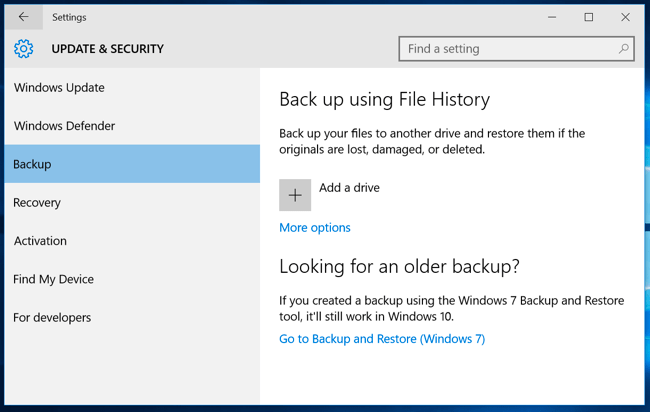
Back Up to an External Drive : If you have an external USB hard drive, you can simply copy all the files you are interested in to it. You can use a Batch file with the xcopy command or your operating system's built-in backup function. In Windows 10,8 and 7, go to Settings > Update & Security > Backup. On a Mac, use Time Machine. You can connect the external drive to your computer occasionally to create backups, or leave it permanently plugged in and create backups automatically.
Advantages: creating backups is cheap and fast. Disadvantages: If your house is broken into or if there is a fire, then there is a chance that the copies will be lost along with your computer, which you may not like!!
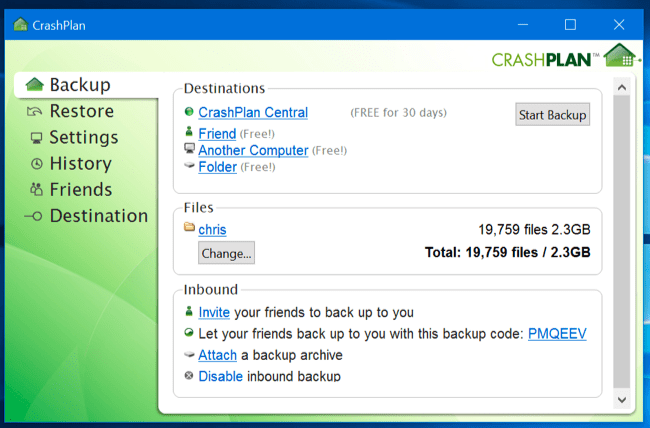
Back Up Online : If you want to make sure your files stay safe, you can back them up online through an online backup service like CrashPlan, BackBlaze, Carbonite , and MozyHome , etc. For a low monthly fee (around $5 per month), these programs run in the background on your PC or Mac, automatically backing up your files, and storing them over the web on their servers. If you ever lose those files and want them back, you can simply download them. CrashPlan also lets you back up to another computer for free. For example, you pay for one computer and back up to your second computer, or to a friend's computer (and split the cost).
Pros: Online backups protect you from any kind of data loss (hard drive failure, theft, natural disasters, etc.). Disadvantages: these services usually cost money and the initial backup can take much longer than if you did it to an external drive, especially if you have a lot of files. Also, during the Backup your connection will be overloaded and simultaneous surfing may be problematic. If you set the service to send the data at night when you sleep then you will have to leave your computer on all night. It also does not consist of connections with volume charges.
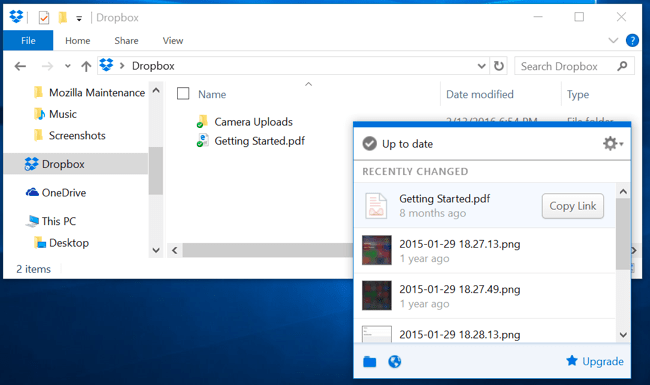
Backup to a cloud storage service : Professionals may tell you that the cloud is not a technically sound method for backup, but most cloud users use it for a very similar purpose. In addition to storing your files on your computer's hard drive, you can also store them on a cloud service like Dropbox, Google Drive, Microsoft OneDrive, or a similar storage service. You'll always have your files synchronized to your online account and accessible from any other computer.
Pros: This method is easy, fast, and in many cases, free, and since it's online, it will protect you against all types of data loss. Cons: Most cloud services only offer a few gigabytes of space for free, so this only works if you have a small number of files you want to back up. In fact, these services are designed and created to synchronize your files between your computers and therefore always keep a single copy of your files, while the services of solution B are designed to backup large amounts of files, even keeping multiple backup copies for different dates.
For very advanced situations
Which of the three solutions should I use? Ideally, for perfectionists you should use at least two of them. Why? Because you want the backups to exist both within your home (onsite) and in a third remote location (offsite).
“Onsite” literally means backups that are stored in the same physical location as your computer.
If you have backed up to an online server, like CrashPlan or Dropbox, that is an offsite backup.
Onsite backups are faster and easier, and should be your first line of defense against data loss. If you lose your files, you can quickly restore them from an external drive. But you shouldn't rely solely on these onsite backups. If your house (or business) catches fire or is stolen, you'll lose all your data.
You should also have backups on an Internet server, even if you can't afford to pay a monthly subscription for a technically sound solution. There are always free cloud services that you could split your data volume across to increase the total capacity. Alternatively, you could back up your files to a hard drive that you store in your office, or at a friend's house, or in a vault, for example. Or if you have two fast connections in two different places, you could back up from one to the other, in the evenings, at no cost.
There are many ways to use these ideas and features in combination. Just make sure you have a solid backup strategy, with on-site and off-site copies, so you have a wide safety net.
Automate it!
The previous scenario may seem crazy or even complicated, but you can automate it and make it a breeze. You can use an automated tool instead of copying files to an external drive by hand. You can set the data once, and forget about it.
Be patient and learn how the Windows service works to set up backups. You will only do it once, it just takes a little searching. As for Online backup services, almost all of them include an automation system that you will find very useful. But Cloud Services will not bother you either since their purpose is to automatically synchronize files. So do not neglect to automate this task.
