

There is a monitoring tool in Windows that is not easy to find but is very readable and helpful. It is the Reliability Monitor.
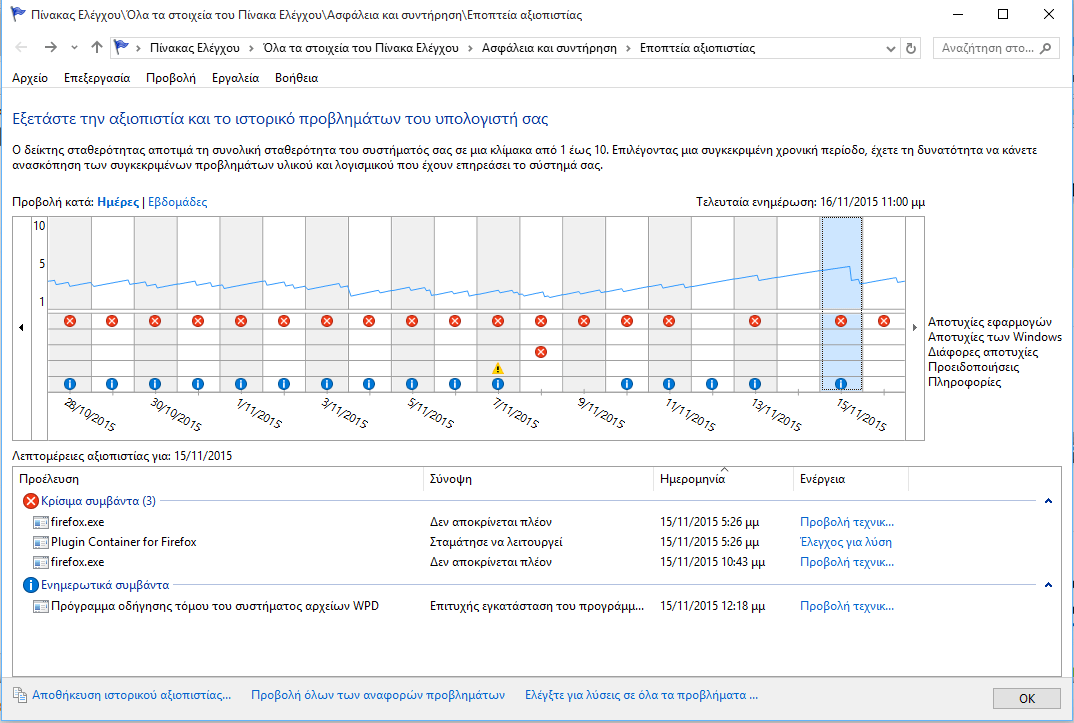
Of course, while the Windows Event Log is undoubtedly the primary tool for learning more about errors and their causes, it's not the only one. Reliability Monitor can make a difference for those who want something more graphical and easier to use.
Windows Reliability Monitor highlights a series of successful and failed actions, and classifies them as critical, warning, or informational events.
To make things even simpler, it highlights all three events in the timeline that appears at the top, so you can see at a glance what needs your attention and what doesn't.
- Critical: These events include application and Windows failures. For example, when an application stopped working, when a Windows component returned an error, or when hardware failed.
- Warnings: These are the warning messages, for example, when an update could not be installed or an application could not be installed or upgraded.
- Informational: This is a list of successful events, for example, the successful installation of Windows updates.
Clicking on a day in the timeline displays all events for that day. You can then select which days you want to view based on the icons in the timeline and then search for critical events and then alerts.
Some are easy enough to ignore, for example, failed Windows upgrades that succeeded on the second try. Frequent application failures fall into this category, especially if you use the program regularly.
Each event is listed with its name, summary, time and date, and a suggested action. For example, you can see that Firefox stopped working on a specific date, and that you can use some action to find a solution online.
You can also drill down into the error by clicking the “View technical details” link, which contains additional information. This can reveal, for example, an error code that you can use to better investigate the issue.
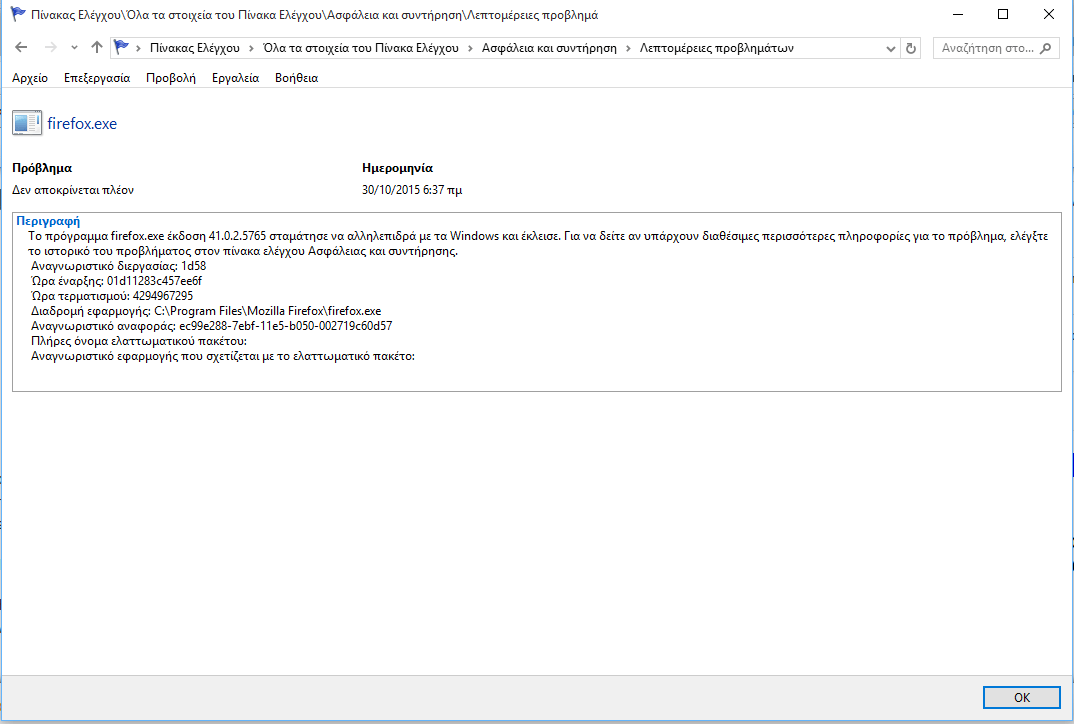
You can then use the error code or description to resolve the issue. For example, you can run an online search to learn more about it.
How to start Reliability Monitoring
There are many ways to start Windows Reliability Monitor. The following method works on all supported versions of Windows (meaning Vista and up).
- Press the Windows and R keys together to open the run window.
- There type: perfmon /rel
- Press enter.
