

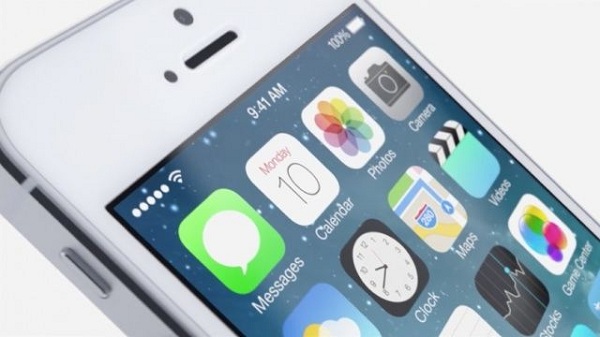
For all of you who wanted to get a taste of iOS 7 on your iPhone by installing its Beta 1 version but now want to go back to iOS 6, there is a way and it's quite easy.
The following guide will show you how to downgrade from iOS 7 to iOS 6. You can only do this on the latest versions of iOS 6 (i.e. 6.1.4 for the iPhone 5, and 6.1.3 for the iPhone 4S). You cannot use SHSH Blobs on any A5+ device, they are (temporarily) useless.
Before the downgrade begins, back up all your data.
STEP 1
Download the latest iOS firmware from here.
STEP 2
Open iTunes.
STEP 3
Put the iPhone in DFU mode. If you don't know how, here's a video to see how it's done.
After you do this, you'll get a message that the iPhone has entered recovery mode.
STEP 4
When the message appears that the iPhone has entered recovery mode, click OK and select the iPhone from the list of devices in iTunes.
Hold down Alt/Option (Shift on Windows) and click the Restore iPhone button.
STEP 5
Select the firmware you downloaded earlier from the window that appeared and press the open button.
When it asks for confirmation for the restore, press the restore button.
STEP 6
iTunes will continue the process and after 10-15 minutes your iPhone will have reverted to iOS 6.
