

I think we can all agree that there's nothing more annoying than videos and music that automatically play when you open a site. So tonight I'm here to introduce you to a new Chrome extension called Silent Site Sound Blocker (currently in public beta).
Chrome and Firefox were the first to add sound icons to audio or video playback tabs and then gave us the ability to mute them. However, this is still time-consuming and really annoying since we all use our computers to automate repetitive tasks. I mean, why would we sit around looking for the tab with the sound icon to mute when a Chrome extension can do the job for us? That's exactly what Silent Site Sound Blocker does.

After you install the extension from the Chrome Web Store, it automatically mutes every tab in your browser, even if there's no video playing in it.
Τώρα ας υποθέσουμε ότι μπήκατε σε μια ιστοσελίδα που προσπαθεί να κάνει αυτόματη αναπαραγωγή ήχου, είτε από ένα αρχείο ήχου είτε από ένα βίντεο. Ένα pop-up παράθυρο θα εμφανιστεί σε αυτή την ιστοσελίδα με τέσσερις χρωματιστές επιλογές:
- Always allow – Always Allow (whitelist site),
- Allow once – Allow Once (prompt again),
- Reject once – Reject Once (prompt again), or
- Never allow – Never Allow (blacklist site).
Select the one that is most suitable for you and you are ready.
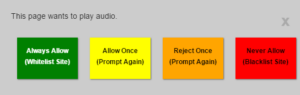
Silent Site Sound Blocker doesn't come with a pre-set whitelist of websites, meaning it's up to you to decide what you want for each sitethe moment you access it. At first, you'll have to constantly go through this dilemma, but over time the extension will save your preferences, taking a load off your shoulders. The default is to keep the site muted, so you'll never be startled by a sound explosion, at least not one coming from Chrome.
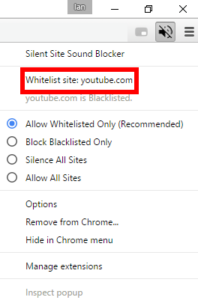
If you ever decide you want to change the status of a particular website, look for the large audio icon in your browser to the right of the address bar. Right-click the icon and select the Whitelist site: option at the top of the menu. Even if the extension mutes your tabs, the standard audio controls will still work if you need to mute or unmute a tab directly.
The extension's menu also allows you to set your preferences if you don't want audio muted by default. To see the extension's full black- and whitelists, click the Options.
If Silent Site Sound Blocker doesn't work for you, type the following line in the address bar: chrome://flags/#enable-tab-audio-muting. This is the option that shows the tab about controlling the tab's audio. Click Enable and the extension will start working. You may need to restart your browser for the feature to take effect.
