

Many Windows 10 users are complaining about the Windows 10 CPU temperature issue. Of course, high temperature is not a good sign (unless you want to grill some hotdogs on it :p), because it reduces the performance of the PC and sometimes can cause permanent damage to your computer. So today I am showing you how you can fix and monitor this heat issue in Windows 10.
Let's see what the steps are:
Use the Power-Troubleshooter & check for issues
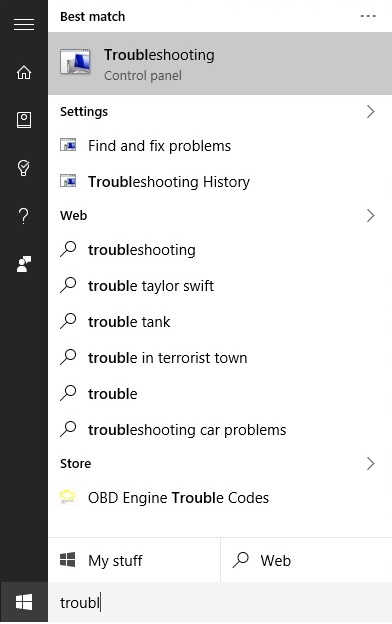
- First type troubleshooting in the Search bar
- Select Troubleshooting
- On the left side, select View
- Click on Power Troubleshooter
- Then click next and follow the instructions
Perform a Clean Boot
Clean boot disables all the apps that start with Windows 10. By default, Windows 10 boots with only core applications. But the more software you add to your Windows, the more likely it is that it will start with your Windows. Starting Windows 10 with additional software or applications installed uses a lot of CPU and of course increases the temperature of the machine. So you should disable unwanted applications and software.
https://www.secnews.gr/
See how:
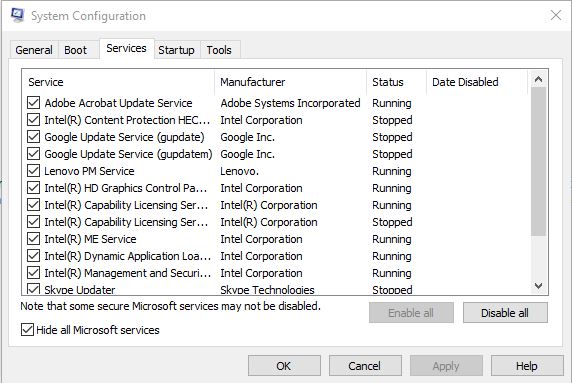
Hide all Microsoft services
- Press Windows+R key
- Type 'msconfig'
- When the System Configuration window opens, click on Services
- On the Services tab check, “Hide all Microsoft services” at the bottom and click the “Disable all” button.
- Then click 'apply' and then 'Ok'.
- You will be asked to restart your computer. Do so.
Disable services at Windows startup
- Press Windows+R key
- Type 'msconfig'
- When the System Configuration window opens, click on the Startup tab, and open the Task Manager
- When the Task Manager window opens, you will need to go back to the Startup tab
- You will see the list of all applications that start with Windows 10. Select and disable the services that you do not want to start with Windows 10.
- Close Task Manager and return to the System Configuration window
- Click OK and restart your computer
- Clean your CPU fan or replace it.
https://www.secnews.gr/101587/how-much-ram-do-you-need/See also: How much RAM is enough for you?
Sometimes the Windows 10 overheating problem is caused by dust stuck to the fan, so all you have to do is make sure it's clean. Otherwise, you'll have to replace it!
https://www.secnews.gr/101579/sci-hub/btn-large” variation=”btn-success”]Read more: Sci-Hub: The 'piracy' of researchers with 48 million free academic documents
Remove Pre-installed and Suggested Apps in Windows 10:
Pre-installed apps and suggested apps are powering the background. Windows 10 comes with a plethora of such apps that you don't need. Remove the ones you consider unwanted!
Fix High RAM -CPU Usage of Windows 10 System and ntoskrnl.exe Process
The ntoskrnl.exe Process has been making a lot of noise in the tech news lately. Windows 10 is overheating due to this process. Also, high RAM and CPU usage also causes overheating problem.
Did you find the article interesting?
If you have found another way to deal with this issue, please let us know in the comments below!
