

 If you choose to install Windows 10 on a drive that already has an existing installation, the installer will rename the old Windows folder to Windows.old in the root of your drive. This folder will contain a complete backup of your previous Windows 8 or Windows 7 installation. The folder also includes the boot manager and your installed applications.
This feature is very handy if you plan to uninstall the currently installed version of Windows and revert to the previously installed version. It can also be useful if you have forgotten to transfer some files or settings to the new installation.
However, if you're done with all of that, then the Windows.old folder is just taking up space on your disk for no reason.
Below we describe how to delete it using built-in Windows tools instead of simply deleting the folder from Explorer.
Press the Win + R keys together and type the following command in the RUN box that will appear: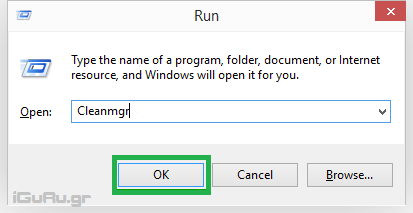
cleanmgr
Cleanmgr will appear. Right-click on it and select “Run as administrator.” When the application opens, wait until it finishes calculating your disk space.
Scroll down, at the end of the list of options you will find the option to delete your previous Windows installation. Select it and click the OK button.
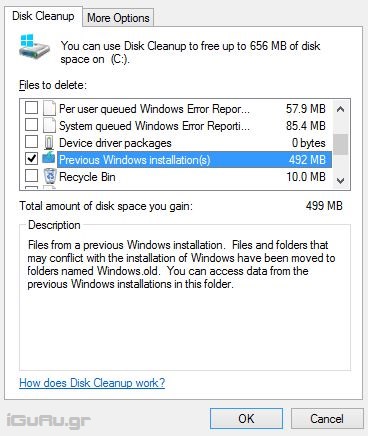
You're done, of course you can also delete the C:\Windows.old folder manually, but the Disk Cleanup application will automatically resolve NTFS permissions and delete all files that are not accessible by your account.
In the case of a manual deletion, you will need to resolve these access permissions, otherwise you will not be able to delete all files in the C:\Windows.old folder.
Source: secnews.gr
