

Whether you Apple 're has the perfect Walkie Talkie app built into your Apple Watch. Here's how to use it. nostalgic for the days of Nextel phones or need a quick way to instantly connect with friends,
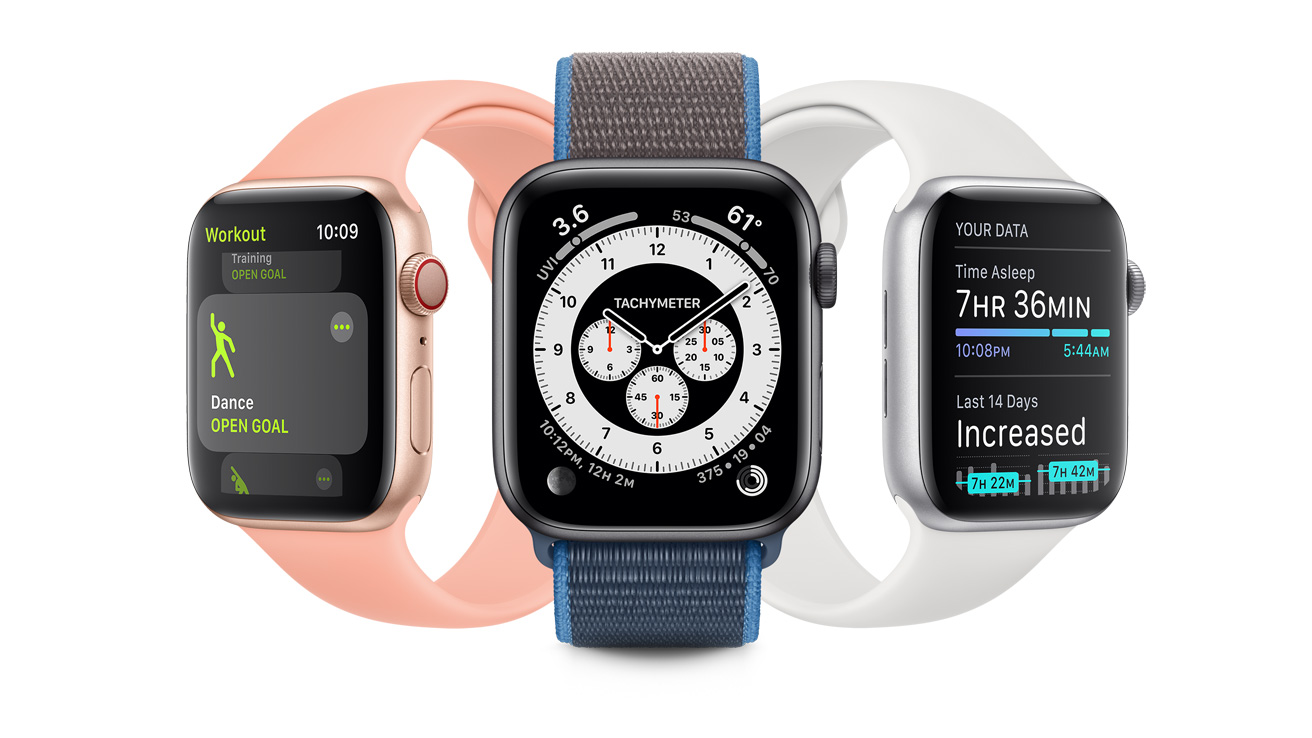
In 2018, Apple added an incredibly handy new feature to the Apple Watch. This new communication tool, which was made available on all Apple Watches (even the Series 1), is an always-on Walkie Talkie app that lets you instantly start a voice conversation with any contact who also has an Apple Watch.
See also: Google Photos' new shortcut makes it easy to find your screenshots
This app is a great way to chat with your loved ones.
Let's take a look at how to set up and use the Apple Watch's built-in Walkie Talkie app.
How to use your Apple Watch's built-in Walkie Talkie
- What you need: You and at least one contact with an iPhone with iOS 12.4 or later (with FaceTime) and an Apple Watch with WatchOS 5.3 or later
- Estimated time: 1 minute for initial setup, instant for all subsequent connections
Step 1: Open the app and invite your first contact
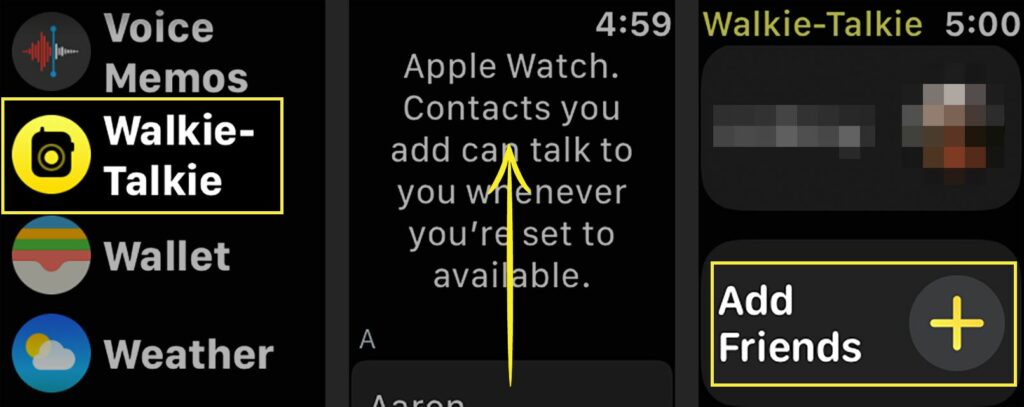
First, open your Apple Watch's app drawer by pressing the Digital Crown . Inside, find and tap the Walkie-Talkie. If you've never used the app before, you'll need to add your first contact to connect with it. You can do this by tapping "Add Friends" (right). When you do, a list of contacts . Tap one to send them an invitation. Once they accept, you can move on to Step 2.
Step 2: Connect with the contact
Once your contact accepts your invitation, they will appear in your friends list. From there, you just need to tap on them to start a conversation. If you were previously connected to another contact or it has been a while since you last chatted with this contact, it will most likely take a few seconds for the Walkie-Talkie app to check their availability. If they are available, you will be connected and proceed to Step 3.
See also: Windows 11 taskbar gets better for those who open endless apps
Step 3: Start talking
Once you're connected to your contact, all you need to do is press and hold the button labeled Touch & Hold to Talk and start talking. Your voice will be transmitted to their Apple Watch. Another tone will sound when you release the button, letting the other participant in the conversation know they can speak.
If you have mobility issues or just prefer to turn your connection on and off with a single tap, you can enable this feature by going to the Settings app on your Apple Watch and turning on Tap to Talk under the Walkie- Talkie section . With this feature enabled, one tap will turn on the microphone and a second tap will turn it off.
Final step: Exit the Walkie-Talkie app
You can exit the app and return to your Apple Watch watch face by pressing the Digital Crown . This will keep your app running in the background, allowing any friends in the Walkie-Talkie app to contact you at any time.
Frequently asked questions
How can I make myself unavailable or disable the Walkie-Talkie app?
There are two ways to do this:
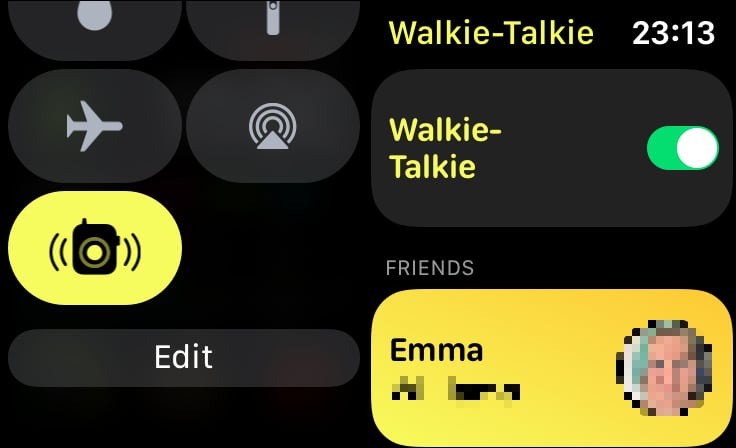
- From the watch face, swipe up from the bottom of your screen to open Control Center on your Apple Watch. There, find the Walkie-Talkie icon . If it's yellow, it means the app is on and you're available. Tap it once to make yourself unavailable and turn the app off. When you're ready to be available again, just tap the gray icon to turn it back on.
- From within the app itself, tap the Walkie-Talkie toggle. The toggle on the right with a green indicator means the app is on and you're available, while the toggle on the left that's gray means you're unavailable.
How do I delete a friend from the Walkie-Talkie app?
If there's someone you no longer want on your friends list in the app, all you need to do is find them in your friends list and swipe left on their name. This will reveal a red X . Tap the X to delete the entry. You'll need to re-invite them if you want to communicate with them again through the Walkie-Talkie app
Note: This action does not remove this person from your iPhone's contact list.
What do I do if I'm having trouble finding the Walkie-Talkie app or sending/receiving invitations?
It is possible to delete the Walkie-Talkie app from your Apple Watch. If you think you may have done so in the past, you simply need to re-download it from the App Store on your Apple Watch..
Source: www.zdnet.com
