

Tired of notifications waking up your iPhone or iPad and lighting up your screen? By using Do Not Disturb or changing your notification settings, you can stay in the dark. Here's how.
See also: iPhone/iPad: How to ask apps not to track you online
The quick fix: Turn on “Do Not Disturb”
Apple includes a “Do Not Disturb” feature on any iPhone or iPad. While it’s on, “Do Not Disturb” silences incoming calls, messages, and notifications by default, but this can vary depending on how you have it set up.
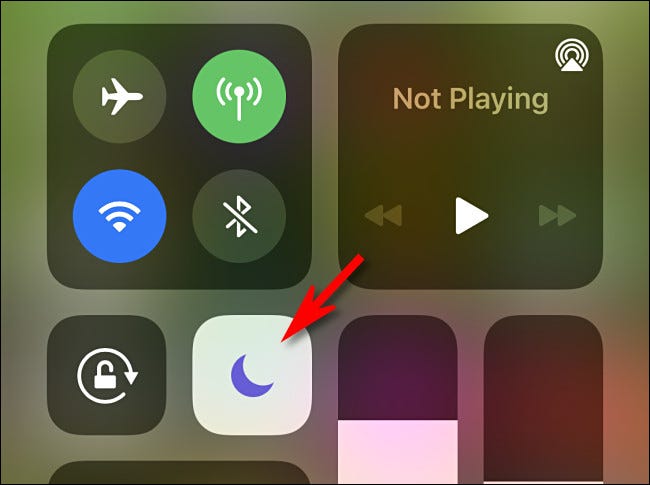
To quickly enable Do Not Disturb, first launch Control Center on your iPhone or iPad, then tap the Do Not Disturb button (which looks like a crescent moon).
Alternatively, you can launch Settings, tap “Do Not Disturb,” and tap the switch next to “Do Not Disturb” to turn it on.
With Do Not Disturb enabled and your iPhone or iPad locked, incoming messages and notifications won't wake your device's screen. To turn off Do Not Disturb, launch Control Center again and tap the Do Not Disturb button until it's no longer highlighted.
See also: iPhone/iPad: How to delete recent History in Safari?
The best solution: Disable notifications on the lock screen
If you don't want to use the "Do Not Disturb" feature to keep your iPhone or iPad from turning on when you receive notifications, you'll need to dig into the device's notification settings.
The good news is that Apple lets you turn off lock screen notifications for any app. The bad news is that there's currently no way to edit notification settings across all apps at once, so you'll have to individually turn off lock screen notifications for each app that wakes up your device.
See also: How to quickly set a timer on your iPhone or iPad
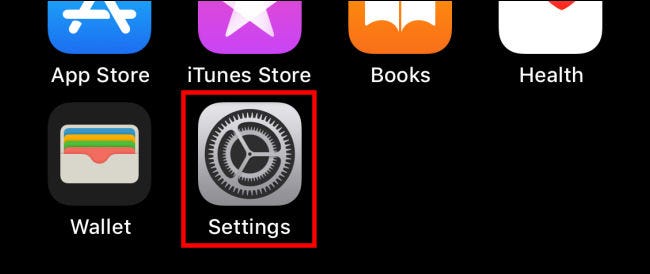
To do this, open Settings on your iPhone or iPad.
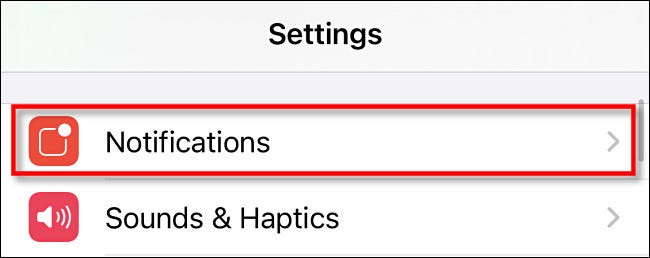
In Settings, tap “Notifications”.
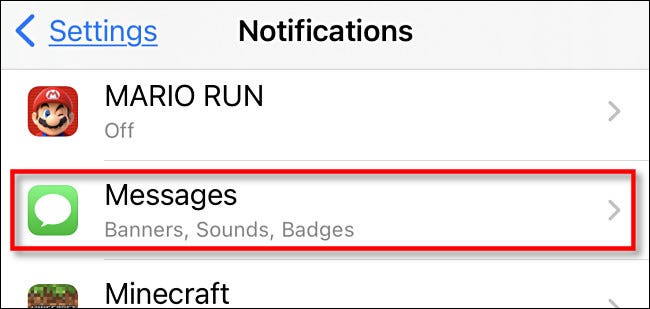
In Notifications, scroll through the list and tap the name of the app you want to prevent from waking your screen. In this case, we're using Messages as an example, but you could do this for Facebook Messenger, Signal, Twitter, FaceTime , or any other app.
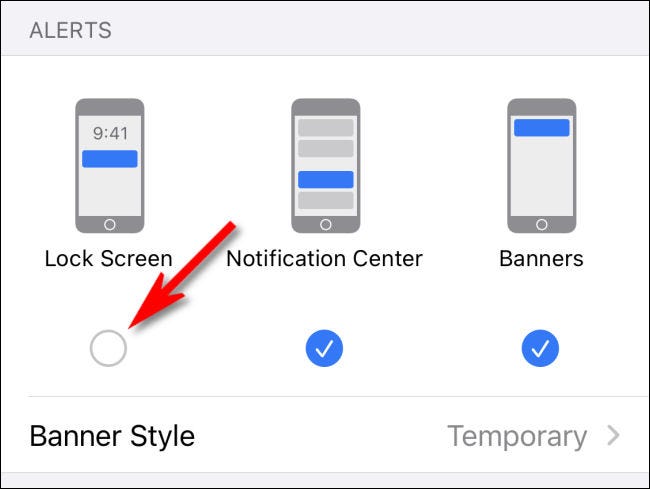
In the app's notification settings, tap "Lock Screen" to remove it.
After that, go back a screen and repeat this process for any other apps you want to mute on the lock screen.
When you're done, exit Settings and you'll no longer see notifications from these apps on your lock screen. As a result, notifications from these apps will no longer wake up your iPhone's screen.
Information source: howtogeek.com
