

Today we will show you how to set when a user's password expires in Windows 10. This way you will force users of a computer to change their password after a certain period of time.

By default, user accounts in Windows 10 do not have a password expiration. This means that users can use the same password indefinitely. However, if password expiration is enabled, users' passwords will stop working after a period of time that you configure. This guide will show you how to enable and configure user password expiration.
Password expiration only applies to local user accounts. It is the most critical security aspect for domain-connected systems, where users are typically required to change passwords on a regular basis. It is of particular interest to corporate security engineers. If you plan to work on networks, it is a good idea to read this entire article.
To set the password expiration time in Windows 10, you must have administrator privileges. If you are on an administrator account, you can set the password expiration time for other accounts in Windows 10.
Note: In this article we showed you how to set the PIN expiration time in Windows 10. Read it if you use a PIN instead of a password.
How to set password expiration time in Windows 10
FYI: These steps will only work on Windows 10 Pro, Education, and Enterprise editions.
1. Press the Win + R keys simultaneously and in the “Run” window that appears, type lusrmgr.msc to open the “Local Users and Groups” snap-in. Click the OK button.
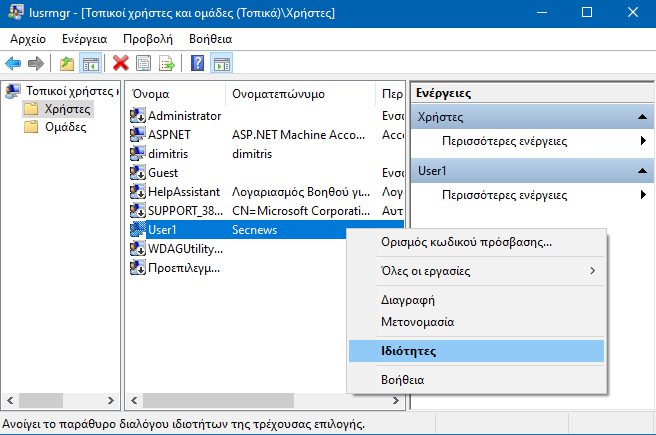
2. In the lusrmgr window, double-click on users. Now right-click on the desired user account and select Properties.
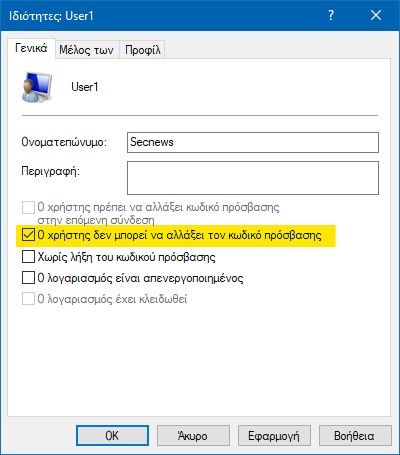
3. In the property sheet, uncheck the “Password never expires option.” Click Apply, and then click OK. Close the utility.
4. Press the Win + R keys simultaneously and in the “Run” window that appears, type secpol.msc. Click the OK button to open the “Local Security Policy” snap-in.
5. Then, in the left pane of the local security policy, navigate here:
Security Settings > Account Policies > Password Policy
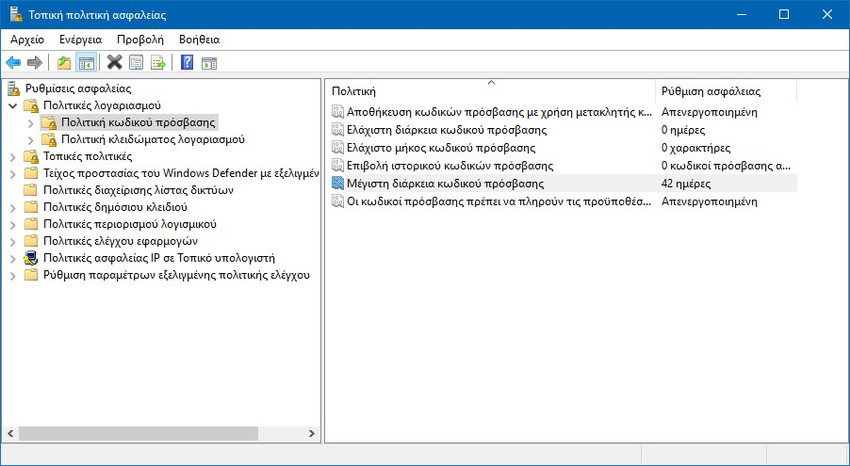
6. In the right pane of Local Security Policy, look for the policy setting named “Maximum password age.” Double-click this policy and set it to the number of days after which you want the user’s password to expire. Click the Apply button, and then click the OK button.
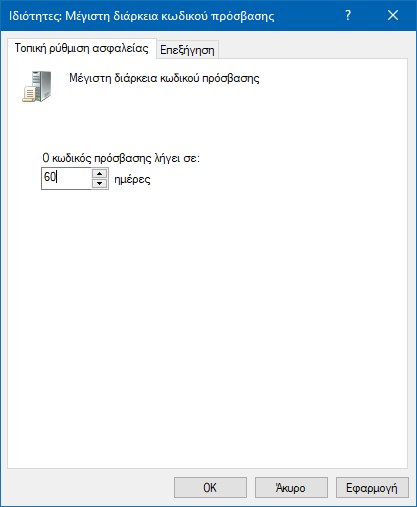
By default the number is 42 days, but you can make it as long as you want, with a maximum of 999 days.
7. Now, when users attempt to log in after the timeout period you specified in the password policy has expired, they will see the following message:
Your password has expired and must be changed.
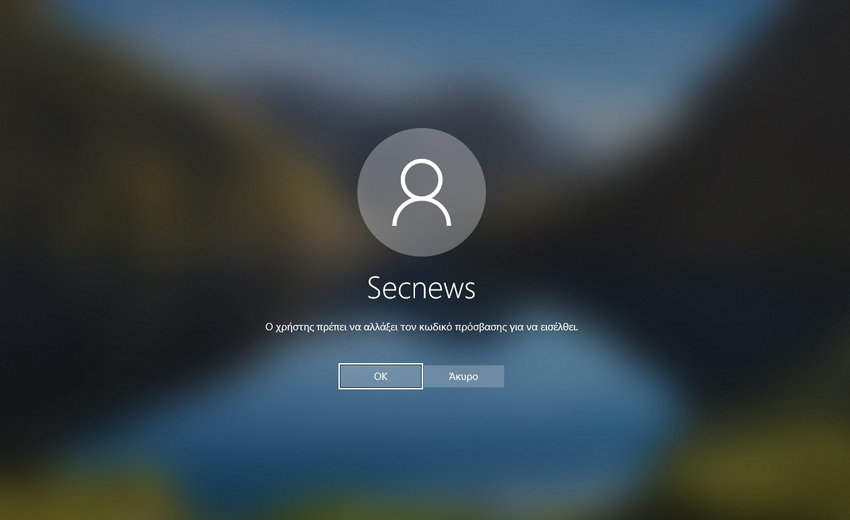
8. By pressing the OK button, Windows will allow the user to change their password.
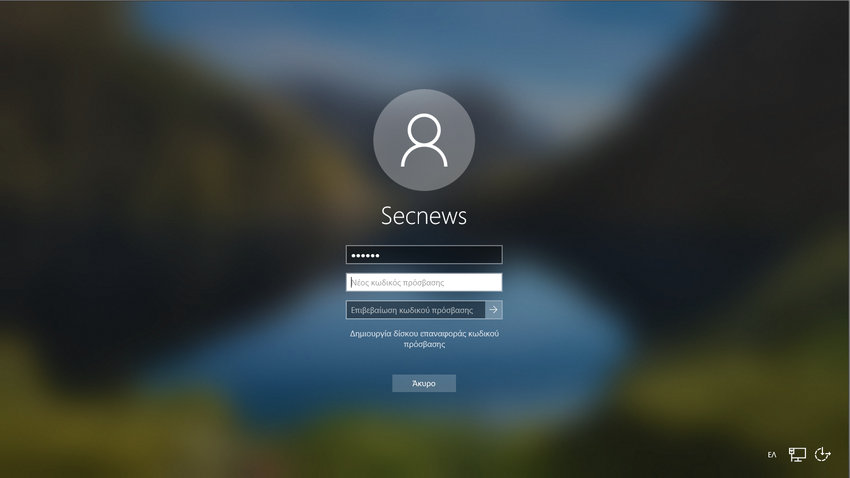
This is how you can set the password expiration time for user accounts in Windows 10.
