

AutoPlay is a special feature of Windows that allows users to select a desired automatic action for various types of media connected to their computer.

You can set autoplay to open your favorite image viewer application when you insert a photo disc, or to automatically launch a media player application for the drive that contains media files. This is actually a time saver, as the required application starts automatically every time you connect a device or insert a disc.
In Windows 10, there are several ways to enable or disable AutoPlay. It can be done using the settings, the classic Control Panel, or the registry. There is also a special option in Group Policy that can be used to force the AutoPlay feature to be enabled or disabled for all drives in Windows 10. Let's see how to configure it.
Choosing such a setting may not be of interest to the average user, but it can be useful for administrators of a company's computer system or even on computers used by children. The policy can be applied either to all user accounts registered on your computer or only to the current user account.
Disable AutoPlay for all drives for a user in Windows 10.
1. Log in with the username you want to change the autoplay setting for.
2. Open Registry Editor .
3. Make a backup copy in case anything goes wrong. Here's how.
4. Navigate to the following registry key:
HKEY_CURRENT_USER\Software\Microsoft\Windows\CurrentVersion\Policies\Explorer
If you don’t have such a key, then simply create it.
5. Here, create a new 32-bit DWORD value named NoDriveTypeAutoRun. Note: Even if you are running 64-bit Windows, you should use 32-bit DWORD as the value type.
6. Set it to 255 and click on “Decimal”, to disable AutoPlay for all drives.
If you want to disable autoplay only for CD drives and removable media then click on the Hexadecimal option and set it to b5.
7. Click on the OK button and then simply close the registry editor.
For the changes made to the Registry to take effect, you will need to log out and log back in to your user account.
If you want to unblock the AutoPlay feature, simply delete the NoDriveTypeAutoRun value.
Turn off AutoPlay for all drives for all users
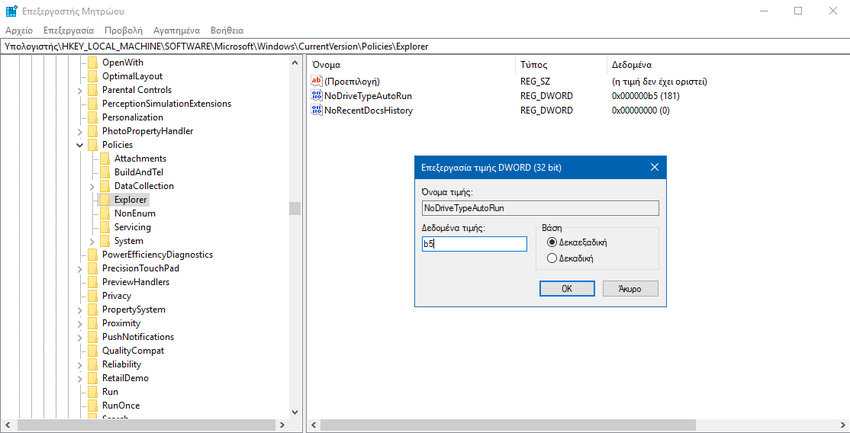
To disable AutoPlay for all drives for all users, make sure you are logged in as an Administrator before proceeding.
1. Open Registry Editor.
2. Make a backup copy in case anything goes wrong. Here's how.
3. Navigate to the following registry key:
HKEY_LOCAL_MACHINE\Software\Microsoft\Windows\CurrentVersion\Policies\Explorer
If you don’t have such a key, then simply create it.
4. Here, create a new 32-bit DWORD value named NoDriveTypeAutoRun. Note: Even if you are running 64-bit Windows, you should use 32-bit DWORD as the value type.
5. Set it to 255 and click on Demical, to disable AutoPlay for all drives.
If you want to disable autoplay only for CD drives and removable media then click on Hexadecimal option and set it to b5.
6. Restart Windows 10 to apply the restriction and you are done.
If you want to unblock the AutoPlay feature, simply delete the NoDriveTypeAutoRun value.
Disable AutoPlay for all drives with Gpedit.msc
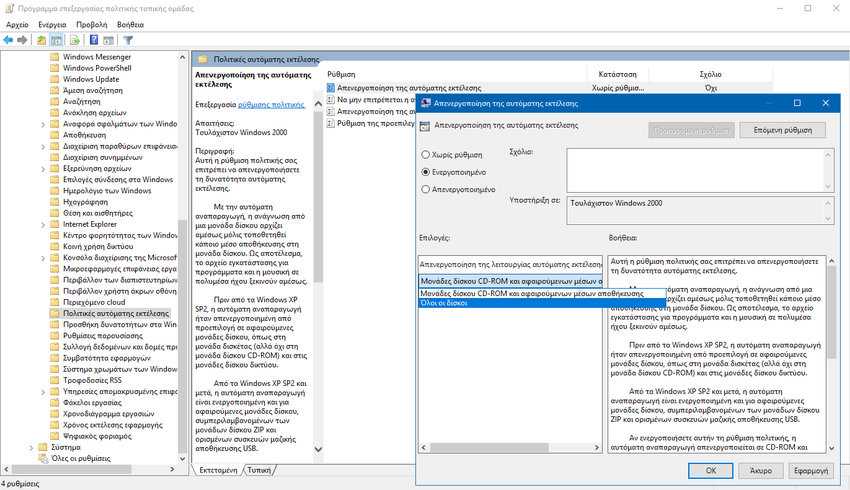
If you're running Windows 10 Pro, Enterprise, or Education, you can use the Local Group Policy application to configure the options listed above in an easier, graphical environment. Do the following.
1. Press Win+ R on your keyboard and type: gpedit.msc . Press Enter.
2. The Local Group Policy Editor will open. Go to “User Configuration > Administrative Templates > Windows Components > AutoPlay Policies” (User Configuration\Administrative Templates\Windows Components\AutoPlay Policies).
3. Enable the “Disable AutoPlay” option and set it to all drives.
4. Press the “Apply” button and then “OK”.
Disable AutoPlay for all drives for all users with Gpedit.msc
1. Press Win+ R on your keyboard and type: gpedit.msc . Press Enter.
2. The Local Group Policy Editor will open. Go to “Computer Configuration > Administrative Templates > Windows Components > AutoPlay Policies” (Computer Configuration\Administrative Templates\Windows Components\AutoPlay Policies).
3. Enable the “Disable AutoPlay” option and set it to all drives.
4. Press the “Apply” button and then “OK”.
