Veracrypt is an open source program for various operating systems that is based on TrueCrypt and is used to encrypt data on storage media. Below we will see how we can install it on our system.

1) We enter the Veracrypt site (https://veracrypt.codeplex.com/wikipage?title=downloads#title ) and download the corresponding version of the program depending on the operating system we use.
2) After the file has been downloaded, open it by double-clicking it to install it. Select the box that says “install”, click “next” and then “install” again. Click OK in the windows that will appear until the installation reaches the end.
3) Once the installation is complete, open the program. Connect the external drive or USB stick that you want to encrypt to your computer (*1). Click on the “select device” option and select the drive you want to open.
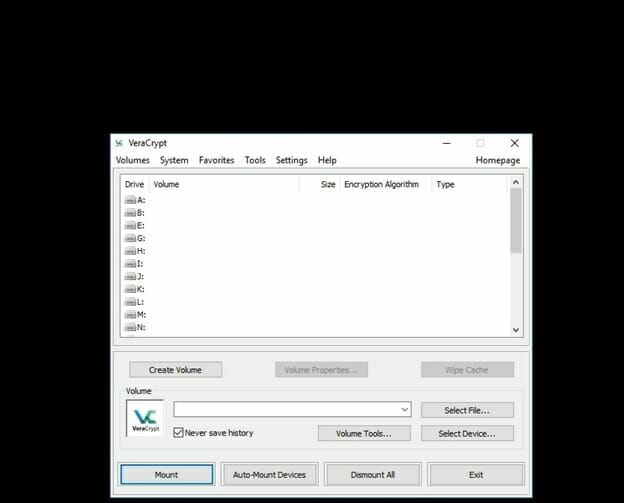
4) From the list of letters that appears, select one that is free (usually all of them) and click on the “mount” option.
Then it will show us a window where we have to write the password we set to lock the disk. We type it and then press “ok” and wait a while until the process is finished. If your password is long and difficult there is the option “show password” that shows you what you are typing, so that you do not make a mistake.
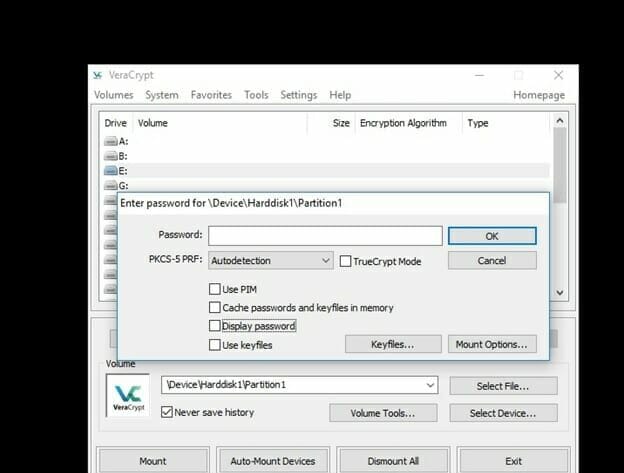
5) If after the end of the process, it shows you the drive letter you selected next to it, then everything is fine.
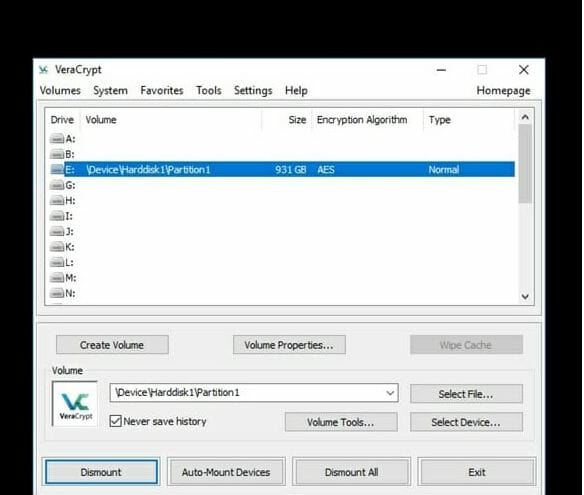
6) By opening the "computer" icon, "windows explorer" will show you the disk with the corresponding letter you selected.
Attention!!!!!!!!!
7) When you want to unmount the disk, you will have to do it again from the Veracrypt program. You will have to click on the “dismount” option and then unmount it.
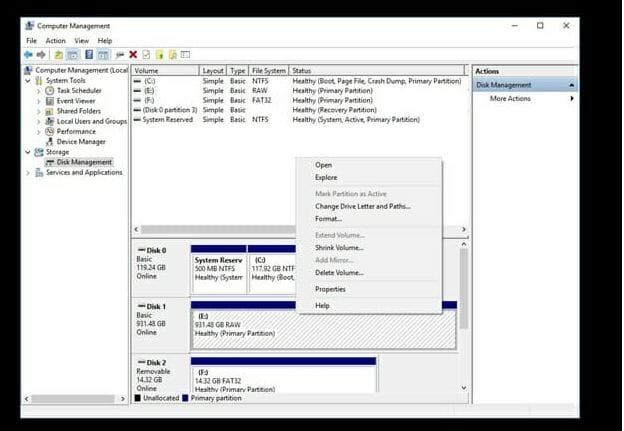
*1: You may receive the following message when you connect the disk: “you need to format the disk in drive (letter): before you can use it”. If this happens, you should follow these steps:
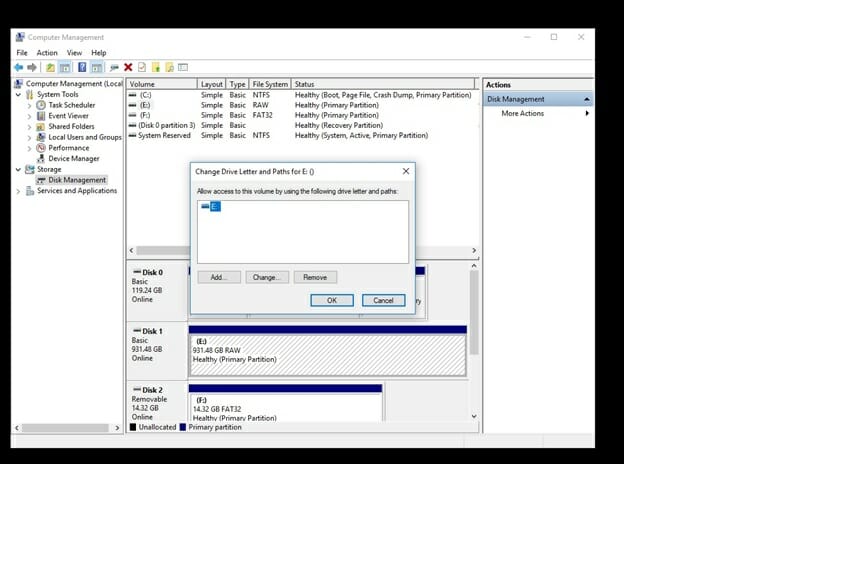
Windows 10: Move the cursor to the bottom left of the windows icon, right-click and select disk management. Find the external drive or usb stick that we connected, right-click on it and select “change drive letter and paths” and then “remove” and ok.