

In a previous post, we reported that Microsoft displayed advertisements within its Windows 10 operating system, calling them Windows Tips.
If you are using the Windows 10 operating system, and you find the ads – annoying tips below, we will see how you can disable them.
Open Settings.
Go to System -> Notifications & actions.
Find the option called “Get tips, tricks, and suggestions when using Windows” or “Show me tips about Windows.” Turn it off.
The tips will be disabled immediately.
Alternatively, you can disable this feature using the registry. You can disable the tips with a simple tweak:
Open the Windows 10 Registry Editor (in the search, type regedit and click on the icon that appears).
Follow the path:
HKEY_CURRENT_USER\SOFTWARE\Microsoft\Windows\CurrentVersion\ContentDeliveryManager
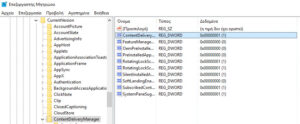
Edit the DWORD value SoftLandingEnabled. Set the value data to 0 to disable the tips. The default value is 1, which means tips are enabled.
You may then need to log out and log back in to Windows to see the changes.
