

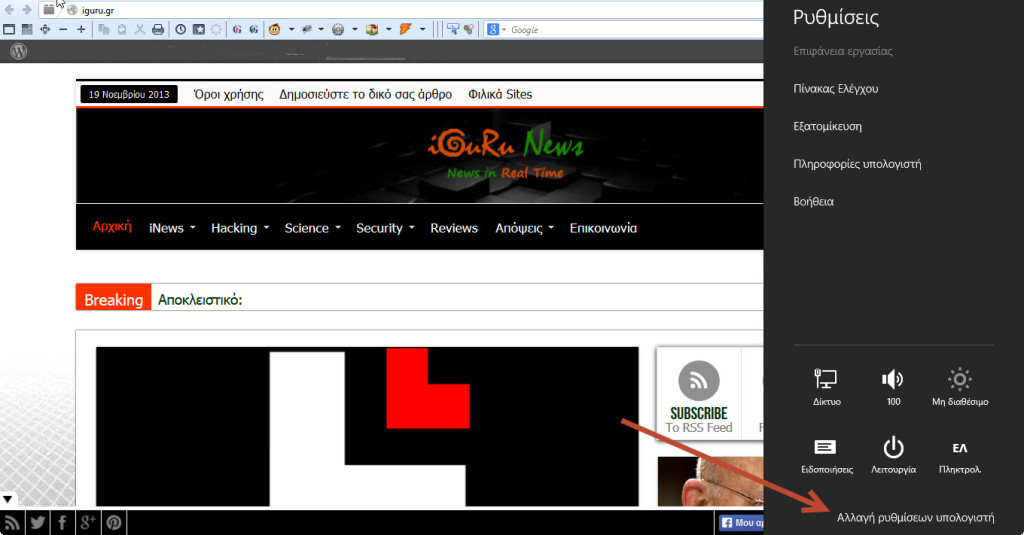
 Some users who have installed Windows 8.1 from the Microsoft Store are experiencing problems with the modern version of the Control Panel, specifically with the “Change PC settings” link located at the bottom right.
The problem has been confirmed by users who have addressed the Microsoft community forum , but the Redmond company has yet to provide a solution or at least provide more details about what is causing the problem.
Specifically, one of the users reports: “After updating to Windows 8.1 PC (from Windows 8) the “Change PC settings” link was not working. After I clicked on it, nothing opened and I landed on the start screen.
I tried through the administrator account but no luck. I am able to change the settings, (meaning it is not unrelated to Windows)” After several users tried various solutions, in one of the applications affecting Windows 8.1 with a similar problem they had discovered a command that fixes the problem and apparently fixes the broken “Change PC Settings” Link, for both desktops and tablets.
If you are also experiencing the problem, to fix it, you will need to open a command prompt window by right-clicking on the Start button and typing the following command:
powershell -ExecutionPolicy Unrestricted Add-AppxPackage -DisableDevelopmentMode -Register $Env:SystemRoot\ImmersiveControlPanel\AppxManifest.xml
No restart is required and the link to the Control Panel should work without any other issues.
