

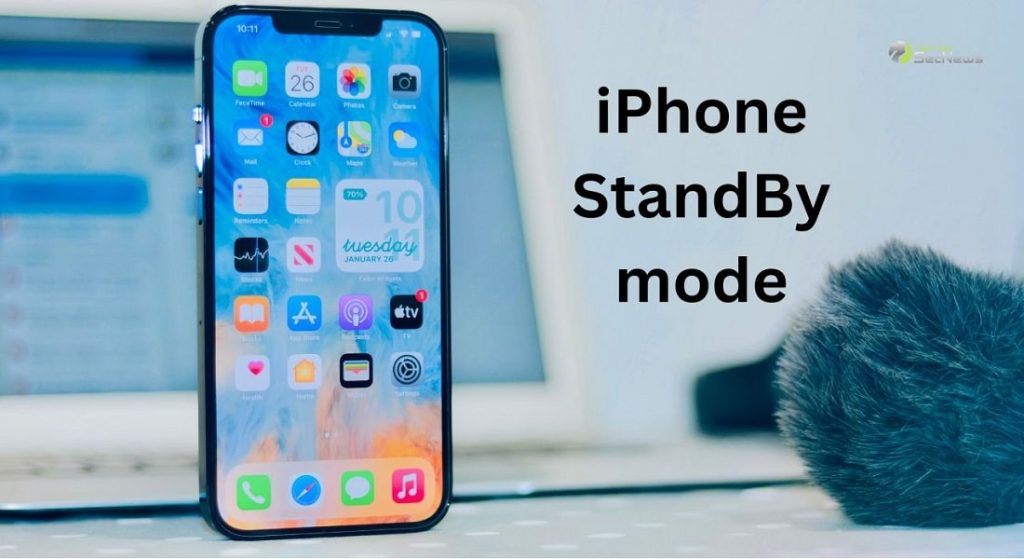
Standby mode is a new feature in iOS 17 that activates when you set iPhone aside to charge. If you're running the iOS 17 beta, here's how to enable and set up Standby mode.
How does StandBy mode?
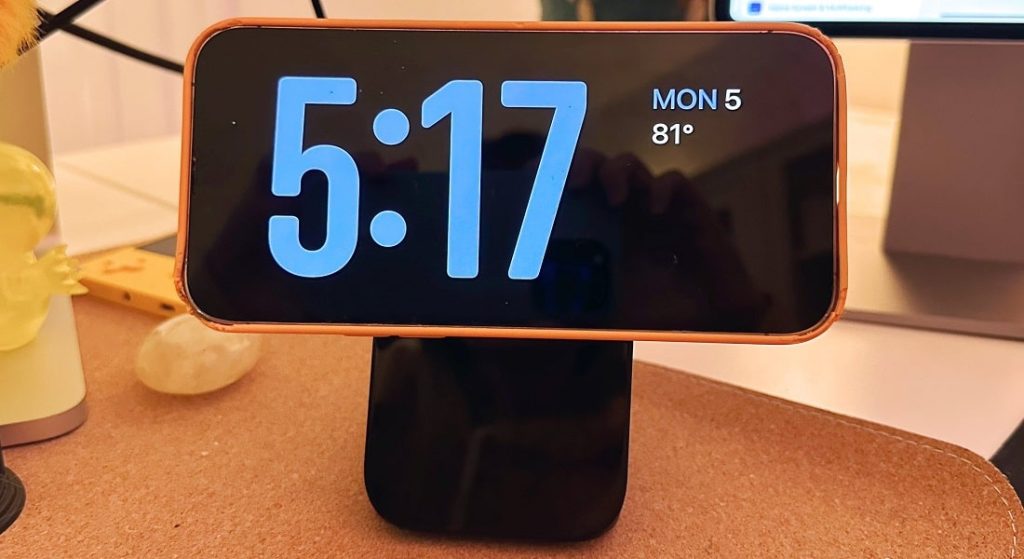
Standby mode was introduced with the iOS 17, which is currently available in public beta and is expected to be widely available in late September. The feature is enabled by default, so you don't need to do anything special to enable Standby mode. You just need to plug your iPhone into a power outlet to charge it and keep it on a stand. You may need to invest in a special stand or make one yourself to prop up your iPhone.
StandBy mode works on all iPhone models that are compatible with iOS 17.
See also: How to bulk edit photos on iPhone
Customize Widgets and StandBy settings
With StandBy mode active on your iPhone screen, you can swipe left and right to switch between three modes. The main modes are (from left to right): widget mode, Photos mode , and Clock mode.
The widget feature splits the screen into two widgets. You can swipe up and down on either side of the screen to switch widgets. Long-press a widget to add or remove widgets from the carousel.
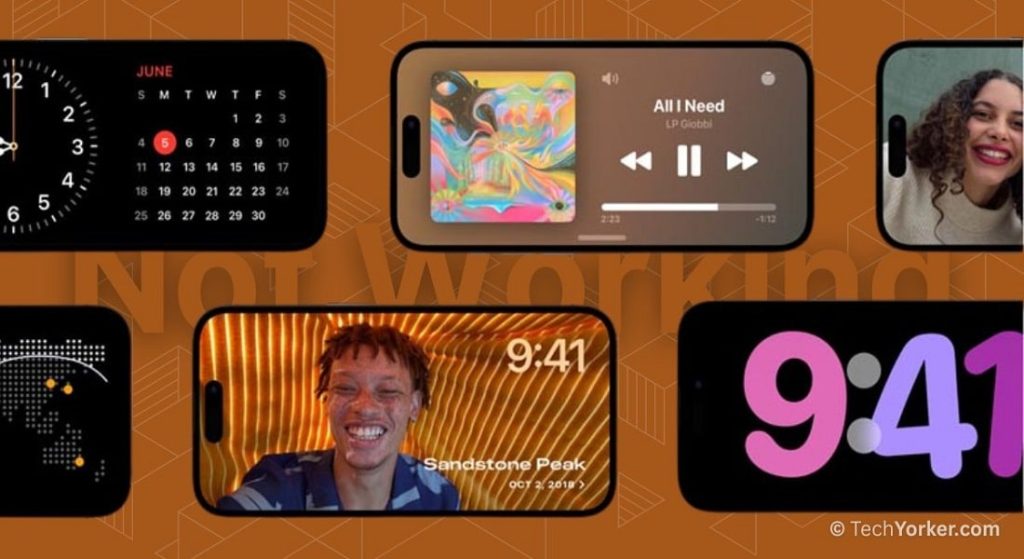
There are widgets for many iPhone apps, such as Weather, Notes, and Reminders. Third-party app developers can also display widgets here. When editing widgets, use the + button to add new ones, or tap the – button next to a widget to remove it.
Photos mode will only show images when your device is unlocked. You can long-press the screen, then tap the + icon to select albums.
Finally, with Clock mode you can swipe up and down to choose between different clock styles.
StandBy mode also displays information from notifications and “Now Playing” information from apps like Music.
See also: Can you do split screen on iPhone?
How to disable StandBy on iPhone?
If you don't want to use this new Apple feature on your iPhone, you can disable it.
Go to Settings > StandBy and disable “StandBy” from the list of options.
See also: How to make GIFs on iPhone?
To get the most out of StandBy mode on your iPhone, it's important to understand its various settings and features. The possibilities of technology are many, from displaying notifications and changing widgets to displaying photos and the clock. One thing is certain: Apple continues to emphasize adaptability and flexibility in the design of its features, offering users options that suit their individual needs and preferences.
Source: www.howtogeek.com
