


Nowadays, smartphones are an important part of our daily lives and have largely replaced many other devices, since they can do almost everything. The latest smartphones can also be used as a camera to take high-quality photos and videos, as manufacturers make sure to improve the camera systems and add new features. If you use an Android phone and often shoot videos, you may be interested in learning how you can edit (e.g. crop) these videos on your device.
See also: YouTube Shorts: How to create and upload a video?
In fact, there are several options for editing videos on your Android device, which are available in the pre-installed Google Photos. app This app is a very popular app that has video editing capabilities. Another similar app is Samsung 's Gallery . Here we will look at both.
Android: How to trim a video with Google Photos?
Google Photos comes pre-installed on many Android devices. If you don't already have it, you can easily install it by going to the Google Play Store. To get started, open the app and select the video you want to trim.
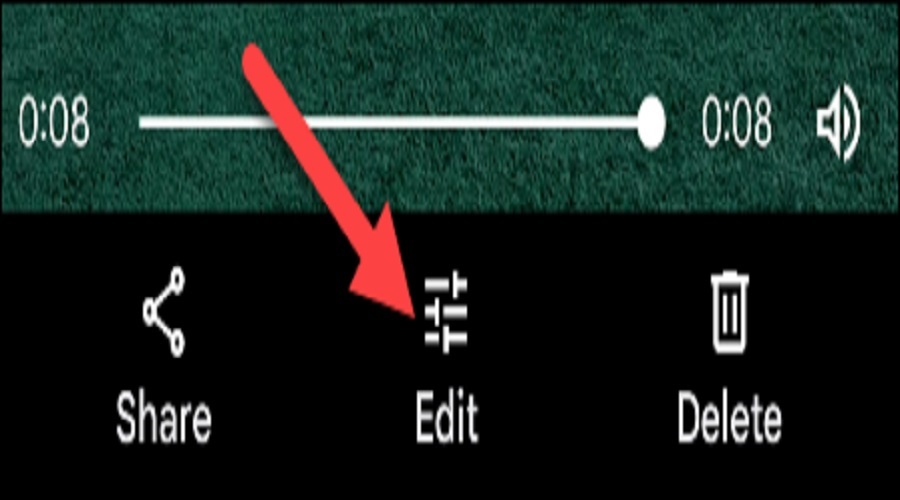
Tap on the video to display the controls and tap the “Edit” icon.
A timeline view of the video will appear with two “handles” on either end. Drag the handles to adjust the length of the video. Google Photos does not support removing parts from the middle of the video.
When you are done with the changes you want to make, click “Save Copy” to apply the changes. The original video will still exist.
You can do this with the Google Photos.
See also: How to create educational videos with RecordCast
Android: How to trim a video with Samsung Gallery?
Samsung Galaxy devices come with a “Gallery” app with some really good editing tools. Find the app on your home screen or app drawer and open it.
Find the video you want to edit and select it.
Click the pencil icon on the bottom bar to display the editing.
A timeline view of the video will appear with the familiar two “handles” on either end. Use your finger to drag the “handles” to adjust the length of the video. Samsung Gallery also cannot remove parts from the middle of the video.
See also: How to speed up a slow-motion video on iPhone

When you're done, tap “Save” in the top right to replace the video, or select “Save as Copy” from the three-dot menu in the bottom right.

That's it! Both of these methods are extremely easy to use. However, if you want to do some more advanced editing, you'll probably need to use a computer.
Source: www.howtogeek.com
