

Quality of Service (QoS) in a wireless network, such as WiFi, refers to the ability to prioritize specific devices on your network.

This helps manage your network load to ensure that certain devices or applications are prioritized and enjoy high- speed Internet access , even when the network is busy. This helps reduce latency and disconnection for important activities.
See more: IZ1H9 DDoS botnet: Mirai variant targets routers
When you enable QoS, you can specify which devices or applications will be prioritized. For example, you can prioritize a gaming device for online gaming or a Zoom chat to ensure high speed. Less important data, such as automatic software updates, can be given a lower priority so as not to affect the performance of more important applications.
This feature may be called different things depending on the router manufacturer, but the idea remains the same: You prioritize the devices and activities you consider important in order to ensure the best possible user experience on your network.
Quality of Service (QoS) is a tool that allows you to prioritize specific devices or activities on your network, giving them priority access to the Internet, even when the network is busy. This can help prevent lag and interruptions in activities like video calls, online gaming, and video streaming. However, Internet performance also depends on the speed of your connection.
It's important to note that while Quality of Service (QoS) can improve the prioritization of certain activities, it doesn't necessarily guarantee that devices will always have a reliable connection. Actual performance depends on the available internet speed at your home.
QoS prioritizes activities like video calling, online gaming, and video streaming, while email checking and receiving updates take a back seat.
How you use QoS depends on your needs and preferences. Each router has a different way of configuring it, but the idea is to ensure that your important activities always have priority on your network.
How to prioritize devices on a WiFi network with QoS
To prioritize devices on a WiFi network using QoS, you will need to adjust the settings on your router. While each router may have a different way of configuring QoS, below is an example with two different routers:
Google Nest Wi-Fi Router:
- Install the Google Home on your phone.
- Open the Google Home app and go to Settings.
- Select “Favorites” and then “Wi-Fi.”
- You will see a list of devices connected to your network. Select the device you want to prioritize.
- Select “Device Priority” and specify the duration of the priority.
- Click “Save” to apply the changes.
See more: D-Link WiFi: Vulnerable to command injection attacks
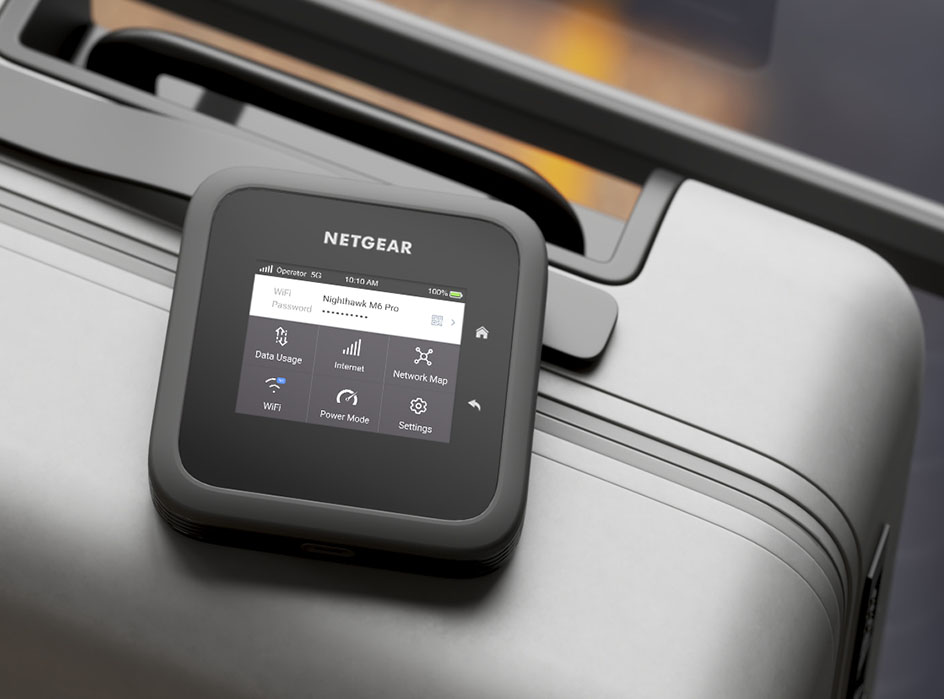
Netgear router:
- Open a web browser and navigate to routerlogin.com.
- Log in using your router's administrator credentials.
- Find the QoS (Quality of Service) settings. On Netgear, this can be found in the “Advanced”, “Setup”, and “QoS Setup” menu.
- Select “Upstream QoS” and then “Setup QoS Rule.”
- Add a priority rule. You can select activity types such as “Online Gaming,” “Applications,” “Ethernet LAN Port,” or “MAC Address.”
- Set the priority for the device or activity type.
- Save the changes.
It is important to note that settings vary depending on each router, so you may need to read the instructions that came with your router to find the QoS setting.
Source: popsci.com
